

WordPress alt text not updating? Fix the image on the page
Fix the gap between an image's Media Library description and its text on an existing WordPress page, with a concrete project-photo example and public verification.
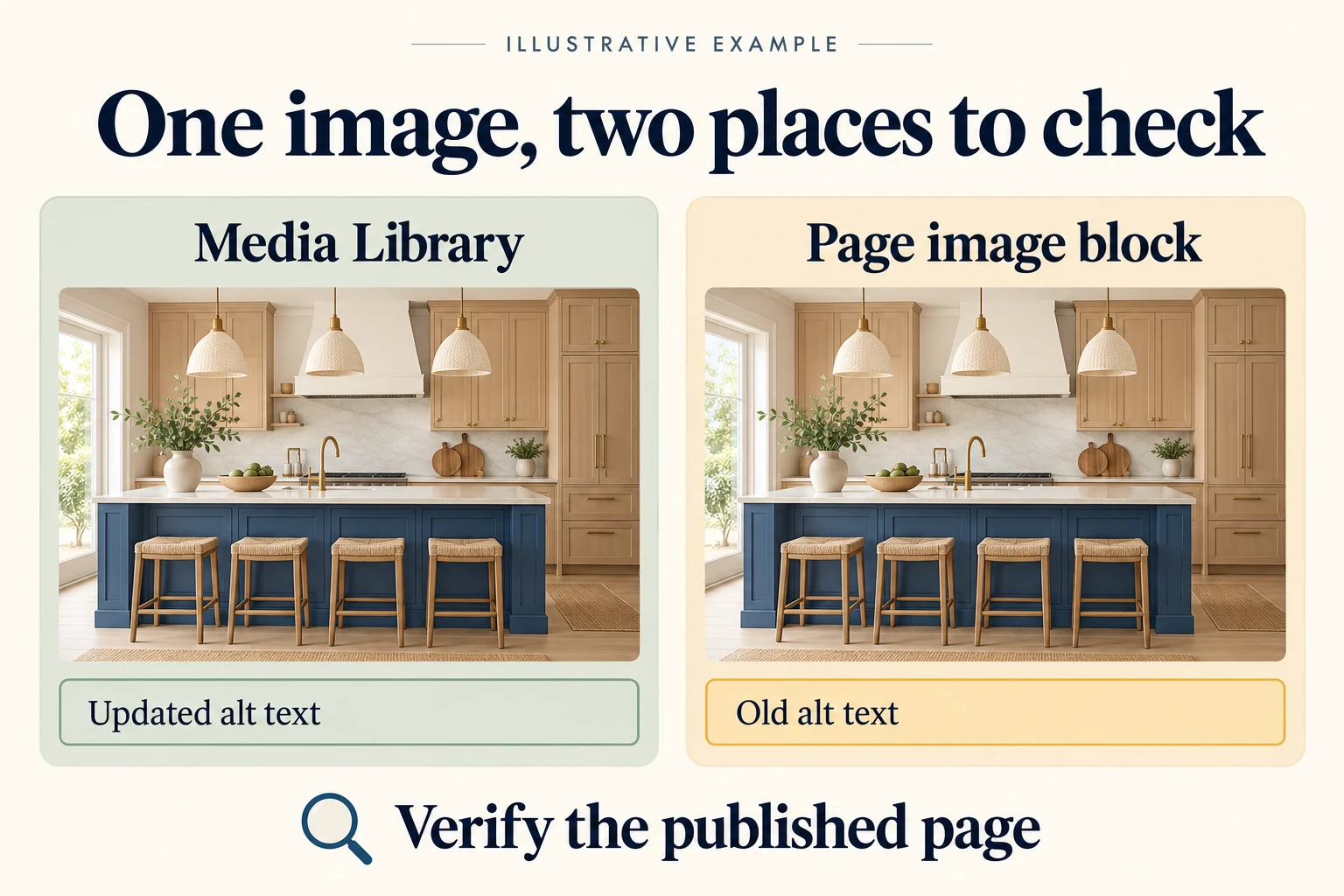
You change an image’s alt text in the WordPress Media Library, save it and open the service page where that image appears. An accessibility check still finds the old wording. The photo looks fine, so it is tempting to keep clearing the cache.
Check the image inside the page editor first. An existing Image block can hold its own alternative text. Updating the library entry does not establish that this particular block changed. The practical fix is to locate the image instance, correct its text where it is stored and verify the published page.
Why the Media Library and page can disagree
WordPress’s Image block documentation distinguishes two uses of alt text: the Media Library supplies a default when an image is inserted, while an edit in a block’s settings applies to that image on that page or post. An image already placed on a page may therefore retain different wording.
The same file can also appear through a theme template, a gallery or a page builder. Those uses need their own inspection. A featured image generated through WordPress’s attachment-image function, for example, can take its default alt text from the attachment record, although supplied attributes and filters can change the output.
| Image use | What to inspect |
|---|---|
| Media Library item | The selected attachment’s alternative text |
| Image block in a page | The alternative text saved for that block |
| Theme, gallery or builder output | The rendered image and the component supplying its attributes |
This distinction matters when one project photograph appears on your home page, a service page and a portfolio entry. Checking one library field tells you about the attachment. Checking those three pages tells you what each visitor receives.
Work through one real page and one image
Imagine a fictional Chicago remodeling company whose kitchen-project page contains a photograph of light wood cabinets around a blue island. The old alt text is “kitchen-final-2.” Someone updates the Media Library to “Blue kitchen island with four stools and light wood cabinets,” but the existing page block keeps the filename-like description.
The replacement gives useful visual detail without claiming a wood species, countertop material or project location that the image alone cannot establish. If the business wants to identify the actual project, it can supply that verified context in the surrounding copy or caption.
Open the affected page in the block editor, select that image and inspect its Alternative text setting. Correct the block’s wording, save the page and check the public URL. If the media default also needs correction, update that separately. Keep the original image and its placement; this text change does not require uploading another copy.
Before editing, confirm that you have the right attachment. Similar photos, alternate crops and repeated filenames can make a visual match misleading. Compare the attachment ID or file URL with the image used on the target page. A correction to a different upload will not fix the image you are inspecting.
Use Niwa to complete the targeted correction
Niwa’s Website Maintenance Agent can handle this as a specific content repair. Its current tools can inspect a selected media item’s alt text and other metadata, read a WordPress page’s stored content, update the attachment’s alt field and edit supported native page content. Those are separate operations, which is exactly why a library-only update can leave work unfinished.
For the fictional remodeling site, the job has three concrete parts: identify the kitchen photograph on the named project page, correct the relevant attachment and page-instance text, and check what the published page delivers. The resulting work should identify the page and image changed and the final alternative text, with any unresolved use of that image clearly noted.
A page built with an external gallery or custom component may store its image settings elsewhere. Niwa needs the supported editor or authorized tools for that structure. Updating ordinary page content is not evidence that a builder setting or shared template changed. Keep the repair tied to the actual source of the affected image.
The benefit is a corrected description on the business page customers use, with a record of what changed. A batch of proposed descriptions, or a successful metadata save by itself, does not demonstrate that outcome.
Choose alt text for the image’s job on that page
An informative project photograph needs text that conveys its relevant visual information. An image that is the only content of a link needs to communicate the destination or action. A decorative flourish may need no spoken description. The W3C image decision tree helps distinguish these cases.
For our kitchen-project photograph, the island and cabinets are relevant because the page presents that work. A repeated background texture behind a heading serves a different purpose. Treating every empty alt field as an error can add unnecessary narration to that second case.
W3C’s guidance for decorative images calls for an empty alt attribute, alt="", where appropriate. That differs from omitting the attribute: some screen readers may announce a filename when no alternative is provided. Decide from the image’s context before filling a field automatically.
Avoid turning the kitchen description into “best Chicago kitchen remodeling contractor near me.” It says little about the photograph. Also avoid adding “solid oak,” “marble” or a client’s neighborhood unless those details are established. Specific, accurate words are more useful than a list of search phrases.
Verify the published result, including repeated uses
Open the public page in a fresh browser session after saving. Inspect the actual image element and its alt attribute, or use an accessibility inspection tool that reports the image’s text alternative. A visible caption or a label in the Media Library is not the same evidence. WordPress represents alt text, caption and description as separate media fields.
If the old value remains, compare the page editor with the rendered output. An unchanged block points back to the content edit. A correct saved block with old public HTML may involve caching. A different image URL may mean another attachment or component is being displayed. Establish which case you have before repeating the same fix.
For the fictional project, check the portfolio page first, then the home-page feature if the same photograph appears there. The descriptions do not have to be identical when the context differs, but each should be intentional. A linked home-page thumbnail may need to communicate the project destination; the larger portfolio image may describe the work itself.
Include the mobile version if the layout loads a different image or markup. A successful desktop check does not settle what a separate mobile component outputs. Record the URLs checked and any image uses you have not yet examined.
Handle a larger image backlog without losing context
Start with the pages that explain your services and show your work. Group images by their actual use, then correct a small, identifiable batch. Keep the page URL, attachment ID, old text, new text and public-check result together. That makes it possible to distinguish a completed repair from a library entry that still needs a page update.
Dedicated products also address this work. The AltText.ai WordPress plugin documents automatic generation for uploads and bulk generation for existing media. Its current listing also describes refresh behavior for supported content and builders. When comparing approaches, check the image uses you actually have and whether the published instances receive the intended wording. A generation feature alone does not answer that question.
For a focused Niwa demo, bring a page where the image description is wrong and the exact image you want corrected. During your Niwa demo, Aleksandar covers the license and AI usage. There is no obligation to buy.

