

How to Set Up Appointment Booking on WhatsApp
Set up direct WhatsApp appointment booking with Niwa. Configure services and calendars so customers can choose a time and reserve it in the conversation.
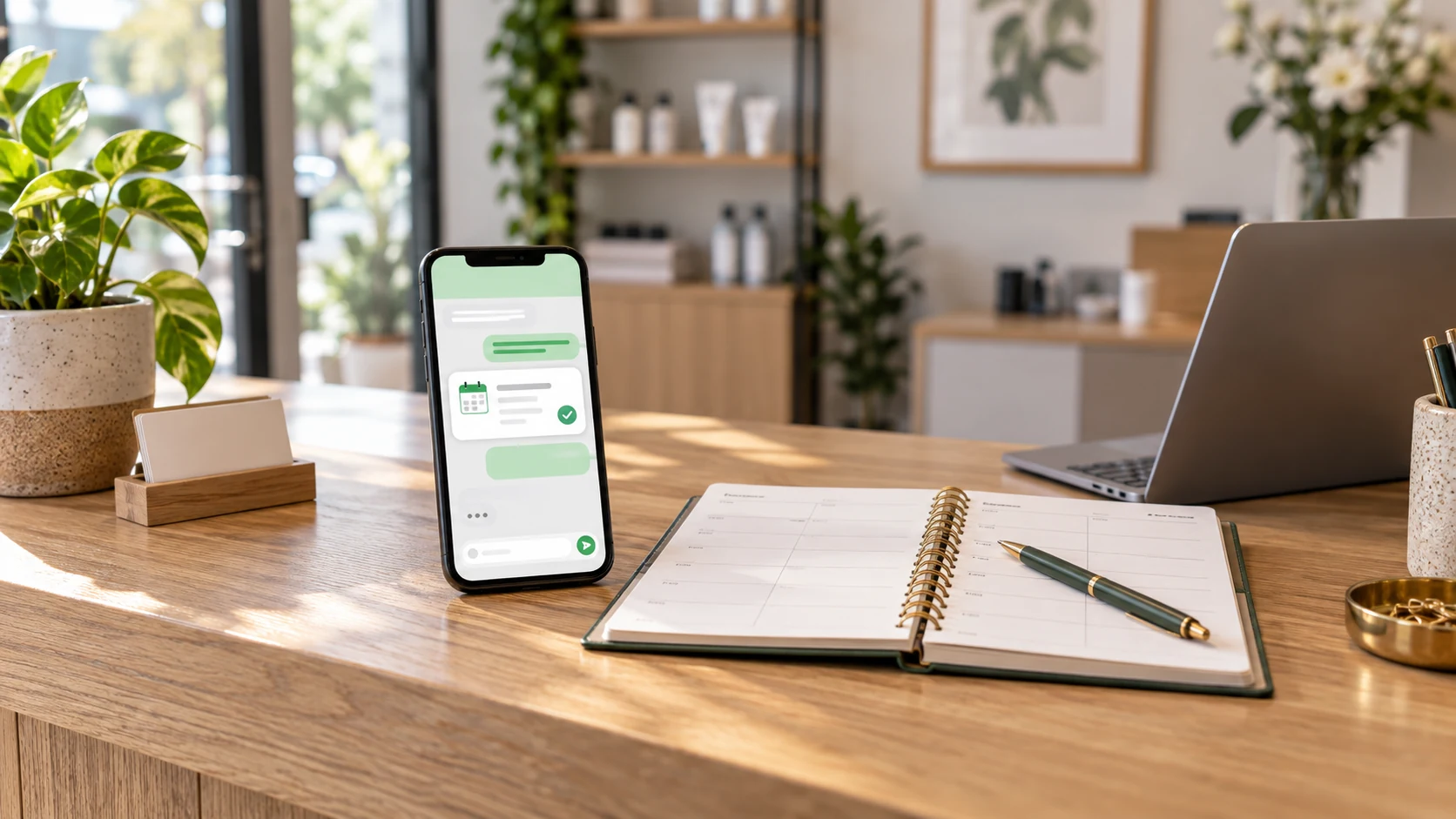
To set up appointment booking on WhatsApp with Niwa, configure your services, staff availability and booking rules, connect your business WhatsApp number and connect the customer agent to the booking workflow. Niwa uses your website’s business context to answer questions, checks the connected availability and records the appointment the customer confirms in the conversation. The customer can complete the booking directly on WhatsApp.
For example, a customer asks about a consultation on WhatsApp, chooses one of the available times Niwa offers and provides the required contact details. Niwa records the confirmed reservation and replies with the appointment details. Your job during setup is to provide accurate service information and connect the calendar and booking actions that make this conversation useful.
What to prepare
Have these details ready before configuring booking:
- Your services, their duration and any time needed between appointments.
- The staff members who can provide each service.
- Working hours, breaks, holidays and minimum booking notice.
- The business timezone and appointment location.
- Customer details required to make a booking.
- Your existing calendar and cancellation policy.
Start with one service and one staff member. Once that booking path works, add the rest of your schedule.
1. Add Niwa to your WordPress website
If you already have WordPress, you can install the standalone Niwa AI plugin. You do not need a replacement website to use it.
Set up Niwa with your business information, including service descriptions, prices where relevant, opening hours and answers to common customer questions. This gives the assistant the context to help someone choose an appointment before asking them to book.
If you need a website or want to move an existing site to WordPress, Niwa Business includes that route. The website and booking setup can then be planned together.
2. Configure services and appointment rules
In Niwa’s booking setup, define each service and its duration, then assign the staff members who provide it. Add their bookable hours and schedule exceptions. Include any required buffer between appointments.
A 30-minute consultation and a 90-minute session need different slots. If only one team member provides the longer service, that person’s availability must determine when it can be booked.
Keep service descriptions clear enough for customers to distinguish them. When a WhatsApp request is ambiguous, Niwa can clarify the service before checking times and completing the booking. Test the languages your customers use as part of setup.
The Niwa booking agent brings service selection and staff availability into the booking workflow.
3. Set the calendar that controls availability
Niwa can maintain appointments in its own booking schedule. Connect Google Calendar when your staff use it for other commitments or need appointments to appear there.
For a team, match each staff member to the correct calendar. Decide which commitments should block appointments, and check that the business timezone is consistent across the schedule and any connected calendars.
Test this with an existing busy period. Ask for an appointment on WhatsApp and check that Niwa offers another available time rather than a slot that conflicts with that commitment. Also check a holiday or a day with different working hours.
4. Connect your WhatsApp number to Niwa
Connect the business WhatsApp number through Niwa’s WhatsApp setup and enable customer replies for that channel. Send a message from a separate customer account to check that the conversation reaches Niwa.
Give the WhatsApp AI agent your website’s service and business context, and connect its customer booking workflow to the configured schedule. A customer can ask about a service, compare available times and confirm a reservation in the same conversation.
Keep customer booking access separate from owner administration. A customer can reserve an appointment without receiving permission to edit your website, change prices or manage another customer’s records. Use the Niwa setup guide for the installation, channel and access settings.
If you are connecting a number already used in the WhatsApp Business app, check the number’s connection arrangements before changing how your team uses it.
5. Test a complete booking inside WhatsApp
Run through the journey as a customer:
- Ask Niwa about a service on WhatsApp.
- Ask for available times for that service and choose one in the conversation.
- Provide the customer details required for the reservation.
- Confirm the service, selected time and any relevant staff preference.
- Check Niwa’s confirmation in WhatsApp and read back the saved appointment in the booking records.
The booking workflow needs to check availability when it saves the appointment. A slot offered earlier in the conversation may have been taken by someone else in the meantime. Niwa should then explain the conflict and offer a valid alternative, rather than confirm an appointment that was not saved.
The booking confirmation should follow the saved appointment and include the service, date, time, timezone and location. If a notification fails to arrive, check the booking record before retrying. Resending a notification should not create a second appointment.
Example: booking a consultation
Suppose your business offers 60-minute consultations, with a 15-minute buffer afterward. This is an illustrative conversation:
Customer: Can I book a consultation on Friday afternoon?
Niwa: Consultations last one hour. Friday has appointments at 14:00 and 15:30, Europe/Belgrade. Which time would you like?
Customer: 14:00, please. My name is Alex Morgan and you can use this number for the appointment.
Niwa: Shall I book the 60-minute consultation for Friday at 14:00, Europe/Belgrade, using those details?
Customer: Yes, please.
Niwa: Your consultation is booked for Friday at 14:00, Europe/Belgrade. Booking reference: EXAMPLE-123.
Niwa’s final reply follows the saved reservation. In this example, the consultation runs from 14:00 to 15:00, with the staff member’s next bookable time no earlier than 15:15. The times and reference illustrate the workflow; your real conversation must use the connected schedule and resulting booking record.
Use a similar test with your actual services. Complete the conversation on WhatsApp, then inspect the recorded service, staff member, start time, timezone and customer details. A website booking page can remain available as another way to book, but the WhatsApp workflow does not require the customer to visit it.
Check the setup before customers use it
A successful test booking is the starting point. Also check that:
- A busy period and a holiday are unavailable.
- Two customers requesting the same remaining slot cannot both book the same staff member.
- A message received after closing can complete a reservation for a time within your bookable hours.
- An unclear service request prompts clarification.
- The appointment appears in the correct connected calendar, where one is used.
Keep confirmations, timed reminders and customer changes distinct when planning your messages. For automated WhatsApp messages sent outside the 24-hour customer service window, use approved templates. WhatsApp provider documentation explains this requirement.
Troubleshooting a booking test
| What happens | What to check |
|---|---|
| No suitable times are offered | Service duration, assigned staff, working hours, buffers and calendar conflicts |
| The time appears wrong | Business timezone and the connected calendar’s timezone |
| The customer receives no confirmation | First check whether the booking exists, then review message delivery and template status |
| An appointment is missing from Google Calendar | Check the saved Niwa record and the calendar connection before creating it again |
These checks separate scheduling problems from message delivery problems and help you avoid duplicate appointments while troubleshooting.
Do you need a new website for WhatsApp booking?
No. Existing WordPress owners can use the standalone Niwa AI plugin and configure it around their business.
For a new website or migration, Niwa Business is USD 150 and includes a custom WordPress website or migration, hosting, maintenance and AI tools adapted to the business. For an appointment-based business, the setup starts with your services, availability and customer booking journey.
You can also use your own supported AI subscription. Niwa adds no AI usage charges or Niwa-imposed usage limits on that supported connection; the underlying provider’s limits still apply. Confirm the selected connection and any WhatsApp provider or channel charges as part of your setup.
A website built with AI describes how the site was created. An AI-powered website uses AI after launch to answer business questions and complete connected tasks. Niwa brings that website and business context into WhatsApp booking and sales conversations, as well as customer assistance on the website.
Set up WhatsApp appointment booking with Niwa. Tell us which services you offer, how many staff members take bookings and which calendar you currently use.

