

How to Add Relevant Product Recommendations to WooCommerce
Choose the right kind of recommendation, connect products for a documented reason and verify what shoppers see in your theme and cart.
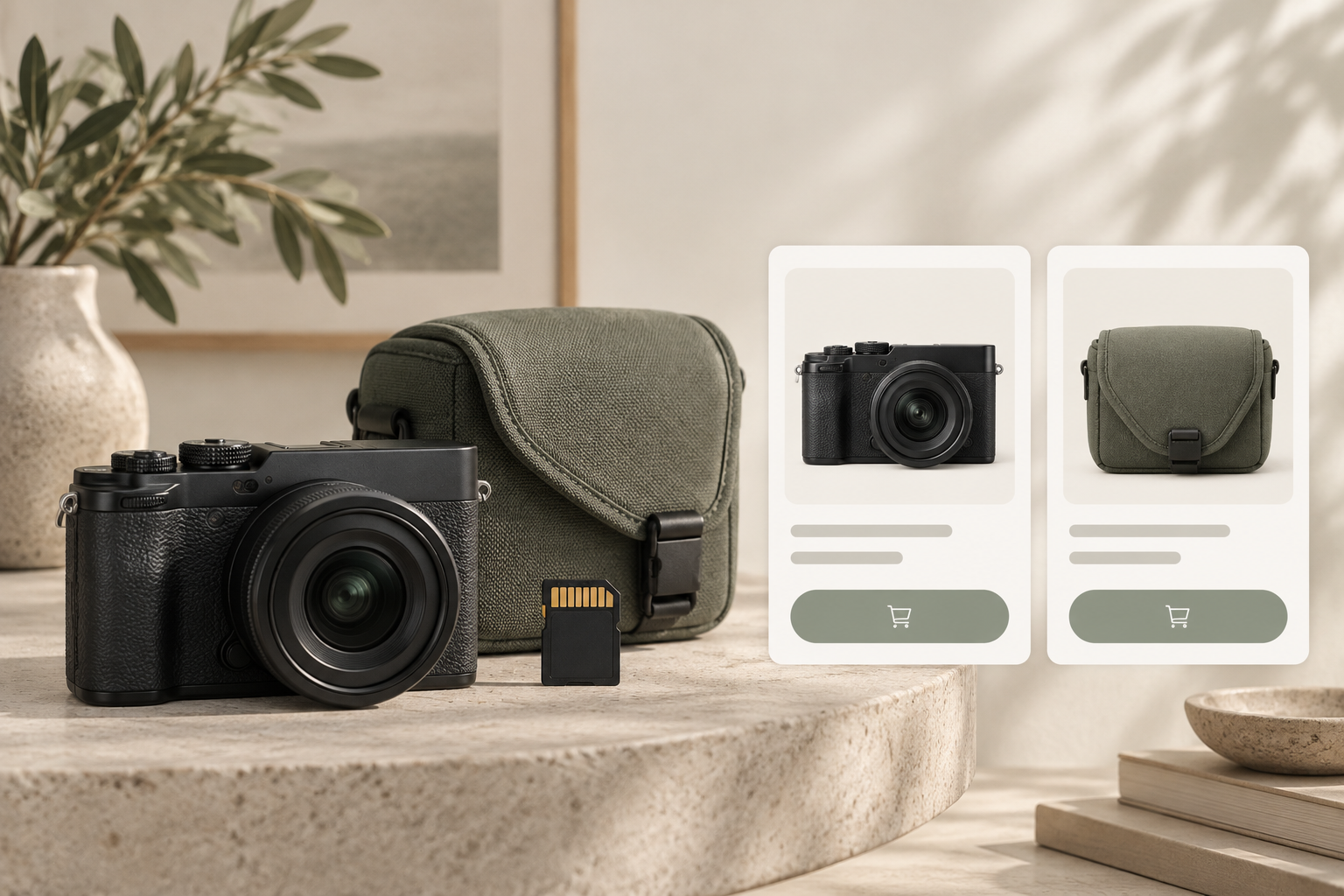
Add relevant product recommendations to WooCommerce by choosing products with a documented relationship, saving appropriate upsell or cross-sell links, and checking their storefront placement. Keep automatic related products separate: WooCommerce generates those from shared categories and tags rather than from your manually selected links.
Niwa's storefront assistant can use catalog context and customer questions to help explain these choices. The customer still needs accurate product attributes, a suitable available variant and a clear way to continue shopping.
Decide which relationship you are recommending
An upsell is an alternative to the product being considered. A camera with a documented feature the customer needs may be an appropriate upgrade. A protective case is a cross-sell because it complements the camera rather than replacing it.
Related products are a broader automatic selection. Sharing a category does not prove that two items work together. A camera case in the same accessories category may still have the wrong dimensions for the selected camera.
Write the reason for every important relationship before entering it into the store. A usable reason names the fit or task: the case accommodates the specific body and lens combination, or the memory card meets the documented requirements. If that information is missing, confirm it before promoting the accessory.
Prepare product data that supports the choice
For a small group of commonly purchased products, check descriptions, attributes, images, prices and stock. Include model identifiers, dimensions and required specifications where they matter. For variable products, make differences between variants clear.
Avoid relying on one vague sentence such as suitable for all cameras. A shopper choosing a particular variant needs information that applies to it. Product links should be maintained when specifications or stock change.
For automatic related products, review category and tag organization. Broad or inconsistent classifications can produce an unhelpful selection. Changing tags to influence related products should still leave the catalog useful for navigation.
Save manual product links
In the classic WooCommerce editor, open Products and edit the main item. In Product data > Linked Products, search for the appropriate products in Upsells or Cross-sells. Select them and update the item. The block product editor may expose equivalent fields in its sidebar.
The official linked-products guide documents these controls and explains that output depends on the theme. A saved relationship is not proof that customers see it in the right place.
Inspect the single product page for upgrade choices and the cart for complementary items. For a block-based store, inspect the actual template and product collection used. Do not add custom code merely because the first preview does not show a recommendation; first confirm the store's existing template supports that output.
Show a small selection with an explanation
Use enough products to meet the customer's need, without padding the section to a fixed count. If one accessory is genuinely relevant, it can stand alone. Show the product image, current price and a reason it belongs with the selected item.
Keep alternatives where customers are still deciding. Once someone has chosen a camera and is reviewing the cart, several replacement cameras may restart the decision. A fitting case or necessary accessory is usually easier to evaluate at that point.
Baymard's cart research supports treating relevance and placement together. A relevant item can still become distracting when the layout makes the cart difficult to review, especially on a small screen.
Test the recommendation in a Niwa conversation
After the catalog and links are ready, test representative questions in the connected Niwa installation. Ask about a customer's intended use, a specific variant and an accessory that should fit. Verify the returned product against the actual catalog.
The assistant should explain the relationship using available facts. If a shopper already owns a compatible accessory, continuing without another purchase is a valid outcome. If a specification is absent, the useful next step is clarification or human help.
Use the supported product controls to select a variant and add the requested item. Check the resulting cart rather than assuming a conversational response completed the action. See Niwa's product selection workflow.
Diagnose missing or incorrect output
When a recommendation does not appear, check that the link was saved, the suggested product is visible and purchasable, and the active template supports the relevant output. Review caching if the public page differs from the saved configuration.
If the wrong variant appears, check its attributes and selection controls. If an unrelated product appears, establish whether it came from manual links, automatic related products or another recommendation extension. Fix the responsible source rather than adding a second competing widget.
Test on a phone, including add, remove and unavailable-item cases. Then measure recommendation exposure, accepted additions, completed orders and returns. Clicks alone do not establish that recommendations improve sales.
Existing WordPress stores can use the standalone Niwa plugin. Contact Niwa with the product and accessory relationship you want customers to understand.

