

How to Transfer a Joomla Website to WordPress
Transfer Joomla articles and media to WordPress, rebuild menus and extension features, and test old URLs and access rules before launch.
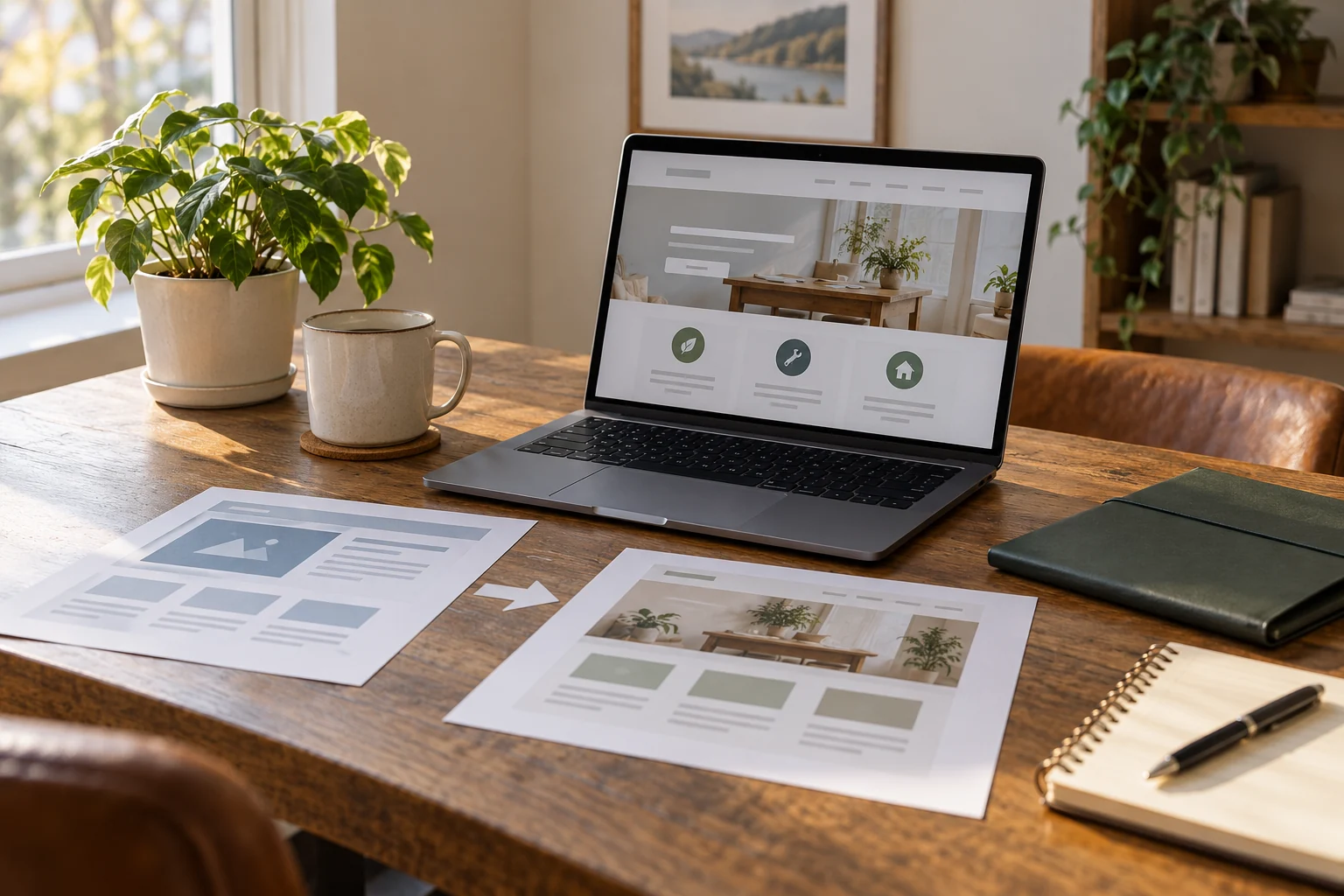
To transfer a Joomla website to WordPress, build a separate WordPress installation, import the content and media with a compatible migration tool, and recreate the Joomla template, menus and extension features. Validate permissions and internal links, map old URLs to their destinations, then switch the domain after functional and mobile checks pass.
A Joomla article can become a WordPress post or page. A Joomla module, form, directory or membership feature needs a working WordPress replacement; importing its text does not reproduce the feature.
Plan the transfer with Niwa Business
Niwa Business is USD 150 and includes a custom WordPress website or migration, hosting, maintenance and AI adaptation. Agree the articles, media, extension content, languages and access rules included in your Joomla transfer.
After migration, Niwa can answer visitors' questions using your maintained business content, while the authorized owner can use supported WordPress content-editing workflows. See how Niwa works when deciding which process to configure first. If WordPress is already built, you can install the standalone Niwa AI plugin on that site.
Inventory Joomla content and extensions
Record the Joomla version, database connection details and custom changes. Back up the database, media and configuration securely. Keep an archive outside the live site and confirm how the old installation can be restored.
List categories, articles, published states, menus, aliases, languages and users. Add content managed by extensions such as a directory, event manager, forum or download library. Record forms and their destinations, including the email or external system receiving submissions.
Identify the pages that are intentionally private. A member-only article must not become a public WordPress post by accident. Map the source access groups to explicit destination permissions and test with the corresponding user roles.
Decide which items become pages and posts
Use WordPress Pages for evergreen destinations such as services and contact details, and Posts where you need a dated publication stream. WordPress's page documentation explains the page structure. Keep a written source-to-destination map for unusual content.
Consider a local service website with a service page and a news category. The service page should keep a stable navigation destination; the news articles can belong in a post archive. Several Joomla menu items may point to the same article with different routes, so the article ID alone may not identify every URL that needs attention.
Choose the destination language setup and content structure before importing the full archive. Decide which old content is current, which belongs in an archive and which can be retired with an appropriate destination or removal response.
Run a controlled content import
FG Joomla to WordPress documents article, category and media import. Its Premium list includes additional users, menus and custom-field capabilities, while extension-specific content may need an add-on. Check your Joomla version and the exact content feature before selecting an edition.
On protected WordPress staging, install the importer and open Tools > Import > Joomla (FG). Enter the source connection and site URL from your actual Joomla configuration, then test the connection. Arrange a restricted connection or separate database copy if the hosts cannot communicate safely.
Import a sample containing a typical article, an image gallery, an unpublished item and any restricted content. Confirm that the source remains intact. Avoid destructive destination reset options unless you are deliberately working on a disposable, backed-up staging installation.
Inspect the importer logs and stable source records before retrying a partial import. A failed run can leave some items behind; starting everything again without understanding its resume rules can create duplicates.
Rebuild the template and module behavior
Choose or develop a WordPress theme and recreate the layouts that matter. Joomla templates and modules do not run directly in WordPress. Build reusable headers, footers and navigation in the destination system rather than placing a full page wrapper inside every imported article.
Replace forms, directory functions, search, events and membership behavior with supported WordPress implementations. Define what happens after a successful form submission and test the actual email or stored record. A button displaying correctly is not proof of delivery.
Rebuild menus from the destination map. Check dropdowns, mobile navigation, category views and any item that pointed to a Joomla component instead of a single article. Transfer useful downloadable files and verify that their access restrictions still apply.
Check media, authors and permissions
Confirm that images load from the destination, including galleries and files inside article bodies. Check alt text, captions and links to PDFs. Inspect whether a featured image was selected correctly rather than assuming the first image is always suitable.
Map authors to the appropriate WordPress accounts. Decide whether customer or member accounts need migration and how login or reset will work. Do not turn every source user into an administrator.
Test public, member and editor views separately. Verify that unpublished source items remain unpublished and that private content is excluded from public navigation, search and the visitor assistant's knowledge sources.
Map Joomla URLs before switching the domain
Build a list from menus, important landing pages and the source sitemap. Include article aliases, category routes, language paths and meaningful parameter-based links. Map each changed URL to the correct new page, then test permanent redirects without loops or chains.
Update internal links to their final WordPress URLs. Check canonical metadata, titles, descriptions and the new sitemap. Keeping the domain does not by itself preserve every path or guarantee unchanged search visibility.
Before launch, transfer any content edited since the first import. Verify forms, search, downloads, navigation and mobile layouts. Keep the previous environment and backups for the agreed rollback period.
Configure a useful visitor and owner workflow
For the service-site example, configure Niwa with the migrated service descriptions, opening hours and contact rules. Ask a visitor question and verify the answer against the published pages. With booking connected, Niwa can use that business context to offer available appointments and complete the reservation directly in a WhatsApp conversation. The website can provide a booking flow too. Check that the chosen service and time are saved in the booking record before confirming the reservation to the customer.
In the authorized owner workspace, request a change to a specific service description, review the saved page and check the public result. This operational AI setup is separate from using AI to help build the WordPress design.
Contact Niwa with your Joomla version, extension list and examples of private or complex content. Agree the scope and acceptance checks before the transfer begins.

