

WooCommerce variation stock: update the right inventory record
Follow a medium-shirt stock correction from a physical count to the exact WooCommerce variation. Choose the inventory level, review the Niwa update and check the shopper's selected option.
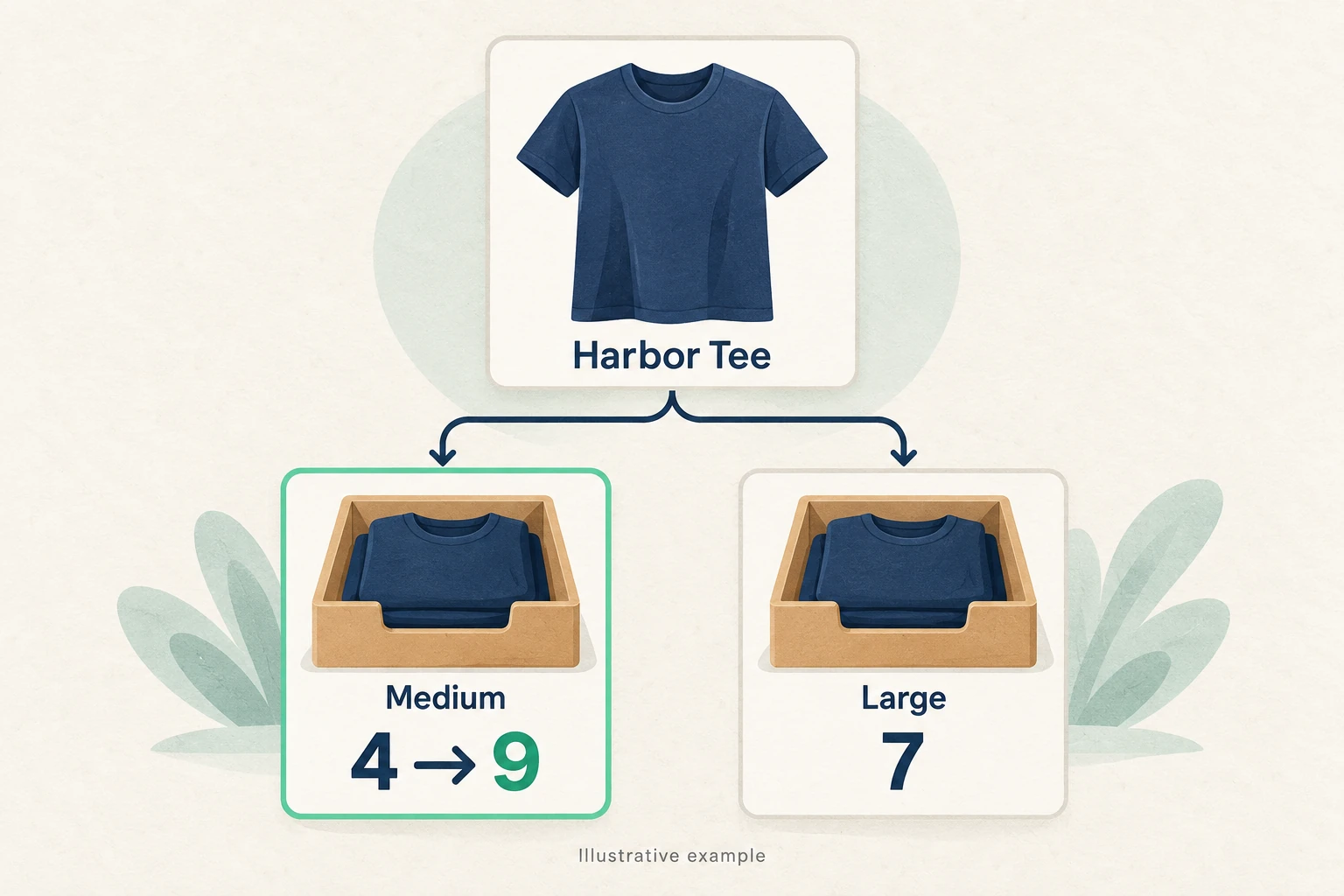
Your team counts nine medium navy T-shirts on the shelf, but WooCommerce still shows four. The large size has seven, which everyone agrees is correct. Someone asks you to “fix the stock,” and the product editor presents a quantity on the parent product as well as settings for each size.
Which number should change? For WooCommerce variation stock, start with the record that controls inventory for the option you sell. Once that is clear, Niwa can help identify the exact variation, prepare a specific quantity update and read back the saved result.
The Harbor Tee example below is fictional. Its product IDs, SKUs and quantities are included so you can follow the decision from a stock count to a finished correction, then adapt it to your own catalog.
Choose the inventory level that matches your stockroom
A parent product holds the listing and connects its variations. WooCommerce lets those variations share a quantity on the parent, keep their own quantities, or use a mixture of the two. A variation with its own stock management uses its own count. Other variations can draw from the parent’s count when parent stock management is enabled. See the WooCommerce variable-product inventory guide.
Make that choice around what the business actually holds. Medium and large shirts occupy different bins. Selling a medium should use a medium. By contrast, two offers for the same physical notebook, one with a downloadable guide included, could draw from one pile of notebooks. The extra file does not create another physical unit.
A mixed setup needs a clear reason. A premium boxed notebook might have its own count while the two ordinary notebook offers share the parent count. Write down which options use each pool before anyone edits quantities.
In WooCommerce’s underlying variation stock behavior, a child can inherit its reported quantity and backorder policy from the parent. A quantity shown beside an option therefore needs context. Ask which record owns that quantity before treating it as a separate bin.
Find the settings before changing them
In the standard WooCommerce product editor, open Products, choose the variable product and inspect Product data. The Inventory panel contains parent stock settings. The Variations panel lets you expand an individual option and inspect its Manage stock setting, quantity and backorder choice. WooCommerce’s product-editor settings guide explains these controls.
Record the parent ID, the variation ID and the full size and color combination. Give the variation a moment of attention even when the product name looks familiar: Harbor Tee in navy, medium is a different item from Harbor Tee in navy, large.
For our example, the owner has chosen separate inventory for each size. Stock management is already enabled on both variations, and neither allows backorders:
| Record | Before the correction |
|---|---|
| Harbor Tee, parent ID 4000 | Parent stock management off; quantities kept by size |
| Navy / Medium, variation ID 4001, SKU HARBOR-NV-M | 4 units; separate stock management on |
| Navy / Large, variation ID 4002, SKU HARBOR-NV-L | 7 units; separate stock management on |
These settings are part of the example, not a reason to switch an existing shared-stock product to separate quantities. If your options draw from one physical pool, establish the correct parent-level adjustment before requesting a variation edit.
Agree on the quantity the store should sell
A shelf count is the start of a conversation with the stockroom. Has the team already picked units for paid orders? Are any returns waiting for inspection? Does the count include damaged goods or stock promised to another sales channel? The person approving the correction needs those answers.
In our example, the stockroom confirms nine saleable medium shirts after reconciling the count with the store’s existing commitments. Nine is the approved final WooCommerce quantity. The request is to set the quantity to nine. Adding nine to the old value of four would produce thirteen and undo the work of the count.
A delivery creates a different arithmetic problem. If four units were recorded and five newly received units are ready for sale, nine may be the right new total. Check for sales or adjustments since the count before using it. A number agreed at the start of a busy shift can be stale by the time someone enters it.
Also identify the system your business treats as authoritative. If a warehouse service or inventory integration sends quantities into WooCommerce, coordinate the correction there; otherwise its next update may replace a manual website edit. Assign a person to confirm the next synchronization. A successful WooCommerce save does not establish what an external system will do afterward.
This is the operational groundwork behind a useful WooCommerce stock correction: an identified item, an approved final quantity and a clear handoff from the person who knows the stock to the person changing the catalog.
Prepare a specific Niwa variation update
Use an authorized Niwa administration conversation with the store’s catalog tools available. Begin with a lookup and a proposed change. For the fictional example, a request could read:
Inspect Harbor Tee, parent product 4000. Identify variation 4001, navy / medium, SKU HARBOR-NV-M. Show its current quantity and the proposed final quantity of 9. I have confirmed separate stock management for this variation in WooCommerce. Prepare the change for review and wait for my approval. Leave the large variation, prices, attributes, descriptions and images unchanged.
Niwa’s variation tools can target an exact variation ID or resolve a product and its attributes, then prepare an update with the target and a quantity change. Read the result against your own record. The product, size, SKU and final quantity should all agree before you authorize the write.
There is a consequential detail in this operation: supplying a variation quantity through Niwa turns on stock management for that variation. In the Harbor Tee example it is already on, so the inventory model stays the same. On an option that currently inherits shared stock, the same kind of request would create a separate managed quantity. Decide whether that is intended before approving it.
For a shared-stock item, keep the variation quantity untouched and prepare the appropriate parent inventory change instead. If you want to move from shared to separate stock, first allocate the physical units across the new records and reconcile the old pool. Counting the same units in both places would make the catalog promise more than the stockroom holds.
Keep the initial job small enough to review. One medium-shirt correction is easy to compare with a count sheet. Applying the same quantity to every size would require a separate business decision and separate approved numbers.
Approve the correction and read it back
Once the proposal matches your decision, ask for a fresh read of the target before approval. If a new order or another staff edit has changed the quantity, reconcile the current position with the stockroom. Reusing the earlier nine without checking could overwrite a legitimate stock movement.
For an unchanged example, the approval can be precise:
Approve the reviewed change for variation 4001 only: set the medium quantity from 4 to 9, retaining separate stock management. Keep the large variation at its existing quantity and preserve the other fields. After saving, report the variation ID, SKU, saved quantity and stock status.
Niwa can save the variation and return its quantity and stock status. Treat those saved values as the completion check. For this example you expect medium to read nine; large should still read seven unless a separate legitimate order or adjustment occurred. Review prices and the backorder setting as well, so the handoff is about a sellable option rather than one isolated number.
The quantity update also sets a positive quantity to in stock and zero to out of stock in Niwa’s update path. Backorder policy and the store’s stock thresholds still deserve their own check. WooCommerce provides separate backorder choices, and its store inventory settings control thresholds, stock displays and holds for unpaid orders.
A review request does not pause checkout or reserve inventory while you are discussing it. On a busy store, coordinate the count and correction close together. If you need a controlled test that actually reduces stock, use a staging store or an explicitly approved test-order process.
Check the option a shopper selects
Open the public product page in a fresh browser session, choose navy and medium, and inspect the resulting availability. Then choose navy and large. Repeat the selection on a phone-sized screen so the team sees the labels and controls a mobile shopper uses.
Your store may show an exact quantity, a low-stock message or no quantity at all, depending on its stock display setting. Look for the expected ability to buy the selected option and for a backorder message that matches your policy. A category tile alone cannot settle whether the medium variation is correct.
If the saved record is right but the page still looks wrong, capture the selected options and the displayed message before making another quantity edit. Check page caching and any inventory integration. Repeatedly writing the same number makes it harder to understand which part of the system is lagging.
Questions from shoppers can point to the same problem. The guide to answering WooCommerce variation questions explains how a specific size-and-color request becomes a catalog lookup. Use that exact combination when checking a reported availability issue.
Leave a useful handoff for the next shift
Close the job with a short record another person can understand. For the Harbor Tee example, the completed note would contain:
- Harbor Tee, navy / medium; parent 4000, variation 4001, SKU HARBOR-NV-M.
- Separate variation inventory confirmed before and after the update.
- Previous quantity 4; approved final quantity 9; actual saved quantity recorded after execution.
- The count’s source, the approver and the time of the correction.
- Backorders disabled, with the saved stock status and storefront selection checked.
- Large variation, pricing and other fields reviewed; any unrelated stock movement noted.
The distinction between approved and saved values matters in that note. Fill in what the system actually returned. If the update failed or the page still disagrees, leave the job open with the exact record and next check rather than reporting it as finished.
If the same confusion appears across many products, review the inventory model for a bounded group before planning bulk edits. Our WooCommerce product-data audit guide covers how to turn a catalog review into specific corrections. Start with the products your team is struggling to fulfill and record which quantity each variation uses.
For a Niwa demo, bring one variable product and the way your team currently approves stock corrections. Walk through its parent and variation settings, prepare one example change and review the saved result. During your Niwa demo, Aleksandar covers the subscription and AI usage. There is no obligation to buy.

