

WooCommerce cart chatbot: change quantities and remove items
Follow a fictional shopper from a mistaken notebook selection to the cart she wants: identify the right item, change its quantity, remove a line and review before paying.
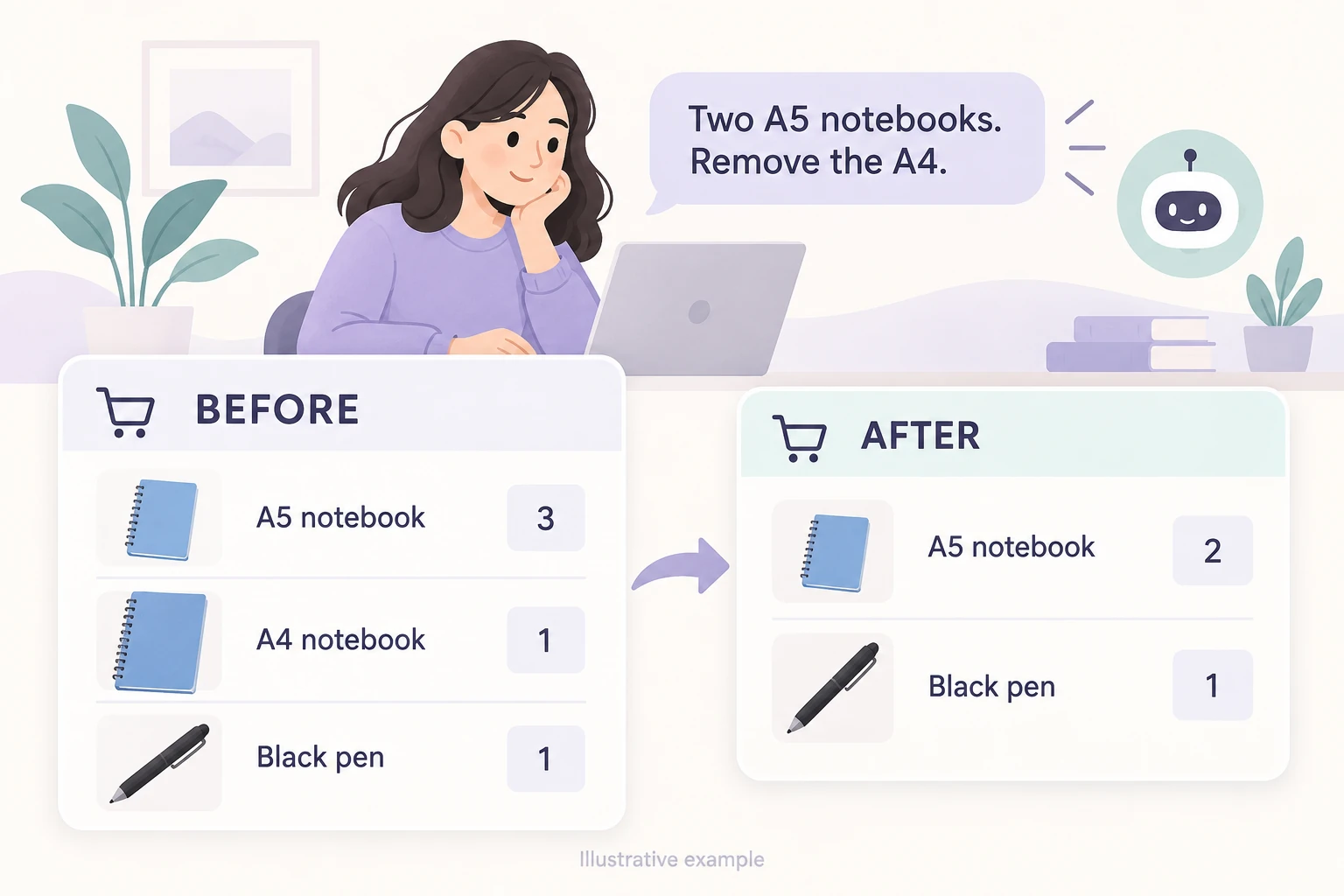
Maya has three blue A5 notebooks, one blue A4 notebook and a black pen in her cart. She wants two of the smaller notebooks and the pen. On her phone, she opens the store’s chat: “Make the blue A5 notebooks two, and remove the A4 notebook.”
That is a useful job for a WooCommerce cart chatbot. Niwa’s website chat can read the shopper’s current cart, change the quantity of an existing item and remove a cart line. The answer should tell Maya what actually changed and leave her with a cart she can review before paying.
Maya and the stationery store are fictional. We’ll use them to work through a cart correction, including a request that needs clarification and one the store cannot accept. The example is a workflow to try on your own storefront, not a recorded customer conversation.
Start with the cart the shopper has open
The starting point is Maya’s current browser cart. Niwa needs to identify the items already there, including their options and quantities. A product mentioned earlier in the conversation might be the wrong size or might never have been added.
This matters even when two products have almost identical names. “Blue notebook” describes two lines in this cart. “Blue A5 notebook” identifies the smaller one.
| Item | Qty | Unit price |
|---|---|---|
| Blue A5 notebook | 3 | $12 |
| Blue A4 notebook | 1 | $16 |
| Black pen | 1 | $4 |
The item subtotal is $56: $36 for the A5 notebooks, $16 for the A4 notebook and $4 for the pen. These are invented, undiscounted prices for the example. A real reply must use the store’s current cart amounts.
Keep this workflow in the website conversation carrying that cart. WooCommerce’s cart documentation describes cart state in terms of the current session or signed-in user. A saved chat transcript does not, by itself, establish which browser cart to change. Niwa’s cart actions described here require the live website request; sending the same sentence through another messaging channel is not an equivalent cart-editing workflow.
Change three notebooks to two
Maya’s first instruction sets the A5 quantity to two. Adding two more would leave five in the cart, which is a different purchase. The assistant must apply the requested final quantity to the identified line.
Niwa checks the requested change through its WooCommerce cart operation. A successful result includes the resulting cart contents and current totals. Only then does a confirmation such as “The blue A5 notebook quantity is now 2” make sense.
At this point in our example, the A4 notebook and pen are still present. The item subtotal would be $44. The assistant has completed one part of Maya’s request; the removal still has its own result.
When “the blue notebook” could mean two things
Suppose Maya had written only “Remove the blue notebook.” A useful next reply would be: “Do you mean the blue A5 notebook or the blue A4 notebook?” The wording here is illustrative; the point is to establish which line she wants removed.
Niwa’s cart operation requires one resolved cart line. When the selection is ambiguous, it returns an error instead of applying that unresolved selection. The conversation should then help the shopper identify the item. Include size, color or another distinguishing option in the clarification.
If customers regularly get stuck before adding the right option, our guide to WooCommerce product variation questions covers that earlier stage. Here, Maya has already chosen her products and wants to correct the cart.
Remove the A4 notebook and show what remains
Once the A4 line is identified, Niwa can remove it. After both edits succeed, Maya should be able to recognize the result immediately:
- Blue A5 notebook: quantity 2, $24 for the line.
- Black pen: quantity 1, $4 for the line.
- Blue A4 notebook: removed.
The example item subtotal is now $28. Naming the remaining items is more useful than a bare “Done,” because Maya can spot a wrong size or an accidental extra item before continuing.
Treat the quantity change and removal as separate actions. If the A5 update succeeds but the A4 removal fails, the reply should explain that exact state: two A5 notebooks remain, and the A4 notebook has not been removed. Read the current cart again before retrying. Do not present a partly completed request as fully finished.
What if the store refuses the new quantity?
Now imagine Maya asks for five A5 notebooks and the store rejects that quantity. Niwa’s cart operation checks whether the product is purchasable, whether the requested amount is allowed by its stock rules, whether it is sold individually, and whether the store accepts the update.
The response should say that the requested change was not accepted. If the result does not provide an exact available count, the assistant should not invent one. Maya can choose another quantity or use the cart controls to review her options.
Backorders make a blanket “out of stock means impossible” rule unhelpful. WooCommerce lets merchants configure stock and backorders for variable products, as its variable-product documentation explains. The store’s configuration determines what is permitted. A quantity change in a shopper’s cart does not edit the merchant’s inventory record or promise that stock has been reserved.
Review the cart before paying
Maya now opens the normal cart or checkout view and checks the two A5 notebooks and the pen. The $28 in our example is an item subtotal. Discounts, shipping, tax and other applicable charges can affect the amount she pays; the delivery address or shipping method may change the calculation.
Niwa’s cart edit does not place an order or complete payment. Maya still reviews the checkout and supplies payment details there. Questions about delivery or store policies can continue alongside that review; our checkout support guide covers those questions.
Also check how your storefront displays the update. Niwa processes successful cart results and refreshes WooCommerce cart fragments, but a custom mini-cart or checkout interface still needs a compatibility check. If a badge shows an older count, open the full cart to inspect its contents before making another change.
Try the same request on your own store
Use a test cart with two distinguishable product options and one item that should remain untouched. Try the following on a desktop and a phone before offering the workflow to shoppers:
- Ask to change an existing quantity from three to two. Check that two remain.
- Use an ambiguous name. Check whether the conversation identifies the intended option before changing it.
- Request a quantity your test product does not allow. Check the explanation and the resulting cart.
- Remove one specific line. Confirm that the other products remain and the displayed amounts reflect the change.
You may find that familiar cart buttons already suit your customers. For stores that want editing controls at checkout, Update Cart on Checkout documents quantity changes and item removal through that interface. Chat tools also overlap: Dukandar’s official plugin listing documents conversational quantity editing and removals. Compare the actual workflow on your storefront, including unsuccessful requests, rather than assuming the feature is exclusive to one assistant.
Bring a small cart and a real shopper request to a Niwa demo. During your Niwa demo, Aleksandar covers the license and AI usage. There is no obligation to buy. Start with Maya’s simple correction: two of the intended notebook, no unwanted A4, and a cart the shopper can check before paying.

