

How to Build a Website with ChatGPT
Use ChatGPT to plan and build editable WordPress pages, then configure Niwa for customer questions, website booking and ongoing updates.
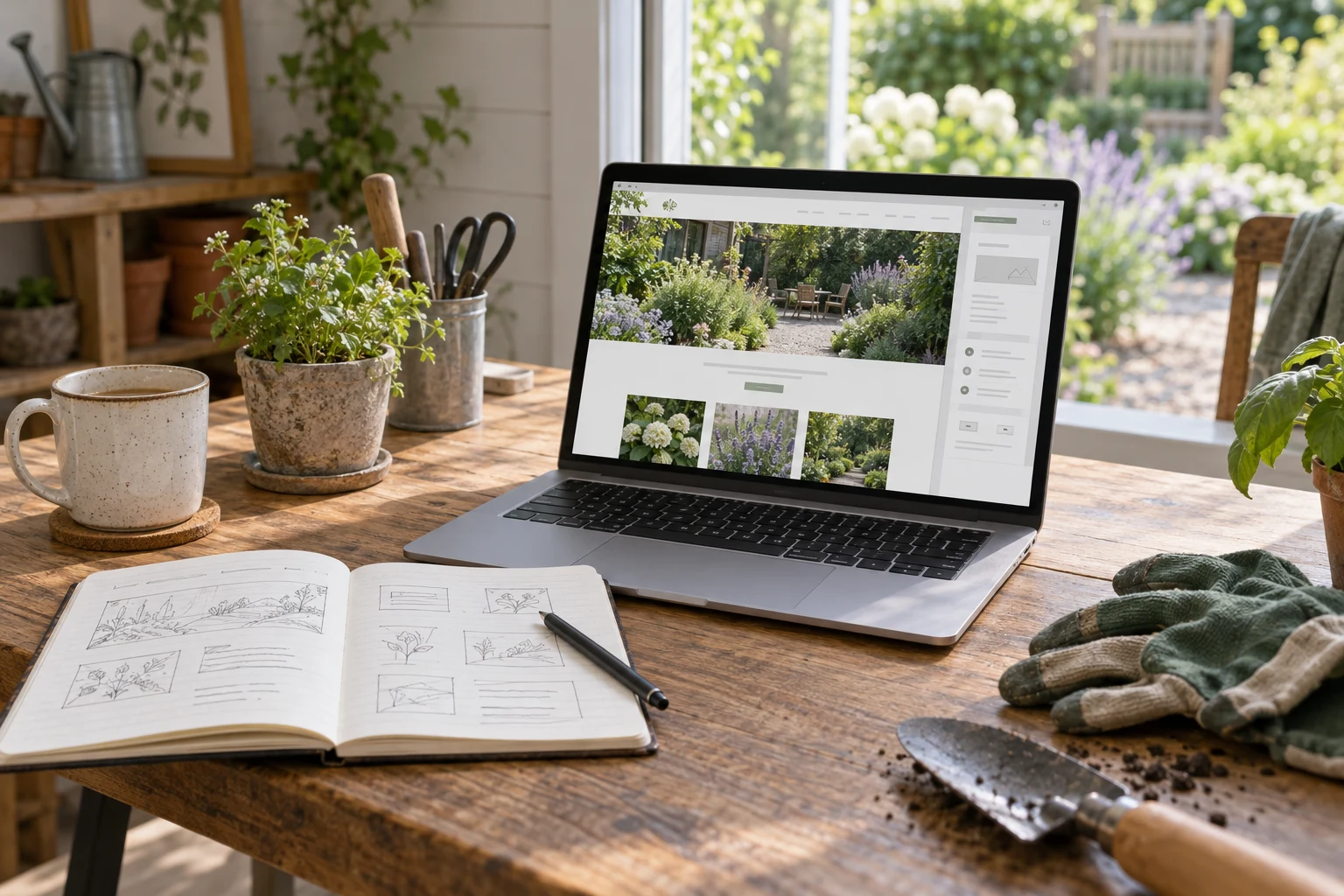
To build a website with ChatGPT, give it your business information, approve a page structure, and use its output to create and test the pages. For a business website you will update regularly, build those pages in WordPress. ChatGPT can help with the copy, layout and implementation instructions; you still need hosting, a domain and a check of the finished site.
Niwa adds a working assistant after launch. Customers can ask about your services on the website or WhatsApp. Niwa can check your configured availability and book an appointment directly through the conversation, including on WhatsApp. You can also use Niwa inside WordPress to help update the site. If you already have WordPress, install the standalone Niwa AI plugin. If you need the website built or migrated, Niwa Business includes a custom WordPress website or migration, hosting, maintenance and AI tools adapted to your business for USD 150.
The steps below show how to prepare a ChatGPT draft, turn it into editable WordPress pages and configure Niwa around the work your business actually does.
1. Choose where the website will live
A small portfolio or information page can work as a static HTML file. For changing service details, regular articles or a product catalog, WordPress gives you a place to manage content without asking ChatGPT to rewrite the whole site each time.
Choose that destination before generating the design. An HTML preview can help you judge a layout, but importing a screenshot or renaming a file does not create an editable WordPress website.
For the walkthrough, we will use WordPress and a fictional gardening business, Willow Garden Care. If you only need a static page, there is a shorter file-based route below.
2. Prepare the business brief
Give ChatGPT enough information to make useful decisions:
- Your business name, services and service area.
- The people you serve and the action they should take.
- Approved descriptions, contact details, prices and photographs.
- The pages you need and any brand references.
- Who will update the site and how often.
- Whether visitors need enquiries, appointments or online purchases.
For Willow Garden Care, the first goal is a request for a garden visit. That means the website needs clear service information, a service area, project photographs and a way to enquire. If appointments will be offered, the business also needs to define which visits can be booked and when.
Use real information. Where a detail is missing, ask ChatGPT to flag it for you instead of supplying a plausible price or testimonial.
3. Ask ChatGPT for a WordPress plan
Replace the example details in this prompt with your own:
Help me build a WordPress website for Willow Garden Care, a gardening business serving homeowners in [service area]. The main action is to request a garden visit.
Plan a homepage, services page, project gallery, about page and contact page. Use only the business facts and photographs I supply. Mark missing information for my review. Do not invent reviews, qualifications, prices or completed projects.
First propose the page structure and identify any information you need. After I approve it, write the page content and give me block-by-block instructions for building it in the WordPress editor using my chosen theme. Keep the content editable as WordPress blocks. Explain any custom code you recommend and why it is needed.
Make the layout readable on phones, with clear headings, accessible navigation and an obvious contact action. Leave room for a Niwa customer assistant that can answer service questions and offer appointments after I configure the business availability.
Review the structure before asking for the full content. A visitor should be able to understand the service, check whether you cover their area and take the next step.
Supply the name of your WordPress theme and a screenshot of its editor if the instructions do not match your setup. ChatGPT cannot infer every installed theme and plugin from a business brief.
4. Build editable pages in WordPress
Set up WordPress with your hosting provider and choose a theme you can maintain. For an existing site, work on a staging copy when changing its layout.
In WordPress, open Pages > Add New Page, enter the page title and use the block editor to assemble the content. Add the headings, paragraphs, images and buttons from your approved plan. Preview the page before publishing it. Repeat for the other pages. WordPress guide to creating pages.
Upload photographs to the WordPress Media Library, describe informative images with appropriate alternative text and link contact buttons to the correct destination. Check the site’s navigation and homepage settings once the pages are ready.
Ask ChatGPT to resolve a specific problem when the result needs work:
The services section is cramped on a narrow phone screen. Using the blocks available in my theme, explain how to adjust its spacing and column layout. Keep the approved text and section order.
Or:
Replace the opening paragraph with the service description I supplied. Keep the photograph and contact button. Remove the years-of-experience claim because I have not provided that fact.
Save a working version before substantial changes. Preview the result again, including on a phone. If you commission a custom theme, make sure ordinary page edits remain possible in WordPress; a design that looks right is only part of the job.
If you only need an HTML page
Ask ChatGPT for a complete index.html file with embedded CSS, a responsive layout and only the JavaScript the page needs. Save it in a project folder with your photographs, then open it in a browser. Check that the filename is not accidentally index.html.txt.
For a simple first version, a working email link is more useful than a form with no delivery service. It opens the visitor’s email application; test the address and explain how visitors can contact you another way.
You can publish ready-to-serve files through a static host. Cloudflare Pages, for example, has a Direct Upload flow for a folder or ZIP. Test the generated public address, then follow the host’s custom-domain instructions. Preserve the DNS records used by your business email. Cloudflare Direct Upload guide, custom domain instructions.
This static route does not install the WordPress Niwa plugin. Choose the WordPress route if that is the assistant and editing setup you want.
5. Install standalone Niwa on WordPress
You can add Niwa to an existing WordPress site without buying a new website. With your plugin ZIP and licence ready:
- Upload
niwa-ai.zipthrough Plugins > Add Plugin > Upload Plugin, install it and activate it. - Activate your Niwa licence and complete email confirmation if requested.
- In Niwa’s authentication settings, connect your supported AI account, then select and save an available model.
- Index the website and supply approved service information, policies and human handoff instructions.
- Enable the public chat and check it in a private browser window.
For WhatsApp, pair the account and configure customer access separately from admin permissions. For bookings, define services, staff, working hours and timezone. The Niwa installation guide explains the settings and connection steps.
You can use your own supported AI subscription. Niwa adds no extra AI usage charges or Niwa-imposed usage limits on that connection; the underlying provider’s limits still apply. Supported accounts and connection methods matter, so choose the connection offered for your account during setup.
6. Give Niwa useful work after launch
For the gardening example, start with a customer question: “Do you offer regular garden maintenance in my area?” Niwa can answer from the approved services and coverage information you configured. The customer can contact the business through the website chat or its configured WhatsApp account.
If the customer wants a garden visit during a WhatsApp conversation, Niwa can check your availability, offer suitable times and save the chosen appointment directly from that conversation. Define the visit duration and required contact details before offering it. Test a booking and inspect the saved appointment, so the business can act on it.
On the owner side, you might ask Niwa in WordPress to update a service description with new information you have approved. Review the change on the public page. Keep administrative access limited to the people who should edit the website.
These are separate jobs: helping a visitor choose a service, recording an appointment and keeping the website accurate. Set up and check each job you intend to use. When your services or hours change, update the website and Niwa’s business information together.
7. Publish and test the customer journey
Connect your domain to the WordPress host, enable HTTPS and publish the approved pages. If this replaces an existing website, preserve or redirect useful old URLs and check that business email still works.
Open the public site in a private browser window and on a real phone. Work through the journey a customer will take:
- Read a service page and follow its contact action.
- Check that navigation, photographs and text work on a small screen.
- Submit a test enquiry if you use a form, then confirm it reaches the intended inbox or record.
- Ask Niwa a question supported by your published business information.
- Complete a test appointment and verify the saved details if booking is enabled.
- Test customer WhatsApp access separately from the owner’s admin access.
- Remove placeholders and check that private credentials are not exposed.
If the website sells products, use a working commerce setup and test the order and payment process separately. A visual checkout created by ChatGPT is not enough.
Finally, change a service description and check the published update. That proves you have a practical way to maintain the site after launch.
Questions about building a website with ChatGPT
Do I need to know how to code?
You can use ChatGPT for page plans, copy and WordPress block instructions without writing a custom theme. Generated code and complex integrations still need someone who can check that they work.
Does a ChatGPT-built website automatically include an AI assistant?
No. ChatGPT helps create the website. An assistant such as Niwa works after launch and needs its own account connection, business information and permissions.
Can I add Niwa to the WordPress website I already have?
Yes. The standalone Niwa AI plugin is the route for an existing WordPress site. You do not need a replacement website simply to add Niwa.
Will ChatGPT make the site rank in search?
It can help write useful pages, titles and descriptions. You still need accurate content, accessible published pages and a site that answers customers’ questions. AI-generated content does not guarantee rankings.
Choose the WordPress route that fits your business
If your WordPress website is already in place, follow the standalone Niwa setup guide and configure the customer questions, appointments and owner tasks you need.
If you need help turning the ChatGPT draft into a maintained business website, Niwa Business is USD 150. It includes a custom WordPress website or migration, hosting, maintenance and AI tools adapted to your business.
Discuss your website with Niwa. Send your current URL or ChatGPT draft, the pages you need and the customer journey you want to support. For the gardening example, that means service questions, a garden-visit booking and an owner who can keep the service pages current.

