

How to Back Up a Website Before Making AI Changes
Before AI changes your website, create a dated copy of its files and data, protect it away from the live installation and test the recovery procedure privately.
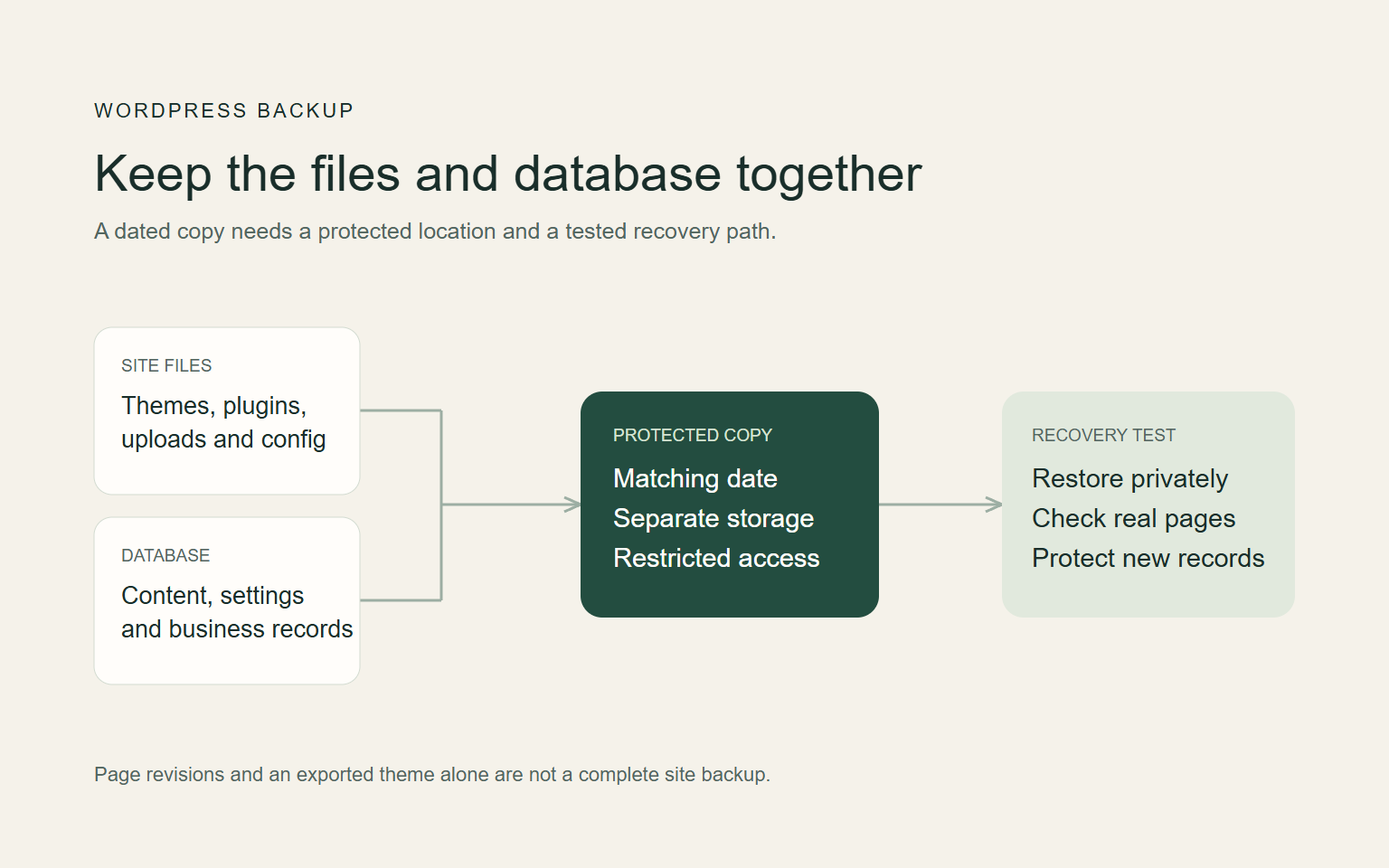
Before making AI changes, create a dated backup of the website's files and data, keep a protected copy separate from the live installation and test how to restore it. For WordPress, files and database must work together. A page revision, theme ZIP or screenshot alone will not preserve the whole site and its business records.
If you use Niwa for WordPress maintenance, make the recovery route part of the task before authorizing an edit. Niwa can help inspect and change specific site content or code; the hosting backup and restore procedure remains a separate responsibility you should establish with the maintainer.
Define the change and the recovery boundary
Write down what AI will change: one page, a shared template, a plugin setting or custom code. Identify the pages and customer tasks that depend on it. A text correction needs a different recovery decision from a database migration or checkout change.
Record the public domain and the correct installation. Hosting accounts can contain several websites, staging copies and old directories. Confirm the exact target before creating or restoring a backup.
Note what would count as a failed change and which action would undo it. A previous paragraph may be restored with a page revision. A wider application change may need files, settings or data restored together. Establishing this before the edit prevents an urgent decision from turning into a whole-site rollback unnecessarily.
Identify what your website needs to recover
For WordPress, a complete recovery generally includes the database and site files. The database holds content and settings, along with business records used by installed applications. Files include themes, plugins, uploads and configuration required by the installation. WordPress's backup documentation explains their complementary roles.
List external services separately. A hosting archive does not necessarily include mailboxes, a payment provider's records, DNS settings or data held in another platform. Document those connections and how their settings would be re-established.
If you use a managed website builder, review its export and version-history coverage. Do not assume its page history is a downloadable copy of customer records and every connected service. Ask the provider what the restore includes and what you need to retain separately.
Create a WordPress backup with UpdraftPlus
The following route uses UpdraftPlus's free WordPress plugin. If your site already has a managed backup service, coordinate with the maintainer before adding another system. Otherwise, an administrator can install and activate UpdraftPlus from the WordPress plugin directory. Follow its current backup instructions:
- Open Settings > UpdraftPlus Backups, then the Settings tab. Check Include in files backup for Plugins, Themes, Uploads and the other wp-content directories needed by your site. Review exclusions and save changes.
- In Backup / Restore, click Backup Now. Select both database and files. Do not create one now and pair it with an older copy of the other.
- Enable the option retaining this set until manual deletion if you need to protect it from scheduled retention cleanup. Click Backup Now and wait for completion. Inspect the log if the job reports a problem.
- Find that dated set under Existing backups. Its components should include Database, Plugins, Themes, Uploads and Others, according to your selections.
For an active shop or booking site, discuss consistency with the maintainer. Files and data need to represent a compatible state, while orders or appointments may continue arriving during the operation. Use the backup system's documented method and coordinate any necessary quiet period or maintenance window.
The free plugin's set does not include WordPress core or every file outside wp-content. Preserve custom root files, server rules and the relevant configuration separately with the maintainer. The vendor's fresh-installation recovery guide explains rebuilding core and restoring configuration. Include those materials in your recovery record.
Keep the copy away from the installation being changed
Under the same dated backup, click each component button, then Download to your computer. Download every part when a component has several archives. Keep the original filenames together in a dated folder; do not mix files from different sets. This is the vendor's documented computer-download route.
Move that folder to protected storage separate from the live server, under the business's control. Keep a second copy where a failure of your computer will not remove it. A backup held only inside the website directory may be lost with that installation or accidentally exposed through the public server.
Restrict access because an archive or database export can contain customer information and application secrets. Use the storage system's security features and keep recovery credentials in the business's normal protected credential store. Do not attach a database export to an AI chat or public support ticket.
Record the date, website, component set, storage location and person responsible. Establish retention according to the business's requirements. A filename saying "latest" is less useful than a clear record of which state the copy contains and how it was checked.
Check that the backup is real and usable
Review the backup system's result, then verify that the required archive or export exists and can be accessed by the responsible person. A completed job notification is insufficient if the archive is empty, incomplete or stored under an account the business cannot reach.
Ask the maintainer to validate the package using the backup system's documented checks. Confirm its files and database belong to the same site and compatible state. Keep integrity details or checksums when the system provides them; those help identify an altered file, but do not prove the whole site will restore correctly.
If an important component is excluded, document the separate recovery method. Resolve missing assets or database failures before authorizing an AI change that relies on that recovery route.
Restore the downloaded set on an isolated test site
Ask the maintainer to prepare a separate WordPress installation with its own database, restricted access and outbound mail, payments and production integrations blocked. The ordinary UpdraftPlus restore procedure assumes the same URL. One test arrangement is an isolated server using the original hostname, resolved only on the test computer. The public domain must still point to production. Have the maintainer verify that isolation before you upload customer data; a different staging URL requires the vendor's migration procedure instead.
In the private installation, use the documented restoration wizard:
- Install and activate UpdraftPlus on the test installation. Open Settings > UpdraftPlus Backups > Backup / Restore.
- Under Existing backups, choose Upload backup files and upload every downloaded part of the selected set, including the database file. Wait for the dated set to appear.
- Click Restore beside that set. Select Database, Plugins, Themes, Uploads and Others for this full recovery test.
- Proceed through the wizard's checks. Review warnings before the final Restore confirmation. For the same-URL test, do not select database search/replace.
- Wait for Restore successful! and save the result. You may need to sign in again with the restored site's account. A failed or partial run needs investigation before the AI edit.
Inspect the homepage and important inner pages, then verify images, administration and the customer path. For a shop or booking system, confirm representative records and configuration are present without processing a real transaction.
Save the private site's identity, backup timestamp, required access, restore log and task results. Someone other than the original developer should be able to find these instructions. A tested copy provides practical evidence that your recovery procedure works for that state.
Plan for activity after the backup
A backup is a historical state. Restoring an older production database can remove orders, enquiries or appointments created since it was taken. Before any restore, identify that activity and decide how it will be protected or reconciled.
For example, if AI changes only a hero style, restoring a specific file may avoid replacing the database at all. If a schema change requires wider recovery, have the developer plan how newer business records will be retained. Do not assume exporting a few records guarantees a safe merge; their relationships matter too.
Keep a fresh snapshot of the current failed state before a material restore where feasible. It can preserve evidence and newer records while the maintainer works. The aim is to recover the service without silently losing legitimate activity.
Pair AI edits with focused verification
After the backup is checked, give the AI tool a specific authorized task. In Niwa's owner workflow, identify the page or component, approved change and expected behavior. Test the saved result and the public customer journey.
Keep the old and new versions, completed checks and unresolved issues. Do not discard the recoverable copy immediately because the first screen loads. A later action may reveal a problem. The wider AI website mistakes guide explains why narrow changes and public verification reduce repair uncertainty.
Discuss the change and recovery route with Niwa
Share the website address and proposed edit through Niwa's contact page. Existing WordPress owners can use the standalone plugin without rebuilding merely to add conversational editing.
Niwa Business costs USD 150 and includes a custom WordPress website or migration, hosting, maintenance and AI tools adapted to the business. Share the change you need and the backup and restore arrangements you already have so Niwa can include recovery in the maintenance scope.

