

What Should I Do If AI Breaks My Website?
If AI breaks your website, stop further edits, preserve the current state and business records, identify the last change, recover narrowly and verify the customer journey.
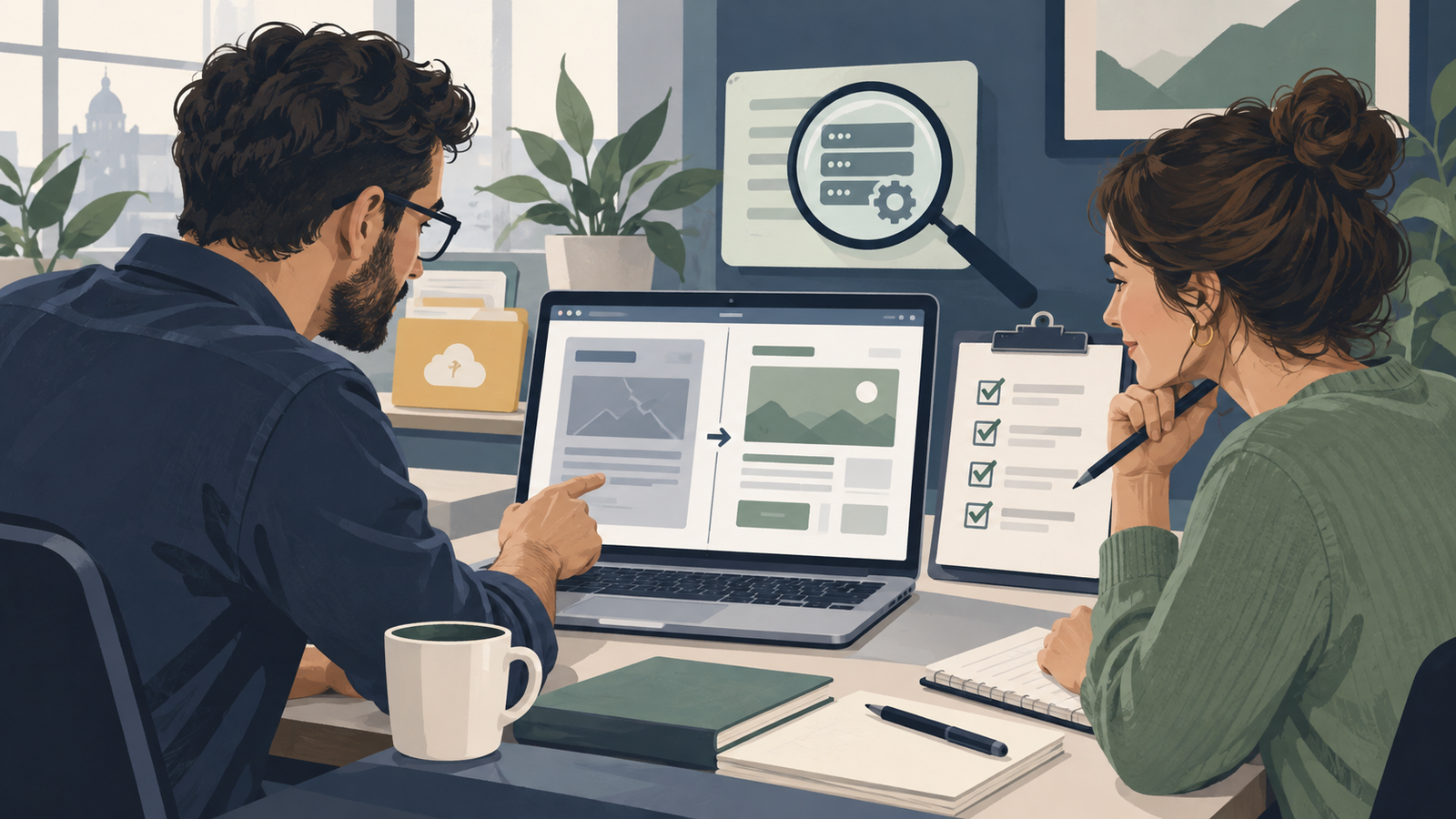
If AI breaks your website, stop further edits and preserve the current state before trying another repair. Identify what changed, protect newer orders or enquiries, and choose the smallest recovery that addresses the failure. Then verify the public page and the affected customer task. Repeated requests to "fix everything" can erase evidence and introduce more changes.
If the work was done through Niwa's maintenance agent, keep the task history and report the exact failed result. Niwa can help inspect a specific WordPress problem and make an authorized correction. A hosting outage, data restore or external-service problem may also require the responsible provider or developer.
Stop the change sequence and assess the impact
Pause new edits, deployments and automated retries related to the failing task. Ask anyone working on the same site to preserve their current changes and notes. Do not reset another person's work simply because it differs from the last version you remember.
Open the public URL while logged out. Check whether the failure affects one page, a shared component or the whole site. Test the relevant customer action without creating repeated live transactions. A misaligned heading, an inaccessible checkout and an exposed private record require different priorities.
If customers could submit payments or personal information into a broken path, have the responsible operator contain that specific problem while recovery is investigated. Provide a truthful alternative contact route where appropriate. Avoid claiming the site is repaired merely because the homepage still opens.
Preserve evidence before reversing anything
Save the AI request, response, change report, affected URLs and approximate failure time. Capture the visible error and the relevant application or hosting logs through a protected route. Record the installed version or deployment associated with the incident.
Keep a copy of the failed state where practical, including files or records affected by the edit. That copy may contain useful evidence and business activity created after the last good backup. Do not publish raw logs or database exports in a support thread; redact credentials and customer information from shared extracts.
WordPress's debugging guidance describes controlled investigation and warns against casually exposing debug details on a live site. Ask a maintainer to collect the necessary evidence without turning the customer's browser into an error log.
Find the last relevant change
Compare the last working state with the current one. Identify which page, template, setting, dependency or code file actually changed. Use the AI tool's task history, WordPress revisions, deployment record or version-control diff as appropriate.
Do not assume the last AI message is the only cause. A hosting change, plugin update or parallel deployment may have happened at the same time. Match the timing and component to the observed failure.
Give the Niwa owner assistant a precise investigation request: the task, changed component, expected behavior and observed error. Start with reading and comparison. If the tool cannot inspect an external system, pass the evidence to the person who can instead of granting wider access without a clear need.
Choose a targeted undo when it covers the problem
If one page's approved text was replaced incorrectly, restoring the relevant content revision may be enough. Inspect which fields the revision covers and preserve newer legitimate edits before using it.
If one style or template change caused the problem, a developer may be able to restore that component's previous version. Test the correction on a separate copy and inspect other pages using the same component. A checkout fault should be checked through the checkout path, rather than only by loading a service page.
Supported Niwa changes can retain previous state for recovery, as described in the setup documentation. The available undo depends on the actual task and records. A page history or action rollback does not automatically cover a hosting configuration change or every external integration.
Protect new activity before a wider restore
If a full backup restore is necessary, identify the backup time and the orders, enquiries, appointments or account changes created since then. An older database can replace those newer records.
Have the maintainer preserve the current data and plan any reconciliation. Files and database must be compatible, and relationships between records matter. Do not treat a spreadsheet export as proof that every new transaction can be safely re-imported.
The WordPress backup guide explains why files and database are both relevant to recovery. Ask the host what the selected restore includes and whether it affects other websites or services. Confirm the target domain and installation before a restore, especially on an account containing several sites.
Reproduce and repair on a separate copy
Use a private test environment where possible. Reproduce the failing action with synthetic records, then make one correction supported by the evidence. Keep live mail, payments and integrations from firing during the test.
Compare the behavior before and after the correction. If the first proposed repair does not address the fault, retain that result as evidence and reconsider the cause. Avoid piling unrelated patches onto an uncertain diagnosis.
For example, a generated form might show a success message without sending a request. Correcting the browser-to-server path is a different task from replacing the mail provider. The repair should follow the failed step, with a check that proves the next step occurred.
Verify production after the recovery
Once the approved correction is deployed or the restore completes, open the public page in an anonymous browser. Inspect the affected component and relevant caches. A repaired source file is not proof that visitors receive the repaired version.
Repeat the critical journey at desktop and phone sizes. For an enquiry, confirm the expected record and delivery. For a shop, use the payment provider's appropriate test process. For website booking, inspect the recorded time and customer details. If WhatsApp starts the enquiry, verify the transition to the website booking flow and complete the reservation there.
Check that legitimate recent business records remain present. Keep the verification results separate from commands that merely exited successfully. A completed restore job is a useful event, but the actual customer task decides whether recovery worked.
Escalate with a useful incident record
Contact hosting support for infrastructure or restore problems, the relevant plugin provider for a documented product error, or a developer for custom-code failures. Provide the domain, affected action, test time, last change, redacted error and recovery attempts already made.
If there are signs of compromise rather than an ordinary regression, preserve evidence and involve an incident responder. Reverting a page does not establish that unauthorized access has ended. Keep that investigation separate from cosmetic correction.
Avoid a blind rebuild as the first response. A small verified repair may preserve the rest of the working site and current business records. Rebuilding becomes a decision after the cause and recovery options are understood.
Change the process before the next AI edit
Record what failed, the confirmed cause, the repair and the test that detected it. Add that test to the next change's acceptance criteria. Use a checked backup, a clear target and a narrow instruction before another production edit.
The guide to mistakes when building a website with AI explains the prevention decisions behind this incident process. A useful AI workflow leaves you able to inspect the change, verify the result and recover when something goes wrong.
Send Niwa the failed task and evidence
Use Niwa's contact page to share the site address, failed action and redacted incident notes. Existing WordPress owners can install the standalone plugin for conversational owner editing and maintenance work.
Niwa Business costs USD 150 and includes a custom WordPress website or migration, hosting, maintenance and AI tools adapted to the business. Confirm the billing period and the work required. Include the failed task, last working time and available backup details so the repair can begin with the affected component.

