

How to Move an Ecwid Store to WooCommerce
Move an Ecwid store to WooCommerce without leaving an old checkout embedded on your site. Plan catalog mapping, accounts and the final data transfer.
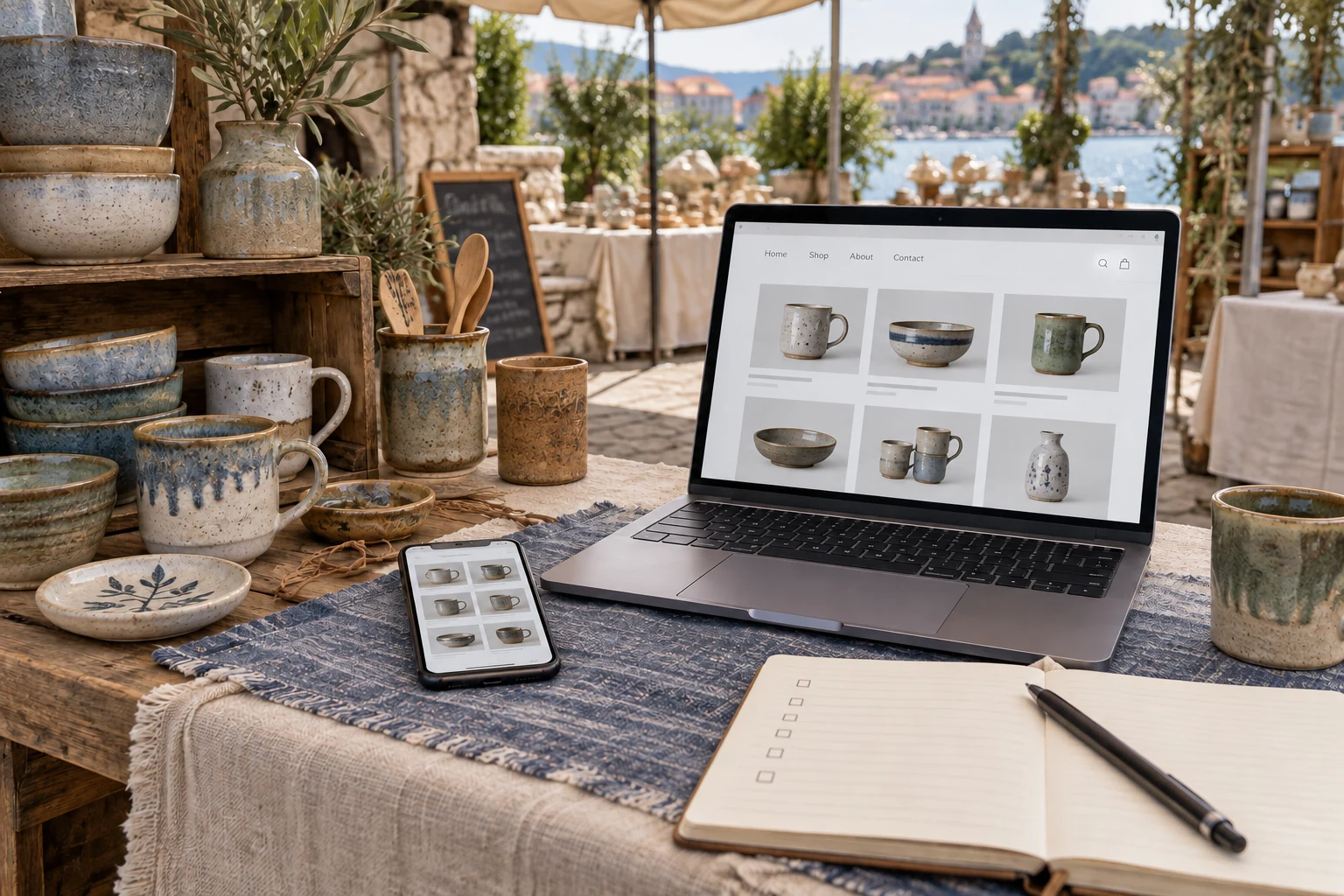
To move an Ecwid store to WooCommerce, create a WordPress destination, transfer the product catalog and other required records, and replace the Ecwid storefront with WooCommerce pages and checkout. Test the imported choices, stock, customer access and orders before changing the live site. Remove or update every old Ecwid embed that could still lead customers to the previous checkout.
First decide whether you are moving only the shop or the whole website. Ecwid may be embedded in an existing website, while WooCommerce runs inside WordPress. Moving the catalog does not automatically convert that host website.
Move the shop and configure Niwa for daily sales
Niwa Business is USD 150 for a custom WordPress website or migration, hosting, maintenance and AI adaptation. Agree whether the work includes the entire host website, just its store, historical records and any connected sales channels.
On the destination, the Niwa assistant can help customers find products, compare described options and use supported website cart actions. Using the website's business context, it can also complete connected sales workflows directly on WhatsApp. The owner can use authorized stock and content workflows. An existing WordPress site can install the standalone Niwa plugin without another website project.
Choose the destination for your existing website
If the host is already WordPress, build and test WooCommerce there or on a controlled staging copy. Keep the live Ecwid shop available while preparing the replacement. Identify the pages containing its catalog, category widgets, buy buttons or checkout links.
If the host uses another platform, decide whether to migrate the entire website to WordPress or run the new shop on a separate WordPress destination. Record the domain and navigation behavior for that choice. A separate shop needs coherent links and customer messaging; a whole-site move needs content, forms and URLs transferred as well.
For an Ecwid Instant Site, include its information pages, domain settings and redirects in the inventory. Treat the storefront layout and business content as separate from the commerce records.
Export the records or use a compatible importer
Ecwid's catalog export guide describes Catalog > Data Import & Export and the catalog export action. It also describes customer and order export options. Check availability in your current account and interface before planning around them.
Keep the original files as backups. Map a copy of the product file to WooCommerce's expected fields. The source format is Ecwid's schema, so matching a few column names is not proof that options, variations or galleries will import correctly.
For a broader route, Migrate Import Ecwid documentation describes connecting with an Ecwid store ID and API token, and controls for products, customers and orders. Review entity coverage, language settings, update behavior and logs for the edition you choose. Protect the token and revoke temporary access when migration is complete.
A product-only import needs a separate plan for customer accounts and historical orders. Gift cards, abandoned carts and channel-specific records also need decisions; exporting them does not itself create equivalent WooCommerce functionality.
Import a sample that represents your real catalog
Install and configure WooCommerce on protected staging. Set currency, shipping, taxes and payment methods for the business. Choose a WordPress theme and rebuild the shop layout.
Transfer a small sample first. For a pottery store, choose one mug with color choices and individual stock quantities, a single-stock bowl and a discounted product. Check each SKU, price, image, option and stock rule.
Where an option collects customer information rather than selecting stocked inventory, configure the destination behavior explicitly. Check that the order includes that information. Select the product on mobile, add it to the cart and place a controlled test order.
Inspect images in the destination Media Library and galleries. Keep source files accessible until the destination has its own usable copies. A broken gallery can be missed if you only count imported products.
Plan accounts, historical orders and notifications
Decide how returning customers access the new store and what history they can see. Test account activation or password reset with a controlled account. Do not promise that Ecwid passwords or saved payment details transfer through a customer CSV.
For historical orders, inspect products, quantities, addresses, dates, currency, discounts and status. Keep source references if your support team uses them. Test that each account sees its own orders and that a guest order is represented correctly.
Disable staging emails and downstream fulfillment or accounting actions while importing historical records. An old order should not become a new shipment simply because it was recreated in WooCommerce.
Replace the embedded shop deliberately
Locate every Ecwid embed and storefront entry point. Include navigation links, product buttons, landing pages, footer links and mobile layouts. At cutover, replace them with the intended WooCommerce destinations.
Test an old product link, a category link and the main shop link. Decide which paths can stay the same and which need permanent redirects. Check the path behavior from the website that formerly hosted the embed, not only the new shop's home page.
Remove obsolete checkout widgets after the replacement is accepted. Leaving two independent checkouts selling the same limited stock creates an operational risk unless inventory and orders are intentionally synchronized.
Reconcile changes and launch
Record when the first import was taken. Before launch, move later customers and orders and reconcile stock with the authoritative source. Decide when Ecwid stops accepting purchases or how the chosen tool captures changes during transition.
Run payment success and failure, shipping, discounts, customer emails and fulfillment tests. Verify the final site on desktop and mobile. Keep backups and the previous storefront for the agreed recovery period, then retire unused connections only after their records and responsibilities are accounted for.
Test a useful conversation after the move
Configure Niwa with the new catalog and clear delivery, returns and care information. Ask whether a mug is available in a particular glaze and check the answer against the actual product data. A customer can choose it through the website's cart flow or complete the connected sale directly with Niwa on WhatsApp. Inspect the resulting order to confirm that the correct glaze and quantity were saved.
For owner work, request a stock update for that product or variation and read back the saved WooCommerce record. The AI-powered workflow is a separate setup step after the store has moved.
Send your Ecwid store URL, host website platform and required record types through Niwa's contact page. Include every embed and channel that must change so the agreed scope covers the whole customer journey.

