

How to Add a Multilingual AI Chatbot to WordPress
Set up Niwa for multilingual customer conversations. Check widget labels, greetings, source information and market policies separately for each language.
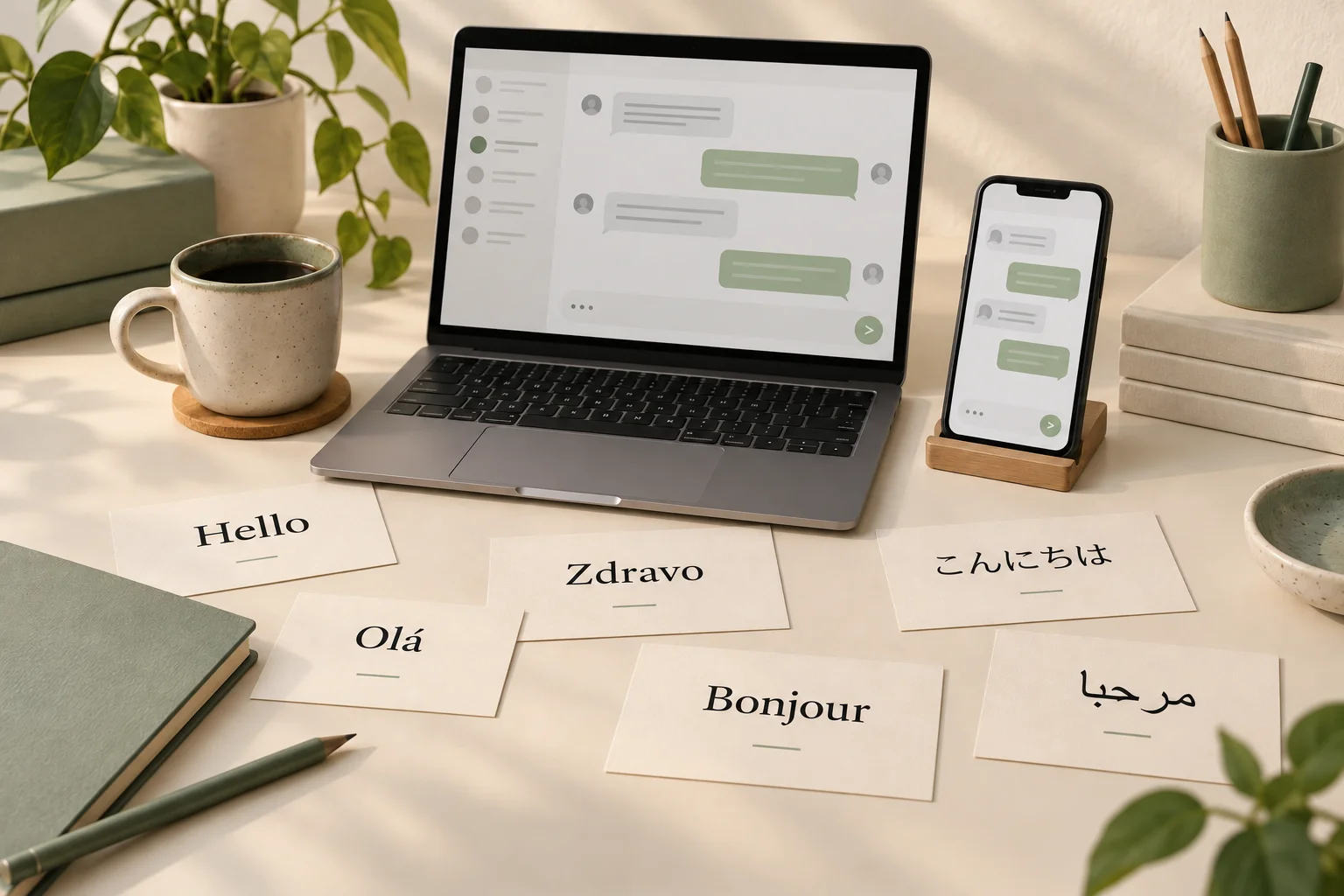
To add a multilingual AI chatbot to WordPress with Niwa, install the standalone plugin, connect a supported AI account and prepare your website information. Configure the widget's UI Language, greeting and customer rules, then test real questions and follow-ups in each language you intend to offer. Treat the interface language, conversation language and customer-market information as separate checks.
An English website can receive a question in Portuguese. A Serbian visitor may ask for delivery to another country. The assistant needs to understand the conversation while applying the correct product and policy facts. A translated greeting alone does not establish either result.
Decide which languages and customer tasks to support
Start with the languages your customers actually use and a small set of tasks, such as finding a product or understanding delivery. Prepare expected answers for those tasks in each launch language.
Ask a fluent speaker to review wording that matters to a purchase or booking. Product sizes, cancellation conditions and appointment details need more care than a casual greeting. Preserve brand names and product identifiers where translating them would make the item harder to find.
Choose a model from your Niwa connection and test product and service questions in the languages your customers use.
Set the widget language and custom text
Open Niwa AI → UI Settings. Set UI Language, which controls the widget interface and its built-in messages. Save UI Settings and check the public launcher and opened chat.
Review and translate Greeting Text and Custom Pill Text separately from the built-in widget labels. Leaving the pill text at its built-in default uses the language-based default described in the Niwa setup handbook.
On a site with several language versions, open each public version and inspect what the visitor actually sees. Review page translations and custom text alongside the widget labels, and adjust the configuration for each language route.
Describe how the assistant should handle conversation language
In Frontend Agent Rules, describe the intended behaviour in ordinary language. For example:
Answer in the customer's conversation language. Keep product and brand names identifiable. If the customer clearly switches language, follow that choice. Ask for clarification when a product, destination or policy is unclear.
This is guidance based on the meaning of the conversation. Avoid building a list of English or Serbian words that visitors must use to trigger assistance. A shopper can express the same request in many ways.
Check a short follow-up as well as the opening question. After a Portuguese product enquiry, "And the other colour?" should make sense in the same conversation. Then try an explicit language change. Check that the reply follows the customer's language choice and keeps the product context.
Niwa's storefront workflow connects these conversations to products and customer needs. The relevant task stays the same even when the customer describes it in a different language.
Prepare consistent source information
Correct and index the pages or records that support your answers. In Main Settings, run Run Full Index + Embeddings and inspect the progress and service errors.
If you publish translated pages, maintain their factual consistency. One language version should not promise a different return condition simply because its translation is older. Where a condition really differs by market, state that difference clearly.
If you use Polylang, its content translation documentation explains assigning a language and connecting translation records. That website-content workflow is separate from setting the Niwa widget's UI language.
Keep prices, stock and product variations aligned with the actual catalog. Translating a product explanation should not change the requested size or imply an option exists that the store does not sell.
Ask about the customer's market when it matters
Language does not establish delivery destination, currency or the policy that applies to an order. Ask for the destination when an answer depends on it, and use the published conditions for that destination.
For example, a Portuguese question may come from someone shopping for delivery outside Portugal or Brazil. A useful answer clarifies the relevant location instead of silently selecting a country from the language.
For appointments, verify service names, time zone and booking details in each language. Niwa can explain services, offer availability and complete the reservation directly in the WhatsApp conversation using your website's business context. Check that the saved appointment matches the service and time the customer chose.
Check the full experience in every launch language
Use a private browser window and repeat a small prepared set of conversations. Check the launcher, greeting, reply, product card and any contact or booking destination.
Include an opening question, a short follow-up, an unavailable product option and a request for an unconfirmed detail. Review whether the reply is accurate, stays understandable and gives a useful human-support route when the source does not answer.
Inspect mobile text wrapping and characters as well. Long labels and right-to-left text can reveal layout problems that an English desktop check misses. Keep the launch scope to the languages and workflows you have verified.
Add multilingual help to the site you already have
Niwa can be installed on an existing WordPress website. Review its safety and connected-service information for the relevant context and customer records involved.
If you need setup help, contact Niwa with your website, launch languages and the customer tasks you want checked. Include the markets you serve so the language setup and business information can be reviewed together.

