

How to Add AI to WhatsApp Business
Add Niwa to WhatsApp Business through WordPress, pair your account, set customer access and test useful replies before inviting customers.
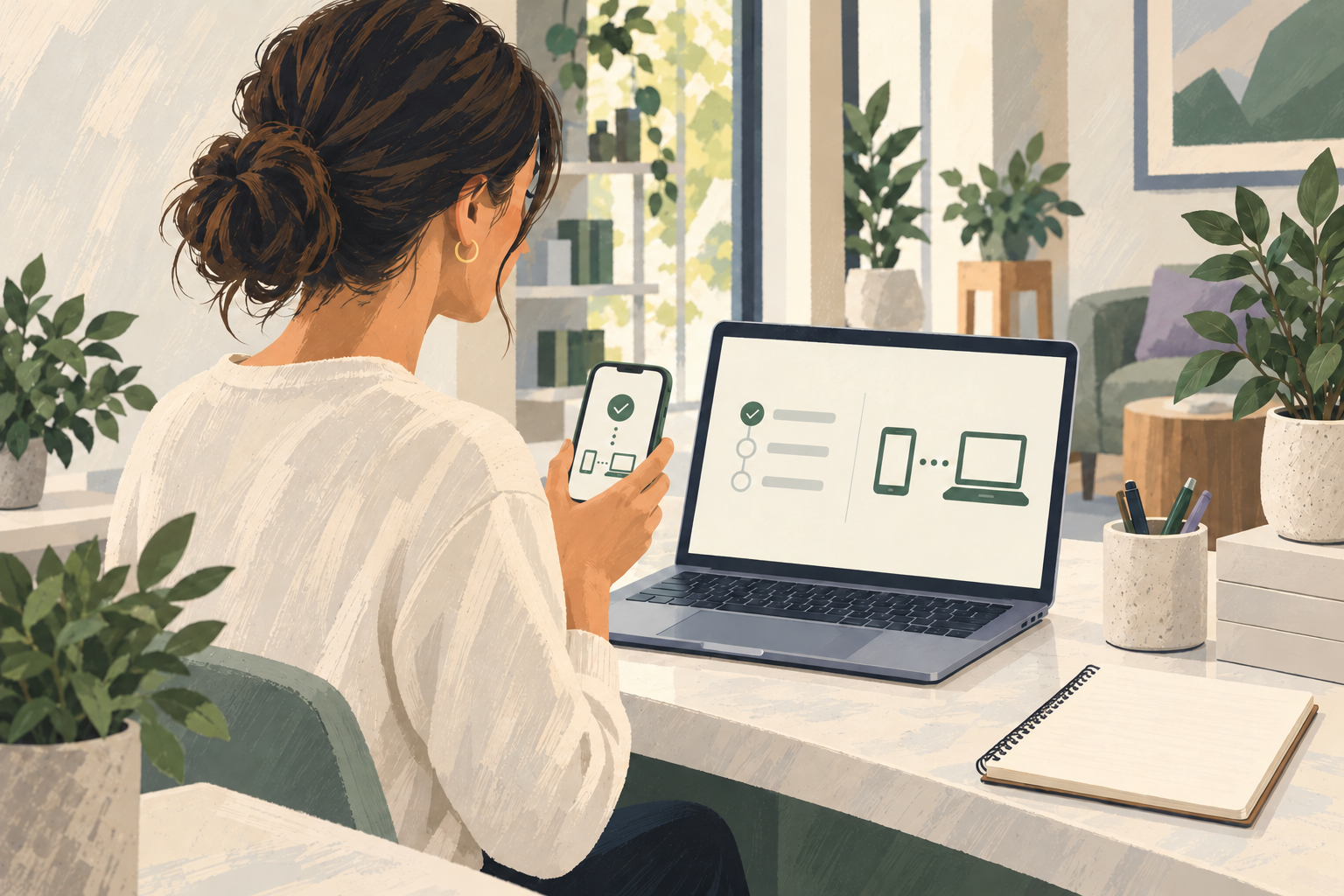
To add AI to WhatsApp Business with Niwa, install Niwa AI on your WordPress website, connect a supported AI account, pair your WhatsApp account and give customers the appropriate access. Then configure the business information and workflows it should use to answer questions, assist sales and book appointments through the conversation.
This adds an assistant to an ongoing customer conversation. It does not require replacing an existing WordPress site. The Niwa WhatsApp agent uses business information and available store tools to help customers understand what you sell.
Decide what the first customer conversation should do
Choose one useful task before configuring the connection. A repair business might explain which service fits a customer's problem, check availability and help book an appointment. A shop might help someone distinguish two products and continue into its configured sales workflow.
Write down the information needed for that task: service descriptions, product details, staff availability, opening hours and delivery policy. Identify the questions that require a member of staff, such as a custom quote or a disputed charge.
The WhatsApp Business app already has greeting messages, away messages and saved reply shortcuts. WhatsApp describes these messaging tools. An AI assistant adds a different capability: preparing an answer around what the customer asks and the information your business supplies.
Install the plugin and connect the AI account
Have WordPress administrator access, your Niwa licence and the account you intend to use for AI ready. Follow the Niwa installation guide to install the supplied ZIP, activate the plugin and complete licence confirmation when requested.
Choose the supported subscription connection or an API connection in Niwa. Complete the connection and save the relevant model settings. The account should show a successful connection before you try to diagnose messaging problems.
Keep the website assistant and private Personal Assistant settings distinct. WhatsApp Web is configured in Personal Assistant, so review the AI connection used by that channel as well as the website chat settings. A working website chat alone is not a complete WhatsApp setup.
If you use your own supported AI subscription, Niwa adds no AI usage charges or Niwa-imposed usage caps on that connection. The provider's account requirements and limits still apply. An API account has separate provider billing.
Pair the receiving WhatsApp account
Open Niwa AI → Personal Assistant → Setup & Access → WhatsApp Web. Enable the WhatsApp Web connection and save the settings.
Select Connect WhatsApp to display the pairing code. On the phone belonging to the account you want to connect, open WhatsApp's Linked devices scanner and scan the code shown by your own Niwa installation. Wait for the connection status to update.
This is the receiving account customers will message. Keep access to its phone and settings with the responsible business owner. If a pairing code expires, generate a fresh one in the connection panel. If Niwa displays a hosting capability error, resolve the named requirement with your host or setup team before trying another code.
Assign customer access separately from owner access
Pairing an account does not determine what every sender can do. Niwa keeps access lists for administrators, stock managers and customer leads.
Put customer testing numbers in Leads, with their country codes. Use administrator access only for people authorised to run private business operations. If you deliberately want all inbound senders treated as customers, Niwa supports a lead wildcard; review that choice before opening the channel publicly.
Test from a separate customer number, not from the owner's privileged account. The customer should receive product or service assistance without access to private administration. Review both individual numbers and any groups you use, because group permissions are configured separately.
Prepare the information behind the replies
Check the pages customers rely on and update incorrect details before indexing the site. Run Niwa's knowledge indexing workflow and confirm it finishes. Add business instructions that explain how the assistant should help and when it should refer someone to your team.
Connect the business actions needed for your chosen task as well as the information behind the answer. For appointments, configure services, durations, team availability and required customer details. Niwa can guide the customer from a service question to an available time and a saved booking in WhatsApp. Product links remain useful when someone wants to inspect an item before continuing with the purchase.
AI helps with these customer tasks after the website exists. Using AI to build the website is a separate activity from connecting an assistant to WhatsApp.
Verify the setup with a short customer test
Try a conversation that includes a follow-up rather than stopping after a greeting:
- Ask about a real product or service.
- Ask a second question that depends on the first answer.
- Complete the configured next step, such as a test appointment, and check its saved business record. Also check any product link on a phone.
- Ask something the business has not documented and check the route to a person.
- Repeat in another language you serve and check facts, dates and numbers.
For example, ask whether a repair service covers your device, then ask for an available appointment. A complete setup explains the service, offers suitable availability and confirms the appointment after it has been saved. A connection indicator by itself does not establish that journey.
Fix the stage that actually failed
If there is no reply, check the receiving account's connection and the test sender's role. If replies arrive but contain weak information, review the business content, indexing and channel instructions. If an appointment cannot be completed, inspect the service schedule, required details and booking result rather than starting another pairing attempt.
After reconnecting, review the saved access lists and repeat the customer test. Keep a named member of staff responsible for checking conversations and handling requests that need judgment.
Ask Niwa to help connect your WhatsApp Business account. Include your existing website, the account you use today and the customer task you want to handle first.

