

How to Check If My Facebook Pixel Is Working
Check whether Facebook Pixel is working with browser diagnostics, Meta Test Events and a verified action. Find wrong IDs, missing triggers and duplicates.
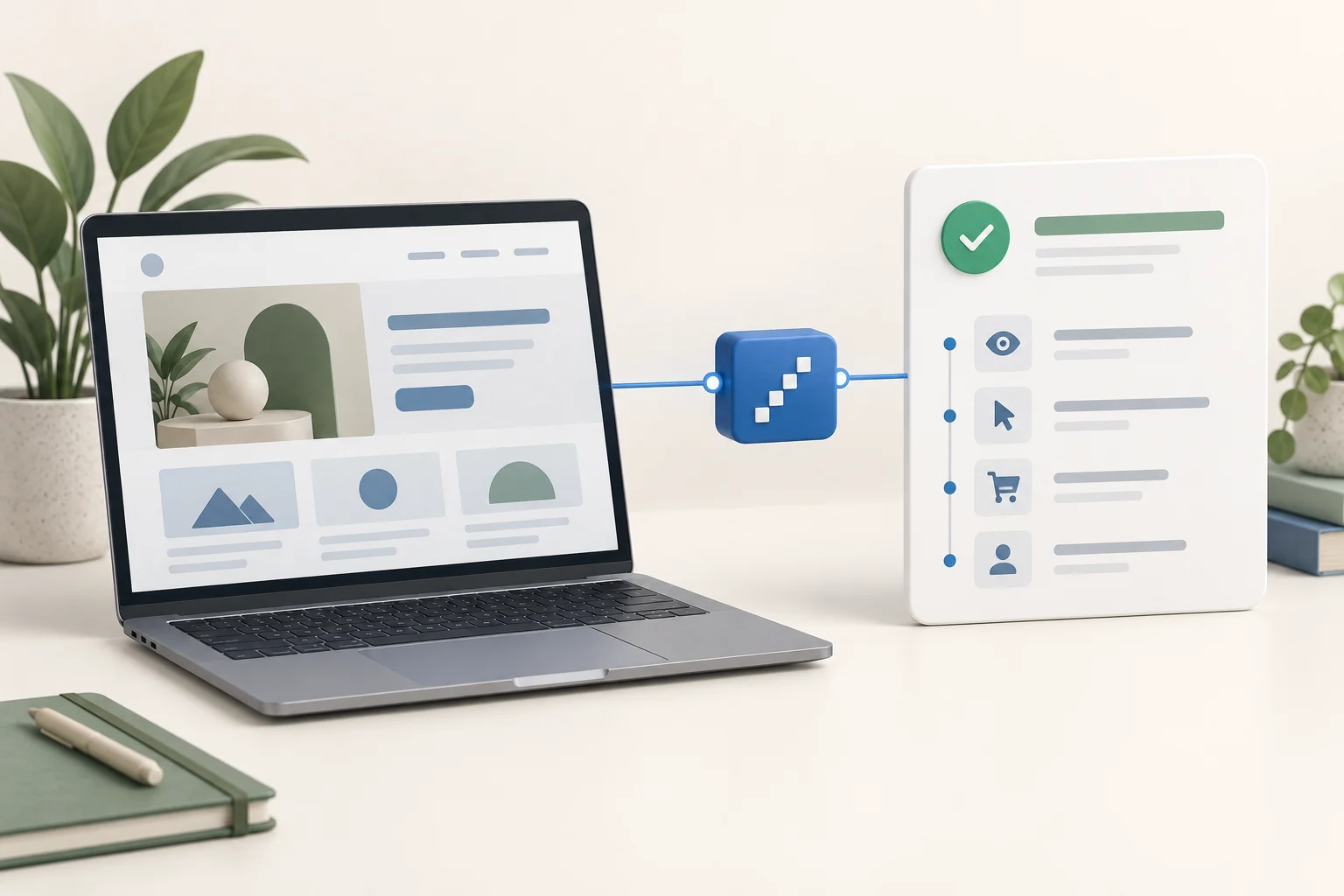
To check whether your Facebook Pixel is working, verify the correct Pixel ID in your browser, watch a real action arrive in Meta Events Manager, and confirm the event describes what actually happened. A green extension icon alone is not a complete test.
Use the current Meta Ads Data Advisor extension, formerly Meta Pixel Helper, for browser diagnostics. Then inspect Test Events for the same website data source. Meta's diagnostic-extension documentation explains the current tool. Use its inspection features without approving unrelated setup changes.
Start with a controlled visit
Open your public website in a browser where you can manage extensions and consent. Log out of WordPress if your tracking integration excludes administrators. Keep the correct Events Manager data source open.
For this permitted test, give advertising consent where your site requires it. A privacy extension can block browser delivery, so a clean test browser helps distinguish a technical problem from an intentional visitor choice. Do not treat a visitor declining tracking as a defect to work around.
Note the page URL, test time and expected Pixel ID. If Niwa assists your customers, choose the downstream action you want to check, such as a completed checkout or website booking.
Inspect the browser side first
Open the extension's panel after the page loads. Compare the displayed ID with the one in Events Manager. Inspect PageView and any action events.
If the panel is empty, look at consent status and the saved integration settings. A plugin can be active without loading its code on this page. Caching can also leave visitors on an older configuration.
If the extension finds an event, inspect its warnings and parameters. That proves the browser can observe the tracking activity. It does not prove an order was saved, a booking succeeded or Meta attributed an advertising conversion.
Confirm receipt in the correct data source
In Events Manager, select the matching website data source and open Test Events. Follow its available browser-testing flow, then perform the action in the website tab you opened.
Check the event name and recorded context. Some dashboard views update later than the browser, so allow the current tool to refresh before concluding that delivery failed. If you see nothing, compare the ID first, then inspect browser network requests and errors.
A request that the browser blocks is different from an event sent to a data source you are not viewing. Those situations need different repairs.
Match the event to a real result
Choose one test action and verify its business record separately.
For an enquiry, confirm the form was accepted. For Niwa website booking, verify a saved appointment after the visitor completes the booking flow. For an order, inspect the store record and payment status against your purchase definition.
Only then compare the Meta event. An event called Purchase on a checkout-button click is still incorrectly configured if the payment later fails.
Use this compact test record:
- Page opened: expected ID and PageView appear.
- Invalid form or abandoned flow: no success conversion.
- Successful action: corresponding business record and conversion appear.
- Confirmation reload: the same outcome does not become another conversion.
- Advertising consent declined: tracking honors that choice.
These are acceptance conditions, not promises that Meta will count every visitor.
Investigate repeated events carefully
Two browser events for one action can mean two script owners, repeated success callbacks or overlapping event rules. Browser and server events representing the same outcome require correct deduplication.
Meta's deduplication instructions describe matching event identities across those two paths. That mechanism is not a reason to leave duplicate browser installations active.
For a WooCommerce purchase, compare the two payloads before changing anything. Different values or missing order context can reveal that the triggers represent different stages.
Keep useful proof
Save a redacted screenshot or test record with the ID, event, time, expected result and observation. Remove contact details, order-access links and credentials before sharing it.
The Pixel measures the configured website outcome; it does not answer customer questions. Niwa's storefront assistance can help a shopper understand an item before checkout. Test the checkout event after that conversation just as you would any other order.
If you want an AI-powered WordPress workflow around an existing site, the standalone Niwa plugin is available. Niwa Business is USD 150 and includes a custom WordPress site or migration, hosting, maintenance and AI adaptation. Contact Niwa with the action you want customers to complete and your current website setup.

