

How to Find Average Order Value in WooCommerce
Find WooCommerce AOV in Analytics, check its net-sales formula and troubleshoot date, status and data-update differences before changing your store.
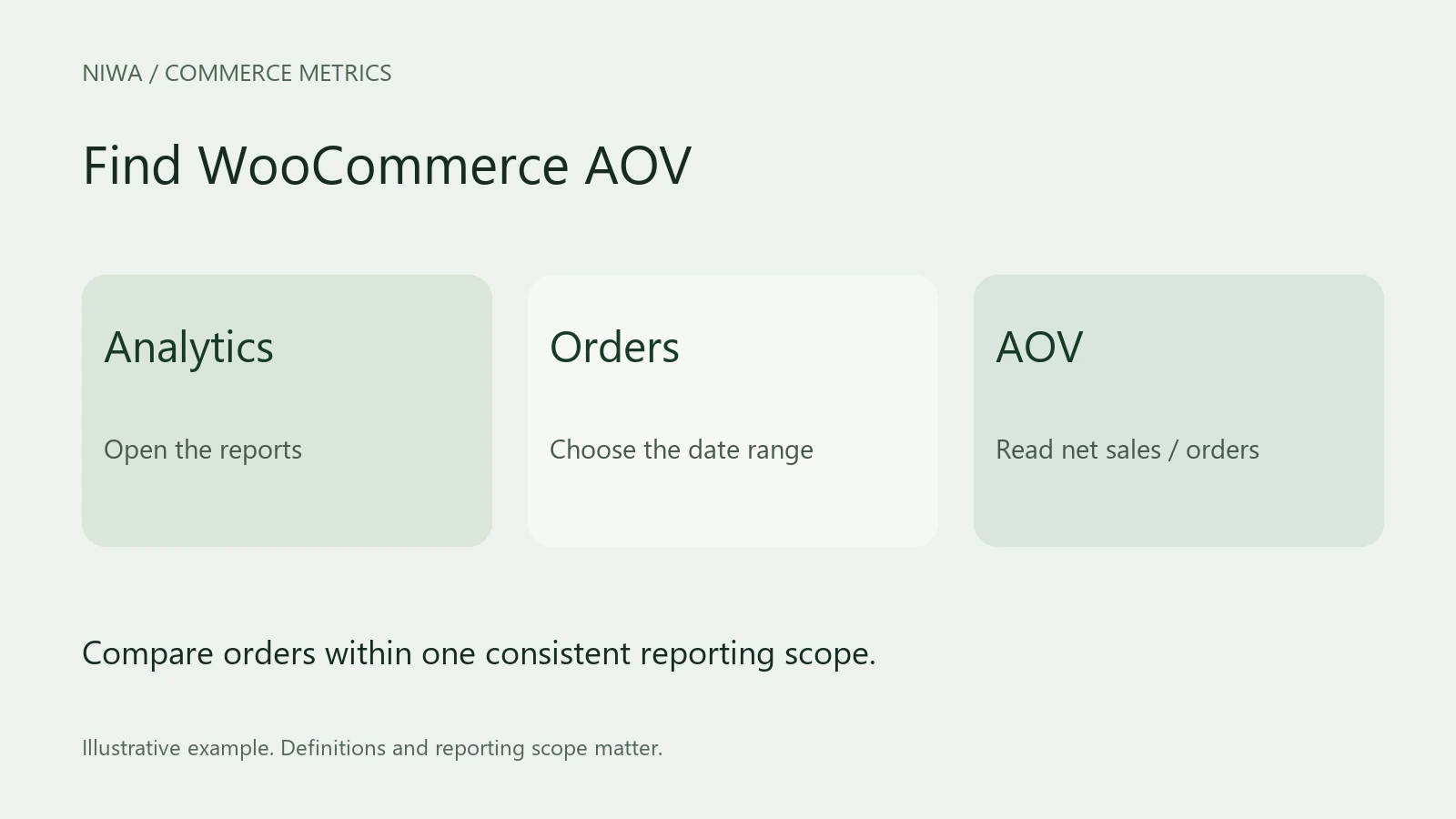
In WordPress admin, open Analytics > Orders, choose your date range and read the Average order value summary. WooCommerce calculates this as net sales divided by orders. You can also display AOV in the Analytics dashboard's performance section.
Use an account with permission to access store reports. Menu names and available controls can vary with the installed WooCommerce version and extensions.
Before enabling a new Niwa storefront workflow, save the current figure and reporting settings. You need a stable starting point to judge what happens after customers receive different product guidance.
Open the right report
- Sign in to the store's WordPress admin.
- Open Analytics, then Orders.
- Select a completed date range, such as last month.
- Read AOV together with orders and net sales.
- Use the comparison controls to inspect the previous equivalent period.
The older WooCommerce Reports screens are separate from Analytics. When following a tutorial or comparing screenshots, confirm that both refer to the same reporting system.
WooCommerce's Analytics documentation explains the dashboard, report controls and metric definitions. Its Orders report guide covers the order view.
Understand what the figure represents
Net sales subtract product refunds and coupon discounts from gross product sales. They exclude tax and shipping. This means AOV is usually lower than a calculation based on the amount shown at checkout, when that payment includes those charges.
For example, $9,600 in net sales across 160 included orders gives $60 AOV. Adding $800 in tax and $400 in shipping to the numerator would produce $67.50 average total payment. That is a different metric.
An individual customer's order-history average is also different from store-wide AOV. One summarizes that customer's purchases; the other summarizes eligible orders across the store.
Check dates and statuses when figures disagree
Open Analytics > Settings and review the excluded statuses and date type. The current documentation describes date-created, date-paid and date-completed options. Compare the actual setting on your installation rather than assuming its default.
A payment made after an order was created can fall into a different reporting period. A custom order status can also affect which records are included. Write these settings beside your exported results so that the next comparison uses the same scope.
Review refunds separately in Analytics > Revenue. WooCommerce records refunds on the date they occur, which can put a refund from an older purchase into your current period.
What if AOV is missing, zero or stale?
First check that there are eligible orders in the selected period and that the dashboard indicator is enabled. Compare a known order with the report's filters and date basis.
Next, inspect the Analytics data status and update settings. Current WooCommerce documentation describes scheduled and immediate update modes; scheduled updates can mean recently placed orders are not yet reflected. Your installed version may expose different controls.
For older or migrated stores, inspect the historical import status under Analytics > Settings. Wait for an active import to finish. Review failed-import logs before retrying the affected records. A report-data problem is not a reason to alter customers' real orders.
Turn the baseline into one useful store change
Suppose customers repeatedly ask whether a particular accessory fits a product. Correct the compatibility information in the catalog, connect the relevant product relationship and test Niwa with that question. Check that the recommended item is available and that its price is clear.
Compare equivalent periods after the change. Keep AOV, order volume, returns and contribution in view. Campaign and traffic changes can influence the same figures, so do not attribute every improvement to the assistant.
Existing WordPress owners can use the standalone Niwa plugin. Ask about setting up Niwa for your store with your URL and a real example of the buying decision you want to support.

