

Why Are Forms Not Working on My AI-Built Website?
A generated form can look finished without saving or delivering a message. Trace the browser request, server response, stored record and inbox to find the failure.
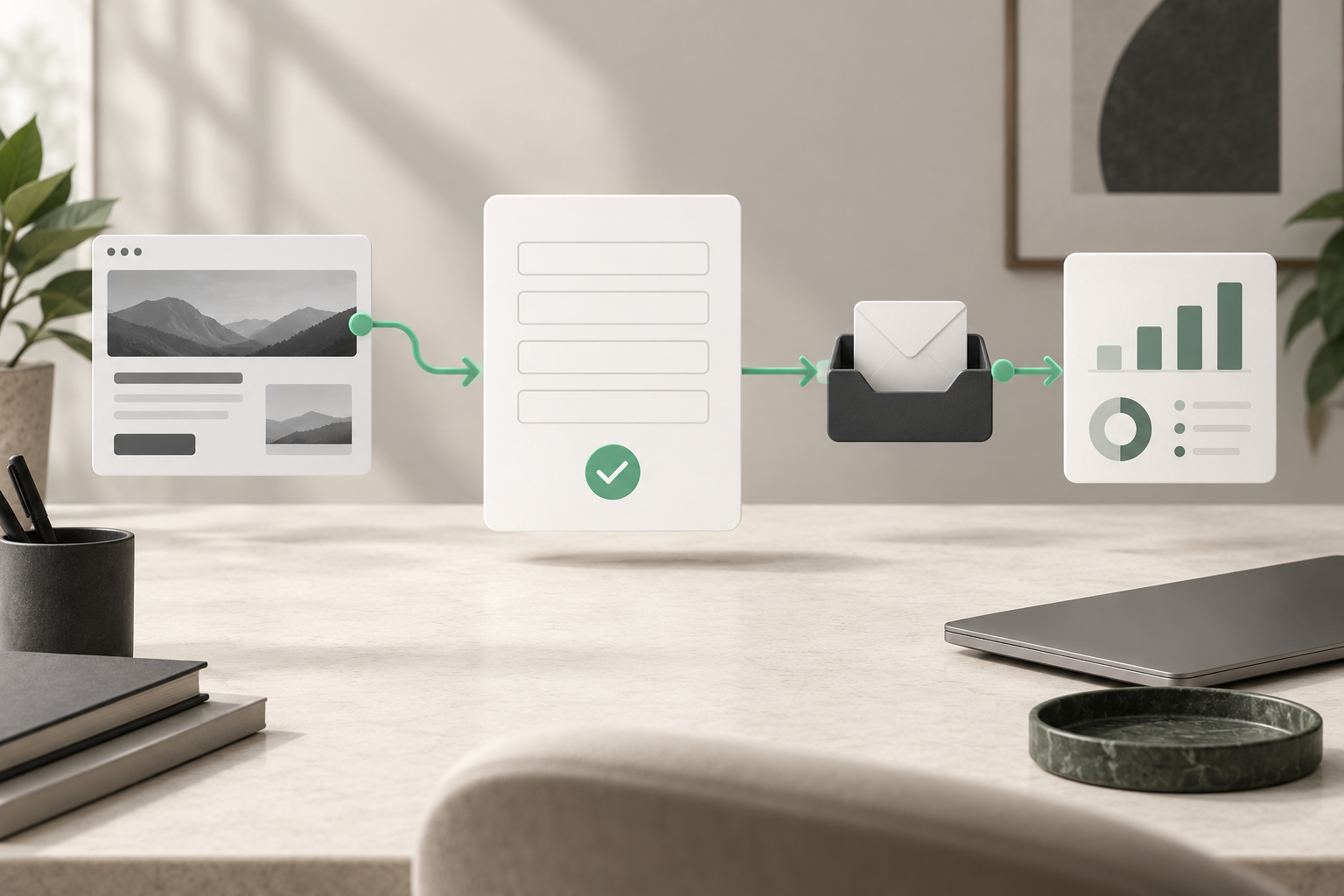
Forms on an AI-built website may fail because they are only a visual mockup, point to the wrong submission endpoint, encounter validation or script errors, or cannot deliver email. A success message does not prove the enquiry reached your team. Trace one identifiable test from the browser to its saved record and destination inbox.
For WordPress, Niwa's maintenance agent can help inspect the affected page and correct a specific content or implementation problem. Give it the form URL, exact symptom and test time. Hosting and email evidence may also be needed to follow a request beyond the page.
Establish what the form is supposed to do
Identify the system behind the form: a WordPress plugin, a custom endpoint or an embedded external service. Note where a successful enquiry should go and whether it should be saved anywhere. Do not assume a generated contact layout has a backend.
A form with input boxes and a button may show a confirmation entirely in the browser. That can be appropriate for a prototype, but it is not a working enquiry route. Ask the builder or developer to identify the actual destination, how submission is processed and how errors are returned.
Record the form ID or page component as well as its URL. If the same form is embedded on several pages, a shared setting may explain the problem. If one page fails and another works, compare their page scripts and embed details.
Observe one controlled submission
Use a test name and message that your team can recognize. Avoid confidential information. Record the exact time and submit once, then inspect the result before repeating. Repeated clicks can create duplicate enquiries even when the confirmation is broken.
Check four things independently:
- Did the browser send a submission request?
- Did the server accept or reject it?
- Was a record saved, if storage is part of the setup?
- Did the expected message arrive at the destination?
Ask the recipient to check the actual inbox and spam folder. If the message arrived but the browser still spins, investigate the response handling. If no request left the browser, start with the page rather than replacing the mail service.
Check the browser request and visible errors
Open developer tools before submitting. Inspect the Console for script errors and the Network panel for the form request. Look at its destination, response status and returned message. A missing resource, stale preview-domain URL or blocked request can prevent submission.
Do not share a raw request containing customer data or tokens in a public support thread. Redact the test payload and credentials before passing evidence to a developer.
On a separate test copy, compare the form without recently added optimization or page effects. A script-order problem can appear after a builder adds another bundle or an optimization layer changes loading. Identify the conflict before disabling features across the live website. The Niwa owner assistant can be given the affected component and observed error for a bounded investigation.
Verify field names and validation
Check that the displayed fields correspond to what the receiving system expects. Generated code can rename an input while the backend still expects the original field. Required fields must be visibly identified, and the returned error must point to the field the customer can correct.
For Contact Form 7, fields in the form and mail template use corresponding tags. Adding a field to the form does not automatically put its value in the email. Review the actual form's mail template against its field definitions. The plugin's FAQ documents that relationship.
Test a missing required value and an ordinary valid submission. Include a phone test with the keyboard open. A layout overlay or invisible validation message may make a technically rejected request look like a dead button.
Inspect WordPress mail settings and delivery
If the server reports a successful send but the inbox is empty, inspect the mail route and recipient settings. Confirm the destination address, routing rules and any authenticated sending service. Keep its passwords or API credentials inside the service configuration, not generated page code.
Contact Form 7's mail setup documentation explains the recipient, sender and message fields. Its delivery guidance recommends a sender address belonging to the website's domain, with Reply-To used for the customer's reply address. Ask the sending provider for the correct SPF and DKIM setup; do not paste unrelated DNS records from another website.
Test delivery to the business inbox after an approved correction. A mail function accepting the message is one step in the route, rather than confirmation that the recipient received it.
Review spam protection and storage separately
A spam filter can reject a submission before email is sent. Check the plugin or service's explanation and any rejection record. Use a normal test message, and investigate why it was rejected. Do not remove protection from the live site merely to make one test pass.
Determine whether the system stores submissions and how your team accesses them. Contact Form 7 does not save them by itself; its FAQ identifies a separate submission-storage option. Other systems behave differently. Existing enquiries cannot be recovered from a database that never stored them.
Collect only what the business needs and make the form's handling clear to visitors. Adding a storage system changes where personal information is retained, so review its access and retention arrangements along with its usefulness.
Use logs when the failure is on the server
Give the host or developer the page, test timestamp, response status and form identity. Ask them to inspect the relevant request and mail evidence. An application error, service credential problem or server restriction requires a different correction from a missing field label.
WordPress provides debugging tools for controlled investigation. Prefer a test environment and protected logs; do not expose error details to visitors. Keep debugging temporary and remove sensitive information from shared extracts.
If the endpoint belongs to an external service, inspect that service's status and submission records as well. Niwa editing a WordPress page does not establish that the external provider delivered an email.
Define what counts as a repaired form
After the correction, submit one new identifiable test and check the response, stored record and intended inbox. Confirm every required field appears in the message or record. Test both desktop and phone, then remove test records according to the business's normal process.
Keep the result and change notes. If customers had a period of failed submissions, identify which records exist before promising follow-up. A functioning form is also different from a persuasive one: the broader AI website checklist helps review the customer journey beyond technical submission.
Bring the failed step to Niwa
Send the URL, expected destination, test timestamp and redacted evidence through Niwa's contact page. Existing WordPress owners can add the standalone plugin for owner editing and maintenance work.
Niwa Business costs USD 150 and includes a custom WordPress website or migration, hosting, maintenance and AI tools adapted to the business. Confirm the billing period and the repair you need. The useful goal is a verified enquiry route, with a result your team can actually find.

