

How to Add Internal Links to a Website
Add useful internal links by choosing relevant pages, writing clear link text and checking the destination. Follow WordPress steps and avoid orphaned content.
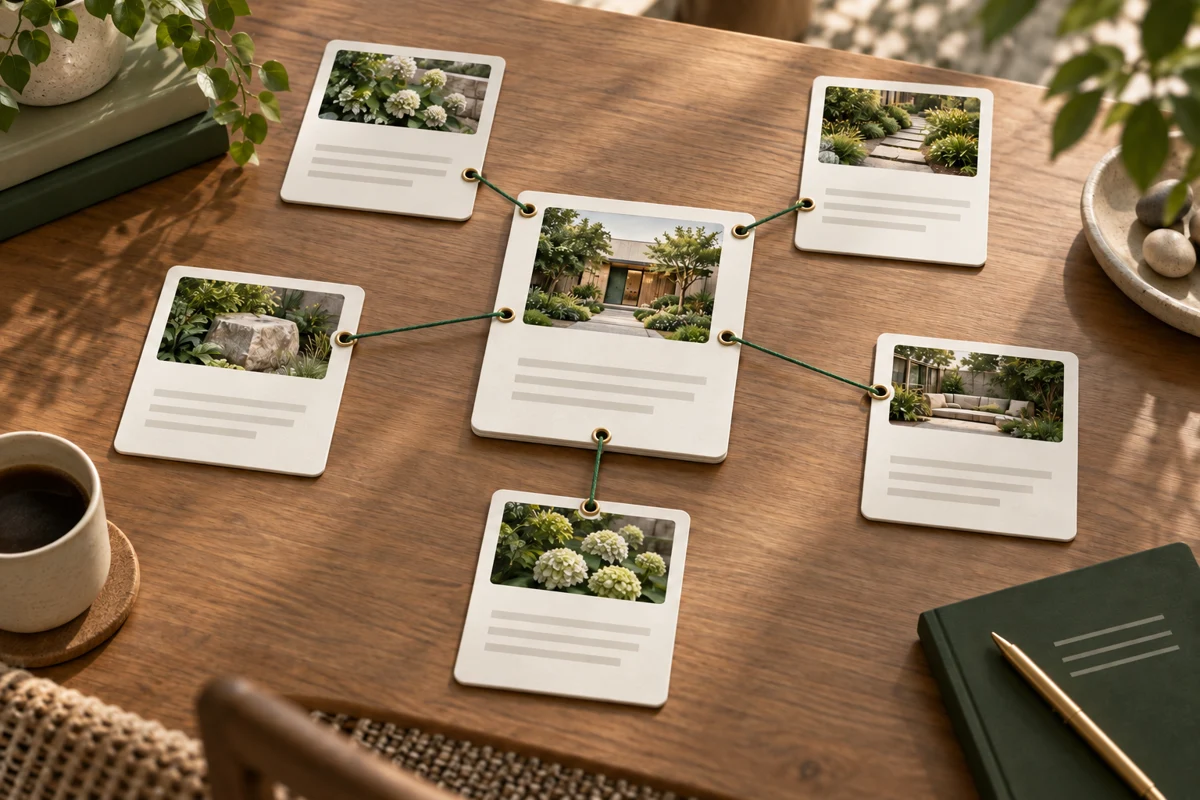
To add internal links to a website, choose another page that helps the reader's current task, link to its stable URL using descriptive text, and check that the destination works. Add relevant links from existing pages to new important content as well. A link should explain where the reader can go next, rather than interrupt the paragraph with an unrelated promotion.
On WordPress, Niwa can help owners improve supported page content. Give it the source page and approved destinations, review the placement and check the saved links. It should not invent a destination or apply a site-wide linking pattern without a reason.
Choose the destination before writing the link
Open the page you are editing and ask what the reader may need next. A service explanation might link to preparation instructions or the booking route. A product page may link to a genuine size guide. A supporting guide can link back to the service or category it helps someone evaluate.
For example, a bicycle maintenance guide could link the phrase "workshop brake inspection" to the actual inspection service. Linking the same phrase to a general homepage would be less precise if a relevant service page exists.
Confirm the destination is current, accessible and appropriate for the reader's language. Do not send visitors to an unpublished draft, deleted service or a login screen when the paragraph promises public information.
Use words that explain the next page
Link text should make sense in the sentence and describe the destination. "Our bicycle servicing options" is more useful than "click here" when it opens a service page. Keep it concise enough to read naturally.
Avoid turning every occurrence of a phrase into a link. Repeat a link only when it serves a separate navigation need, especially on a long page. There is no universal ideal link count. Google's link guidance recommends meaningful context and crawlable anchors.
The main test is simple: would the reader expect the information they find after selecting this text? If not, change the destination or the wording.
Add the link in WordPress
Open the correct page or post. Select the words that should become the link, choose the editor's link control and search for the intended internal page or paste its exact public URL. Confirm the selection and save or update the page.
Use the established canonical destination rather than an unnecessary tracking URL or a redirecting old address. Preserve the surrounding sentence so the link has context. If your editor provides a new-tab option, choose behavior that suits the task instead of opening every internal page in another tab by default.
Then view the saved page outside the editor. Follow the link and check its destination. A page-builder preview may not show the same saved output as the public website.
Make the link readable to crawlers
Ordinary links should be HTML anchors with an href pointing to an actual URL. A styled button can contain a normal link. A script-only click action on an unrelated element is less reliable for crawling.
For online stores, navigation should connect categories to the products shoppers need. Google's ecommerce navigation guidance explains why access through a search box alone is not a complete crawlable route.
If you cannot inspect the generated markup yourself, ask the person maintaining the site to confirm the link output. Appearance alone does not establish that the link is crawlable.
Give new pages incoming links
Publishing a page does not automatically make it easy to find. Identify at least one existing relevant page or navigation route that should link to it. Check the reader journey in both directions where that makes sense.
For a new service page, the services overview may need an entry. A relevant preparation guide may also need a contextual link. Avoid placing unrelated links in every footer just to increase a number.
Keep a small list of important destinations and their incoming routes. After removing or merging a page, update those routes to the useful replacement instead of leaving avoidable redirect chains.
Use Niwa for a specific linking task
An example request is: "Review this guide and these three published service pages. Suggest links only where they help the reader, show the exact sentence and confirm the destination before applying the edit." Niwa's website maintenance tools can support the editable content in your installation.
Review the proposed relationship yourself. Niwa's business context helps with the available information, but it is not a reason to link an unsuitable service. After saving, check the desktop and phone interaction and the final URL.
Send the page you want to improve and the destinations it should connect to discuss WordPress assistance. Existing sites can use the standalone Niwa plugin; Niwa Business is USD 150 for a custom site or migration, hosting, maintenance and business-specific AI adaptation.

