

How to Build a Website with AI
Use WordPress for content and business features, then develop your frontend with an AI coding agent. Follow the Hostinger setup, costs and ownership checks.
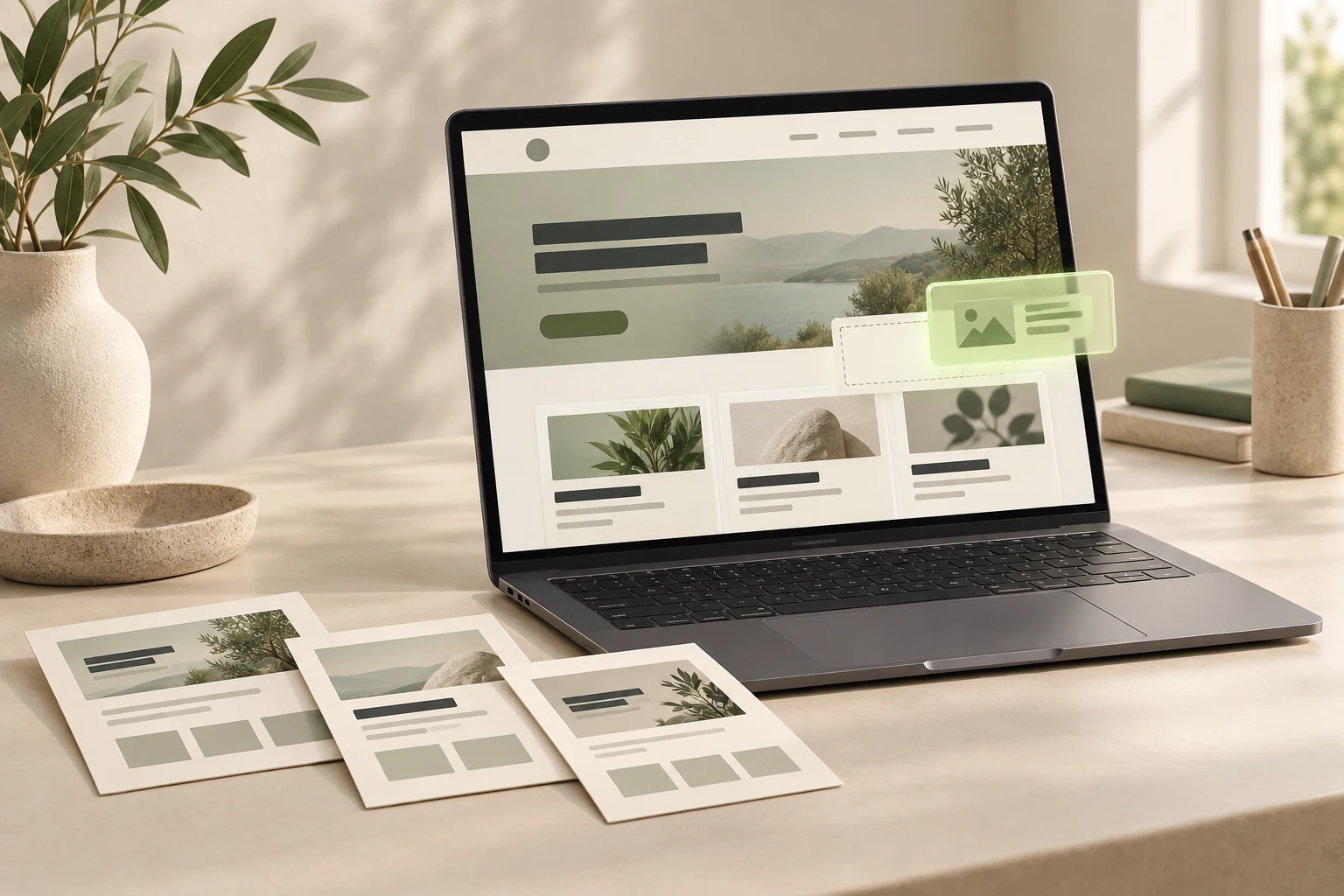
To build a business website with AI, register a domain, install WordPress on your hosting account, and use an AI coding agent to develop the design around it. WordPress gives you a backend for managing content and users. The agent helps build the frontend your customers see.
Our preferred starting point is Hostinger hosting, self-hosted WordPress, and an AI coding tool you choose. This suits a business that needs to add services, publish articles, connect booking software or grow into an online store. You can keep the familiar WordPress dashboard while developing a design that fits your business.
A website generator can produce a useful first draft. Before committing your business to one, find out how you will edit the site, add features and move it elsewhere. Those decisions matter long after the first homepage is finished.
Disclosure: We use Hostinger ourselves. We would never recommend a service we do not use. This guide contains our referral link, and we may receive a commission when you purchase through it. Compare the plan details and renewal price before buying.
What are a domain, hosting and a website backend?
You do not need to learn server administration to understand the pieces of your website.
| Term | What it means | Example |
|---|---|---|
| Domain | The address people enter to reach your site. You register the right to use it for a renewable period. | yourbusiness.com |
| Hosting | The service that runs your website and stores its files and database. | A managed WordPress hosting plan |
| DNS | The records that connect your domain to hosting and other services, including email. | Pointing your domain to your hosting provider |
| HTTPS | An encrypted connection between a visitor’s browser and your website, enabled by a TLS certificate, often called SSL. | The https:// address in the browser |
| Backend | The system behind the public pages, where you manage content, accounts and business features. | WordPress administration at /wp-admin |
| Frontend | The pages and interface your visitors use. | Your homepage, service pages and shop |
| Theme | The WordPress files and templates that control how your content appears. | A custom design built with an AI coding agent |
A domain alone does not contain a website. Hosting alone does not give customers a memorable address. WordPress connects the content and administration to the public site; a theme supplies its presentation.
Register the domain and hosting in an account your business controls. Keep access to the recovery email, billing and backups even when a developer helps with the build.
Why use WordPress as the backend for an AI-built website?
Imagine a local service business. At launch it needs service pages and an enquiry form. Later, it wants a blog, separate staff profiles, appointment booking and online payments.
With WordPress, the content already has somewhere to live. Your team can update a service description or add an article through the dashboard. Appropriate plugins can add forms, booking or commerce without commissioning every system from scratch.
WordPress core includes pages, posts, media, user roles and publishing tools. Plugins extend it; WooCommerce, for example, adds an online store. These features still need configuration and testing. WordPress does not automatically supply every business workflow. See the WordPress feature overview.
Let WordPress handle the established content system, then ask AI to build the parts your business actually needs around it.
For a typical business website, start with a normal WordPress theme. A separate React or Next.js frontend, often called headless WordPress, can be appropriate for a more complex application, but introduces another deployment and more integration work. You do not need that extra layer to get a custom design.
How this can reduce AI token use
AI coding tools process your instructions, code and responses as tokens. The amount of work you ask them to do affects usage.
If you ask an agent to invent a CMS, it may need to build login screens, content storage, editing, permissions and media handling before it reaches your design. Using WordPress lets you reuse those existing systems.
That gives the agent less new backend code to produce and maintain. It can reduce token consumption compared with rebuilding equivalent features, but there is no fixed saving we can promise. Model choice, project size, debugging and the quality of instructions all affect the bill. Updating a paragraph in WordPress does not require an AI coding session at all.
Why we recommend Hostinger for this workflow
Hostinger brings domain registration, hosting and WordPress setup into one account. Its guided installer handles the basic installation, and eligible hosting plans support SSH access for development tools.
That makes it an affordable starting point for a business that wants WordPress administration and a custom frontend. It also lets you choose an external coding agent rather than making the entire development workflow depend on one website generator.
Affordability needs a complete comparison. On 9 October 2026, Hostinger’s international WordPress hosting page advertised Premium at $2.99 per month for a 48-month term, paid as $143.52 upfront, renewing at $10.99 per month. Eligible plans advertised a domain free for the first year. Availability, domain extensions, taxes and regional prices vary; check the checkout total and subsequent domain renewal. Check current WordPress hosting prices.
Add your coding agent subscription or API usage, any paid plugins, email after an introductory period, and maintenance to that budget. A low hosting entry price does not make every WordPress project cheaper than every builder.
Explore Hostinger through our referral link and choose the plan for the workflow you need. Confirm SSH, staging, backups and AI integration eligibility before purchasing. Hostinger’s WordPress MCP documentation currently specifies Business and Cloud plans, while its pricing page also displays an Unlimited offer; do not assume those labels have identical feature entitlements.
How to build your website with AI and WordPress
1. Describe what the business needs the site to do
Write a short brief before asking AI to generate a design. Include your services or products, audience, languages, pages and the action visitors should take.
For example:
Build a WordPress website for a home renovation business. Visitors need to see our services, view completed projects and request a quote. Staff must be able to edit service text, add project photos and publish articles in WordPress. Use reusable templates, a responsive layout and accessible navigation. Explain any additional plugins before adding them.
Prepare real contact details, service information and photographs. Review generated copy before publishing; the agent should not invent prices, customer testimonials or qualifications.
2. Register your domain and choose WordPress hosting
Search for the domain you want in Hostinger, then register an available name in your own account. If you already have a domain elsewhere, you can keep its registration there and connect it to your hosting through DNS.
Choose managed WordPress hosting for this route. Hostinger also offers a separate website builder: buying from the same company does not make that product a WordPress installation.
Check the initial term, renewal, storage and backup features. Choose server location with your audience in mind where that option is available.
3. Install WordPress through hPanel
In Hostinger’s Websites section, create a website and select WordPress. Set your administration language, email and password, then follow the setup flow. You can use a temporary domain while preparing the site. Hostinger’s WordPress setup guide shows the current steps.
For an existing hosting setup, Hostinger also provides Website → Auto Installer → WordPress. This is the installation commonly described as “one click”: you still enter the site and login details. Follow the Auto Installer instructions.
Afterward, open the WordPress dashboard. Confirm that you can create a draft page, upload an image and edit your site title. You now have a working content backend before custom frontend development begins.
4. Connect the domain and check HTTPS
Assign your domain to the website and apply the DNS settings shown for your account. If another provider manages your DNS, make the changes there. Preserve existing email records when connecting the website.
DNS changes may take time to propagate. Once the domain resolves, confirm that the correct site loads through HTTPS. Hostinger explains domain assignment and pointing here.
5. Connect your AI coding agent
There are two useful connections, with different jobs.
For hosting and deployment, Hostinger Connector supports tools including Cursor, Claude Code and Codex. Follow the setup for your chosen tool, sign in through the browser and inspect the permissions it receives. It works with the relevant active Hostinger services in your account. Use the official Connector setup.
For theme files and command-line development, you can use SSH on an eligible plan. SSH is an encrypted way to connect a terminal to the hosting account. Enable it in hPanel’s SSH Access section and use the account-specific connection details Hostinger supplies. Your coding agent can work from a local project and use that connection to inspect or deploy the theme. Hostinger documents SSH access on Premium Web and higher plans.
Start with a staging copy or local project. Confirm the domain and theme folder before granting write access. Keep credentials in the tool’s supported secure configuration, and keep a copy of the theme in version control.
For supported WordPress administration tasks, Hostinger separately documents MCP access through its AI Plugin on Business and Cloud plans. MCP is a standard through which an AI tool can call website tools. Use a separate, revocable application password per tool. Confirm the available operations; WordPress MCP access and SSH filesystem access serve different purposes. See Hostinger’s WordPress MCP guide.
Do you need a VPS to connect an AI agent?
No. SSH access on an eligible managed hosting plan can be enough for this workflow.
A VPS, or virtual private server, is a separate server environment with more control. You might choose one for custom server software or a persistent agent runtime that your managed plan does not support. With that control comes responsibility for configuration, updates and server security, unless covered by a separate management service. Hostinger’s VPS SSH guide covers that connection.
Do not purchase a VPS simply because a tutorial mentions remote coding. Establish what your project needs and what your existing plan supports first.
6. Ask AI to build a frontend that respects WordPress
Give the agent the existing theme structure and your brief. Ask it to use native WordPress content and menus, shared styles and reusable templates. Business functionality that should survive a redesign belongs in an appropriate plugin rather than being buried in the theme.
This instruction helps prevent a common problem:
Build the design as a WordPress theme. Keep page text, images and menus editable through WordPress. Use native blocks and patterns where they fit. Do not hardcode all pages into one HTML block, edit WordPress core or rebuild existing backend features. Work on staging, show the changes and test the result before deploying.
Develop one complete customer journey first: service page → enquiry → confirmation → delivery to the business. A form that looks finished but never sends the enquiry is unfinished.
7. Add plugins for real business needs
Choose plugins because they perform a task: collect enquiries, manage bookings, sell products, handle translations or connect to another business system. Check maintenance, compatibility and ongoing costs before installing them.
Configure and test each connection. Booking needs correct availability and notifications. Payments need a working payment-provider setup. Multilingual pages need reviewed translations and appropriate language URLs. Installing a plugin is the beginning of that work.
WordPress makes these additions accessible through an established ecosystem. Keeping a small, purposeful plugin set also makes maintenance easier.
8. Test, launch and keep a recovery path
Check the site on a phone and desktop. Test navigation, forms, emails and any booking or checkout flow. Confirm that a staff member can edit content without calling the agent.
For SEO, give each page a clear subject, descriptive title and useful content. Check crawl visibility, canonical URLs, your sitemap, image descriptions and redirects when replacing an older site. Connecting Google Search Console helps you see indexing issues after launch; it does not guarantee rankings.
Before deployment, take a backup that includes the database and files. Keep the tested theme version and a documented way to restore it. After deployment, test the public domain again rather than relying on a successful upload message.
What makes this approach easier to grow?
Growth often starts with a content change: another service, a new location, a product category or a second language. A structured WordPress backend lets those additions use existing templates and administration rather than requiring a regenerated site each time.
You can change coding tools without changing the content system. Another developer can take over a conventional theme. You can also move a self-hosted WordPress installation to another compatible host, carrying its files and database with it. Check licences and external services separately; a full migration requires more than a posts-only export.
Traffic growth still requires suitable infrastructure. Monitor response times, caching, image sizes, database work and checkout performance. Upgrade hosting when actual demand requires it. WordPress provides options for expansion; no entry-level hosting plan guarantees unlimited business capacity.
Does an AI website company own your site?
Using an AI builder does not automatically mean its provider owns your content. Ownership rights, access to source code and the ability to move the site are separate questions.
Before choosing a builder, ask whether you can export usable code, content and assets; run the result elsewhere; retain the domain; and keep working features after cancelling. Some tools support those options, while others depend on a proprietary runtime.
With self-hosted WordPress and a conventional custom theme, you can keep direct access to the database and files. Maintain your own backups and respect software licences. That practical control is the reason we prefer this route for a business with evolving requirements.
Is a WordPress website built with AI secure?
WordPress has established security practices, and managed hosting can handle parts of the infrastructure. Neither guarantees a site can never be compromised. AI-generated code also needs review, whichever platform you use.
Keep WordPress, themes and plugins updated, remove unused components, use strong authentication and restrict access to what each tool needs. Maintain restorable backups and check custom code before launch. WordPress’s own security handbook explains why maintenance remains necessary.
Reusing WordPress means you do not need to invent your own authentication and publishing system for an ordinary business site. It gives you an established foundation, with ongoing responsibilities you can plan for.
When would a website builder be a reasonable choice?
A builder can suit a small landing page, a short-lived campaign or someone who prefers a managed visual editing system and accepts its limitations. A static site can also be economical when there is little content to manage.
We recommend WordPress with AI-assisted development when you expect regular content changes, multiple editors or integrations that need to grow with the business. The useful comparison is the complete lifecycle: building, editing, connecting services and eventually moving the site.
Choose your Hostinger plan, install WordPress and start with one working customer journey. If you want help with implementation or adding a business AI assistant, contact Niwa with your existing site and the work you need it to perform.
AI-powered website vs AI website builder vs website built with AI
These terms describe different things, and one site can fit more than one category.
| Term | What AI does | Example |
|---|---|---|
| AI website builder | Generates or edits a site inside a building product. Hosting and export options depend on that product. | You describe a business and receive an initial layout. |
| Website built with AI | Helps write the site’s code, design or content during development. The finished website can run without AI being called on each visit. | An agent develops a WordPress theme on your hosting. |
| AI-powered website | Performs an AI function while the site is being used. It needs the relevant runtime or model connection. | A business assistant answers a visitor using approved site information or helps them find a product. |
A WordPress website built with AI can later become AI-powered by adding an appropriate assistant. Choose your foundation for how the business will operate, then use AI where it saves work or helps your customers.

