

WooCommerce cross-sells: add the right cart products
Choose useful product pairings, keep the existing recommendations you need, and verify the saved cross-sell list in the real WooCommerce cart.
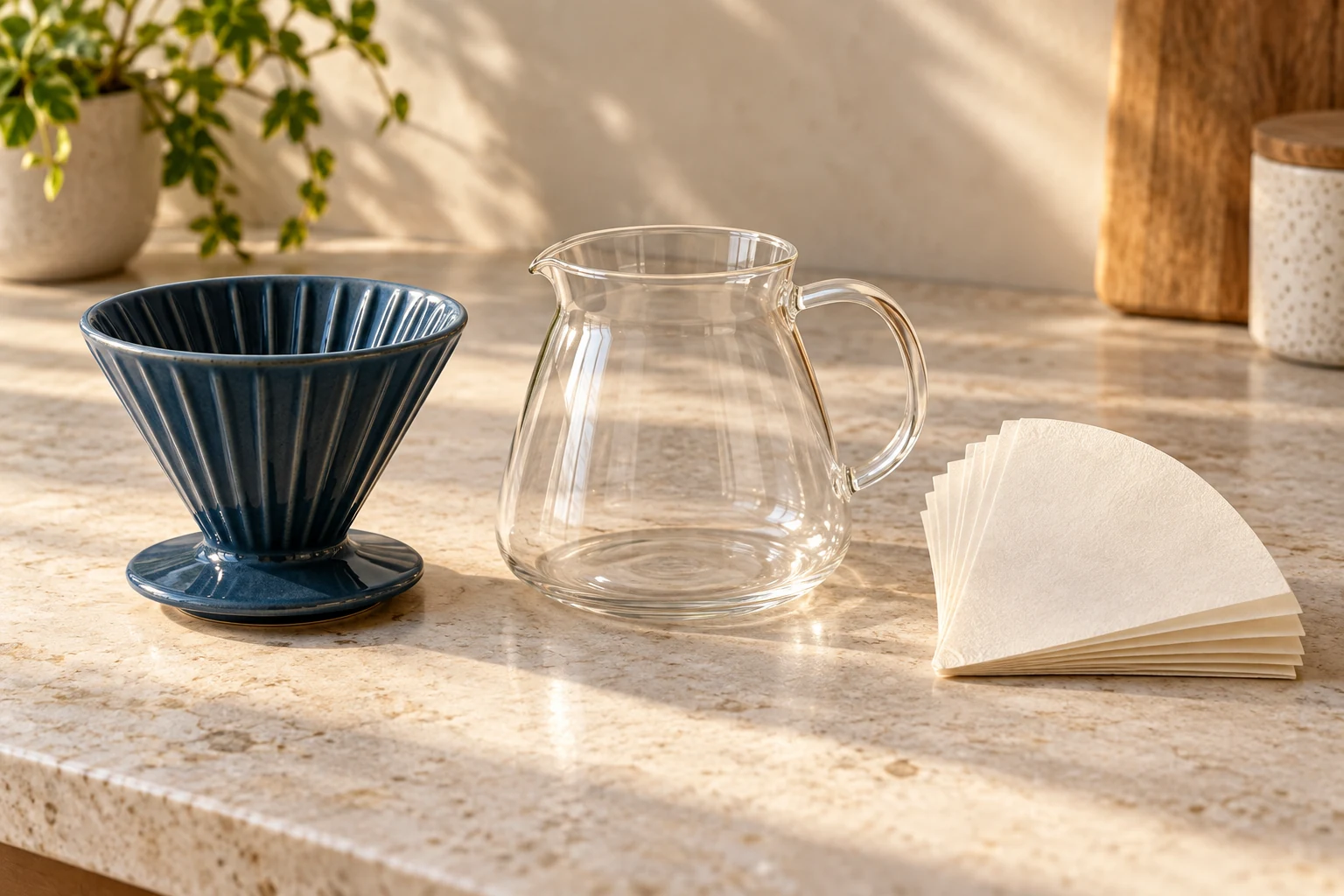
A shopper adds a pour-over coffee brewer to the cart. Your store also sells the paper filters it needs, but finding them means another search through the catalog. A useful WooCommerce cross-sell puts that complementary item within reach while the shopper reviews the order.
The work starts with choosing a sensible pairing. It continues with saving the right product relationship and checking the actual cart. A recommendation that points to the wrong size, replaces an existing useful suggestion or never appears in your layout has not solved the shopper’s problem.
Choose the relationship before editing the catalog
WooCommerce distinguishes three kinds of recommendation. Cross-sells are complementary products associated with items in the cart. Upsells are alternatives to the product someone is viewing. Related products are generated from shared categories or tags. The official linked-products guide explains the fields and their theme-dependent display.
Consider a fictional US coffee equipment store. Its merchant has confirmed that a particular paper filter fits its ceramic brewer and that its glass server works with that brewer. These are facts supplied for this example, not a compatibility claim about an actual coffee product.
| Catalog item | Decision |
|---|---|
| Ceramic brewer | The source product whose cross-sells will be edited |
| Compatible glass server | Keep the existing cross-sell |
| Verified paper filters | Add to the approved cross-sell list |
| Larger brewer | Review separately as an alternative, rather than an accessory |
For a real catalog, write down why the buyer might need each suggested item. Check fit, pack contents and anything already included with the main product. If the brewer already ships with filters, say so in the product information before offering another pack. A replacement part should have a verified compatibility basis; a similar product name or photograph is insufficient.
Keep the first change small enough to review carefully. One source product with a short, justified list is a useful starting point. The merchant can resolve the questions once, then use the same brief when a colleague maintains that pairing later.
Save the links on the source product
In the classic WooCommerce product editor, open the source product, go to Product data > Linked Products, and search for the intended items in Cross-sells. Preserve the entries you still want and select Update. The controls can appear differently in other product editors.
Record the source product’s ID and SKU, plus the IDs of the linked items. Similar names are common in growing catalogs: a filter for a small brewer and one for a larger model can be easy to confuse. Open each candidate’s product record before accepting it.
Also capture the existing list before the change. A short review note might read: “Keep the glass server; add the approved filters; leave the alternative brewer in its current place.” That gives the person making the update a clear intended result instead of a loose request to improve recommendations.
Use Niwa to apply the complete approved list
Niwa’s authorized administrator tools can identify WooCommerce products and update their cross-sell and upsell product-ID lists. The inspected product update implementation accepts those lists separately. When a cross-sell list is supplied, it sets that list, so include every existing entry you intend to retain.
For the fictional example, suppose the confirmed IDs are 6101 for the brewer, 6102 for its existing server recommendation and 6103 for the new filters. These are illustrative IDs; substitute the records verified on your own store.
First ask Niwa to identify the products without making changes:
Find the ceramic brewer, the compatible glass server and the approved paper filters from this pairing brief. Show each product’s ID, SKU, name and current stock status. Do not update anything yet.
Review those matches against your catalog. Check the current cross-sells in WooCommerce’s Linked Products panel too: a general product lookup summary is not proof that you have seen the saved relationship list.
Then give Niwa the exact intended state:
For confirmed product 6101, set the complete cross-sell list to products 6102 and 6103. Keep the current upsells, title, descriptions, price, stock and categories unchanged. This retains the server and adds the filters.
Follow any confirmation required by your configuration. Reopen Linked Products after the operation and compare the saved entries with the approved list. If the result differs, stop expanding the change and inspect that one record first.
This is an administrator catalog-maintenance workflow. It does not establish that every cart design will show the recommendation, or that a customer conversation will use it in a particular way. The Niwa WooCommerce AI Operator overview explains how available tools and owner permissions determine the work Niwa can perform.
If WooCommerce cross-sells are not showing
Start with a fresh customer session containing the source product. Check the full cart URL used by your store. A side drawer, an empty-cart recommendation area and a custom checkout offer may each use a different configuration.
Identify who controls the cart layout before changing it. WooCommerce’s cart customization guide gives separate editing paths for block themes, classic themes and page builders. A saved product relationship and the component that displays it are separate parts of the check.
Current WooCommerce documentation describes cross-sells in newly added Cart blocks as a Product Collection. In its Linked Product setting, check whether the collection uses products in the cart or one specific product. Also inspect its product limit and stock or sale filters. Those controls can explain a difference between the saved list and the items you see; the Cart block documentation describes them.
Older instructions may tell you to insert a standalone Cart Cross-Sells block. WooCommerce’s migration advisory says the change began with version 10.2 and that existing uses of the older block can continue working. Identify your installed version and existing layout before following a tutorial or replacing anything.
If the saved entries are wrong, correct the product list. If the list is right and the display is wrong, investigate the cart component. Repeatedly rewriting product relationships will not explain a filter or a layout that uses another source.
Review the buying journey before widening the change
On desktop and at mobile width, check that each recommendation has the intended name, image and product destination. If the card shows an old or unsuitable photo, our guide to updating WooCommerce product images covers that separate maintenance task.
Try the relevant cart states: the brewer alone, the brewer with the server, and a cart with an unrelated product. Check that the buying controls remain usable and that the suggested items make sense in each state. Adding a candidate to your review list should not become an unexamined recommendation across the catalog.
Keep a dated record of the source product, approved pairings and observed display. If you later evaluate sales impact, use actual order data and account for other changes made during the same period. Correctly saving and displaying a link is a verifiable operational result; revenue improvement still needs evidence.
To work through one pairing on your own store, book a Niwa demo and bring the source product URL, the current linked items and your proposed addition. During your Niwa demo, we cover the subscription and AI usage. There is no obligation to buy.

