

How to Track AI Chatbot Interactions in GA4
Measure AI website chat in GA4 with verified interaction events and business outcomes, safe parameters, consent checks and a practical testing plan.
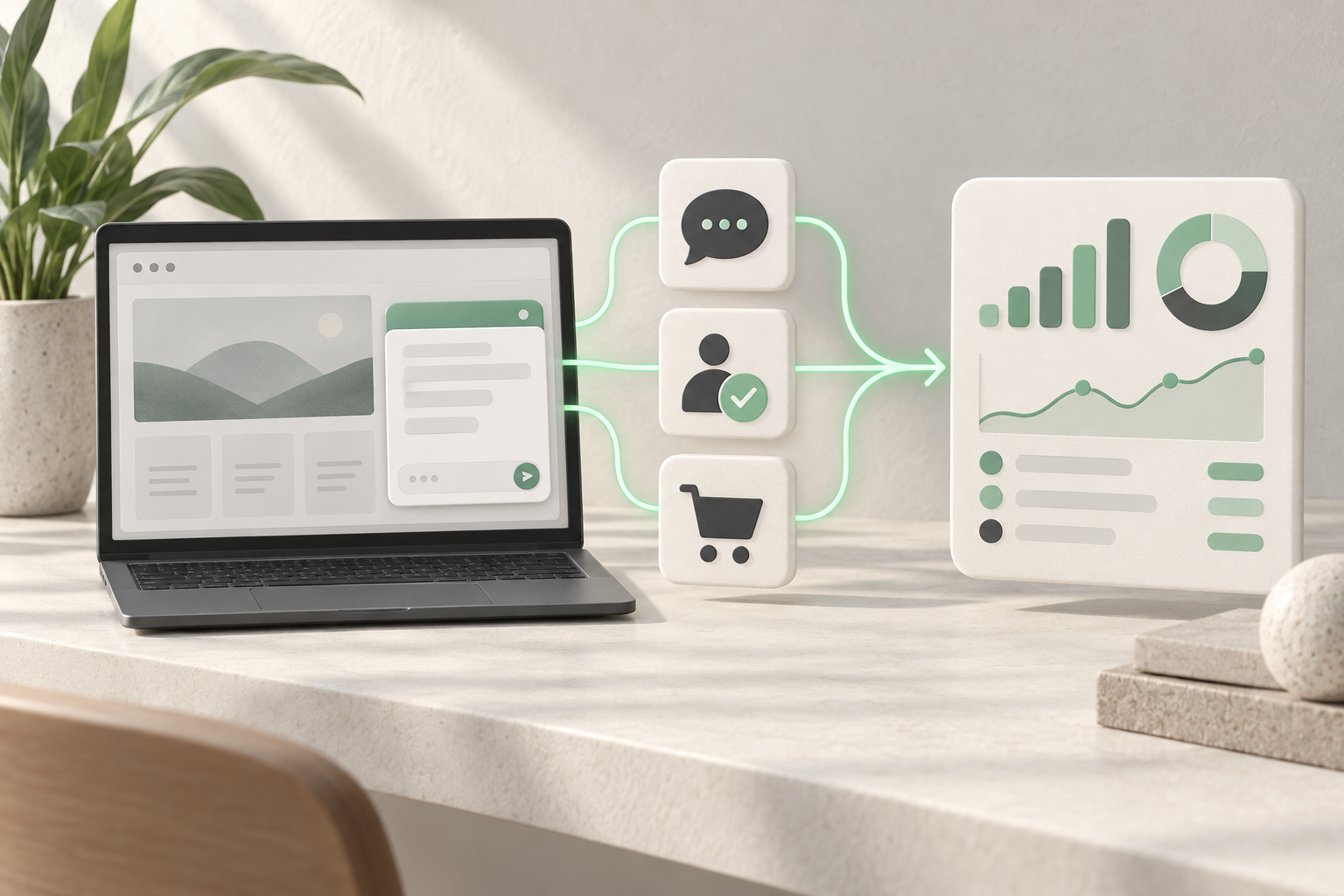
Track AI chatbot interactions in GA4 by connecting a verified interface event to Google Tag Manager, then measuring leads, bookings and purchases through their own successful completion signals. The Niwa example below records a visitor clicking the website assistant’s launcher and sends ai_chat_open to GA4. It includes an exact listener, GTM configuration and DebugView checks without collecting the conversation.
Niwa’s website assistant can help customers find products and continue towards an enquiry or booking. Opening the assistant tells you about interaction with that interface. An accepted enquiry, saved reservation or completed store transaction tells you about a business outcome.
Choose an interaction you can verify
Start with deliberate launcher openings. In Niwa AI version 0.13.1061, the morph controller emits niwa:morph:open on window. When the visitor clicks the launcher, the event’s detail.source is launcher_click. Other ways of opening the panel do not necessarily have that source.
This recipe uses that installed event contract and requires a GTM web container with an existing Google tag. Verify the contract in your Niwa version before enabling the listener. The listener adds analytics measurement; the lifecycle event itself is not an automatic GA4 export.
Count each deliberate opening as an event. Closing and reopening the assistant can therefore produce another opening event. Do not call this a count of unique chat users or accepted messages.
Connect the launcher event to the data layer
In GTM, create a Custom HTML tag named Listener – Niwa chat opening. Put this JavaScript inside an opening and closing script element. Select DOM Ready for pages with the assistant and choose Once per page under Advanced Settings, Tag firing options. Install it once.
window.addEventListener('niwa:morph:open', function (event) {
 if (!event.detail || event.detail.source !== 'launcher_click') return;
 window.dataLayer = window.dataLayer || [];
 window.dataLayer.push({
 event: 'niwa_chat_open',
 widget_id: 'niwa_website'
 });
});
The listener sends exactly event: niwa_chat_open and widget_id: niwa_website. The source comparison uses a fixed application identifier, so translated labels and visitor languages do not affect the measurement.
Do not copy the whole lifecycle object or read the chat messages. Google’s data-layer documentation explains the event-and-parameter push. Keep the existing data layer rather than replacing its contents.
Create the GTM trigger and GA4 event
Create a Data Layer Variable named DLV – widget_id. Enter widget_id as the Data Layer Variable Name and select Version 2. Google’s variable guide explains this configuration.
Next create a Custom Event trigger called Niwa launcher opening. Its Event name is niwa_chat_open; leave regular-expression matching off and select All Custom Events. That setting matches the exact named event. See the Custom Event trigger guide.
Create a Google Analytics: GA4 Event tag with your existing stream’s G- Measurement ID. Set Event Name to ai_chat_open. Add the event parameter widget_id with value {{DLV - widget_id}}, then attach Niwa launcher opening as the firing trigger. Save the tag. Google’s event-tag guide describes the destination and event fields.
Keep event-tag firing available for each opening. The listener registers once per page; the event can occur again when the customer deliberately reopens the assistant. Avoid retaining another tag that measures the same launcher action.
Verify openings in Tag Assistant and DebugView
Choose GTM Preview and connect Tag Assistant to an assistant-enabled page. Follow the site’s consent flow, then click the launcher. In the event timeline, select niwa_chat_open, inspect DLV – widget_id, and confirm that the GA4 tag fired once.
Open GA4 Admin, Data display, DebugView and select the test device. Find ai_chat_open and check that widget_id equals niwa_website. Google’s DebugView guide explains the test display.
Close and reopen the assistant: a second deliberate opening should produce a second event. A page view alone should not. Check an automatically or programmatically opened panel on staging; it should not qualify without the launcher_click source. Sending a message while the panel is already open should not create another opening event.
Test mobile and another site language. Review the tag payload and page URL for personal information, then publish the tested GTM version with a note describing the opening contract.
Add message-start measurement only at acceptance
If you also need ai_chat_start, define it as the first accepted visitor message in a conversation. The launcher event does not provide that evidence. The inspected Niwa frontend records internal activity, but it does not expose a public accepted-message DOM event for this GA4 recipe.
A custom message-start integration therefore needs a developer to connect an analytics callback after the chat system acknowledges successful acceptance, keep a private conversation reference for duplicate control, and push a data-layer event such as niwa_chat_start once for that conversation. Map it through a separate exact Custom Event trigger to a GA4 tag named ai_chat_start, using only the permitted widget identifier.
This is an additional integration requirement, not a callback name you can paste into Niwa and expect to work automatically. Do not substitute a send-button click, message bubble or matching words for the server’s acceptance response. A failed message must not count as a successful conversation start.
Measure the business result separately
Send the recommended generate_lead after a qualifying enquiry is accepted. For the Niwa website scheduler, use the verified niwa:scheduler:booked completion signal to measure a saved confirmed appointment. Niwa can help you configure that completion contract through its booking workflow.
Keep the store’s existing ecommerce purchase event for a completed transaction. Google’s recommended-event reference supplies the business-event definitions. Do not send a second purchase just because the shopper previously opened chat.
Niwa handles bookings and sales directly in WhatsApp conversations using the website’s business context. These outcomes do not themselves trigger website GA4 events. To measure them in GA4, send the verified outcomes through a separate integration and use valid attribution data when linking them to website visits.
Keep reporting useful and private
Let the consent platform set Google’s consent state before collection. Test acceptance and refusal according to your basic or advanced Consent Mode configuration; this listener does not override consent.
Keep message text, replies, names, phone numbers, email addresses, appointment notes and customer accounts out of Analytics. Inspect URLs too. Google’s privacy guidance applies beyond the custom parameters you selected.
Register widget_id as an event-scoped custom dimension if needed, following Google’s dimension instructions. Build an exploration around opening events, sessions and independently verified outcomes, and label each unit clearly. A higher purchase rate among chat users alone does not prove that chat caused the difference.
Tell Niwa which customer workflow you want to understand. Begin with one supported interaction, verify its tag, and connect the outcome through the system that saves the business record.

