

How to Convert an HTML Website to WordPress
Convert an HTML website to WordPress by moving content into pages and rebuilding reusable templates, forms and navigation. Preserve useful URLs.
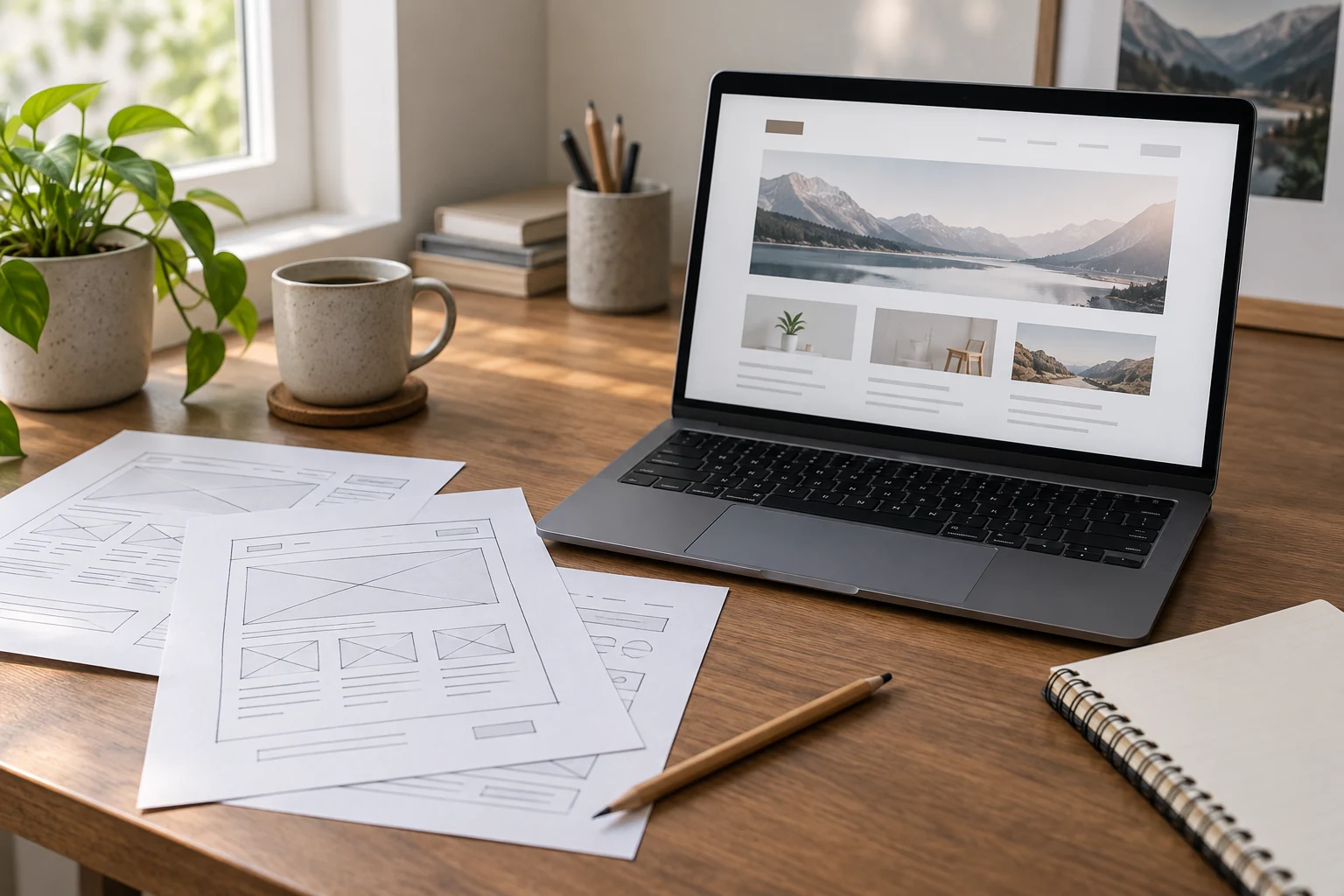
To convert an HTML website to WordPress, create WordPress pages for the content and rebuild the shared layout as a WordPress theme or supported page templates. Move images and downloads, replace static navigation and forms with working destination components, and preserve or redirect old URLs. Test the whole site before switching the domain.
Uploading .html files does not automatically make their contents editable in WordPress. The conversion has two jobs: move the content and give WordPress a reusable way to display it.
Have Niwa convert the site and support everyday editing
Niwa Business is USD 150 and includes a custom WordPress website or migration, hosting, maintenance and AI adaptation. Agree which layouts, files, forms and integrations your HTML site needs to retain.
Once the pages are in WordPress, Niwa can help visitors with maintained business information and support authorized owner content changes. See how Niwa works when deciding which task to configure. Existing WordPress owners can install the standalone Niwa AI plugin without rebuilding the site.
Using AI to help recreate the code or design is website construction. Configuring Niwa to assist visitors or help maintain pages after launch makes it an AI-powered website. One does not automatically create the other.
Inventory the HTML site before rebuilding it
Save a copy of the source files, images, stylesheets, scripts and downloads. Record the live URLs, titles, descriptions and navigation. Include files that may not appear in the main menu but still receive traffic or links.
Identify repeated layouts: home, service, article, contact and landing page. Mark the shared header, footer, navigation and content areas. This tells you which parts belong in reusable templates rather than in each page's content.
List interactive features separately. A static contact page might rely on an external form service, a server-side script or JavaScript. Record what actually receives the submission. Add analytics, consent controls, booking links and any embedded third-party services that must continue.
Choose between rebuilding and converting the theme
For a small brochure site, recreating the layout with a supported WordPress theme and blocks is often straightforward. It gives the owner normal editing controls without preserving every old implementation detail.
If the existing design must closely match, a developer can convert its shared structure into a WordPress theme. Follow the WordPress Theme Handbook for the chosen theme type. A block theme and a classic PHP theme have different template structures; do not assemble a mixture by renaming arbitrary HTML files.
For either route, separate site layout from editable page content. A header copied into ten pages becomes ten places to fix a phone number. Put the shared part in the theme or template system, then use pages for the business content.
Choose based on the layouts and behavior you need, not solely on how closely the first screenshot matches. Test mobile navigation, forms and content editing before converting the full site.
Create editable destinations for the content
Install WordPress on protected staging. Use Pages for service, about and contact content, and Posts for a dated article stream where needed.
For a small site, recreate each page deliberately. Copy the meaningful content, then rebuild headings, paragraphs, lists, images and links using the destination editor. Do not paste the full document wrapper, including <html>, <head> and <body>, into a page's content.
For a large archive, use a controlled extraction and import process. Define the content region for each layout, excluding shared navigation and footers. Map the extracted title, body, slug, dates and media to the chosen WordPress importer. Test several layouts before running the whole archive, and keep source identifiers to avoid duplicate records on retries.
Do not assume WordPress includes a one-click importer for every static HTML layout. The source structure and chosen import method must actually match.
Rebuild shared templates and navigation
With a block theme, the Site Editor provides the relevant template and layout editing tools. A classic theme may use its own supported template and customization controls instead. Select the correct route for the installed theme.
Build the header, footer and navigation once. Configure page templates for repeated layouts and keep content owners from having to edit code for ordinary text changes.
If the site uses a fixed home page, configure a static front page and, where needed, a separate Posts page. Check menu destinations after setting this structure.
For example, an old services.html page may become /services/, while its service-detail layouts become separate pages. Keep the service content editable and its call to action connected to the new contact flow. Record the redirect from the original file path rather than leaving an old link broken.
Move assets and make interactive features work
Upload the required images and files into the destination or another deliberately managed asset location. Update relative paths and links so they work from nested page URLs. Check image galleries, downloadable PDFs and font loading.
Carry over custom CSS and JavaScript only where the destination still needs their behavior. Avoid loading a whole old page bundle merely to retain one simple interaction. Verify that remaining scripts do not depend on element IDs or markup that changed during the rebuild.
Reimplement the contact form with a supported destination process or reconnect its existing service appropriately. Test validation, submission, delivery and the confirmation state. A successful-looking message is not enough if the business receives nothing.
For booking, connect Niwa to the business's availability and reservation workflow. It can use the website's business context to answer questions, offer available appointments and complete the booking directly in a WhatsApp conversation. Rebuild the website booking flow too if it is part of the site's scope. On either route, verify that the chosen service, time and customer details reach the saved booking record. An unsaved request is not a confirmed reservation.
Preserve paths and check the final site
Map .html paths, directories and important campaign landing pages to the new destinations. Preserve suitable URLs where practical or install permanent redirects for changed ones. Update internal links to the final paths and avoid chains through several old URLs.
Check titles, descriptions, canonical URLs and the sitemap. Review useful content during the move, but do not use migration as a reason to discard pages with a clear purpose without an agreed decision.
Test every layout on desktop and mobile. Check keyboard navigation, headings, images, forms, downloads and the absence of horizontal overflow. Confirm the staging site's restrictions are appropriate before launch and that the intended production pages become accessible after cutover.
Keep the old files and restore instructions for the agreed recovery period. Switch the domain only after the content and functional checks pass.
Verify that the owner can maintain the result
Ask the owner to change a service paragraph and inspect the saved page. Then configure Niwa for the supported authorized editing workflow and check its saved and public result. Visitors should receive business answers, while editing access stays with authorized owner identities.
Send your site URL, page layouts and essential forms or scripts through Niwa's contact page. Agree which design elements and functions the WordPress conversion will preserve before work begins.

