

How to Add Consultation Booking to a Medspa Website
Add medspa consultation booking with one schedule, defined services, staff availability and clear contact fields. Test the saved appointment on a phone.
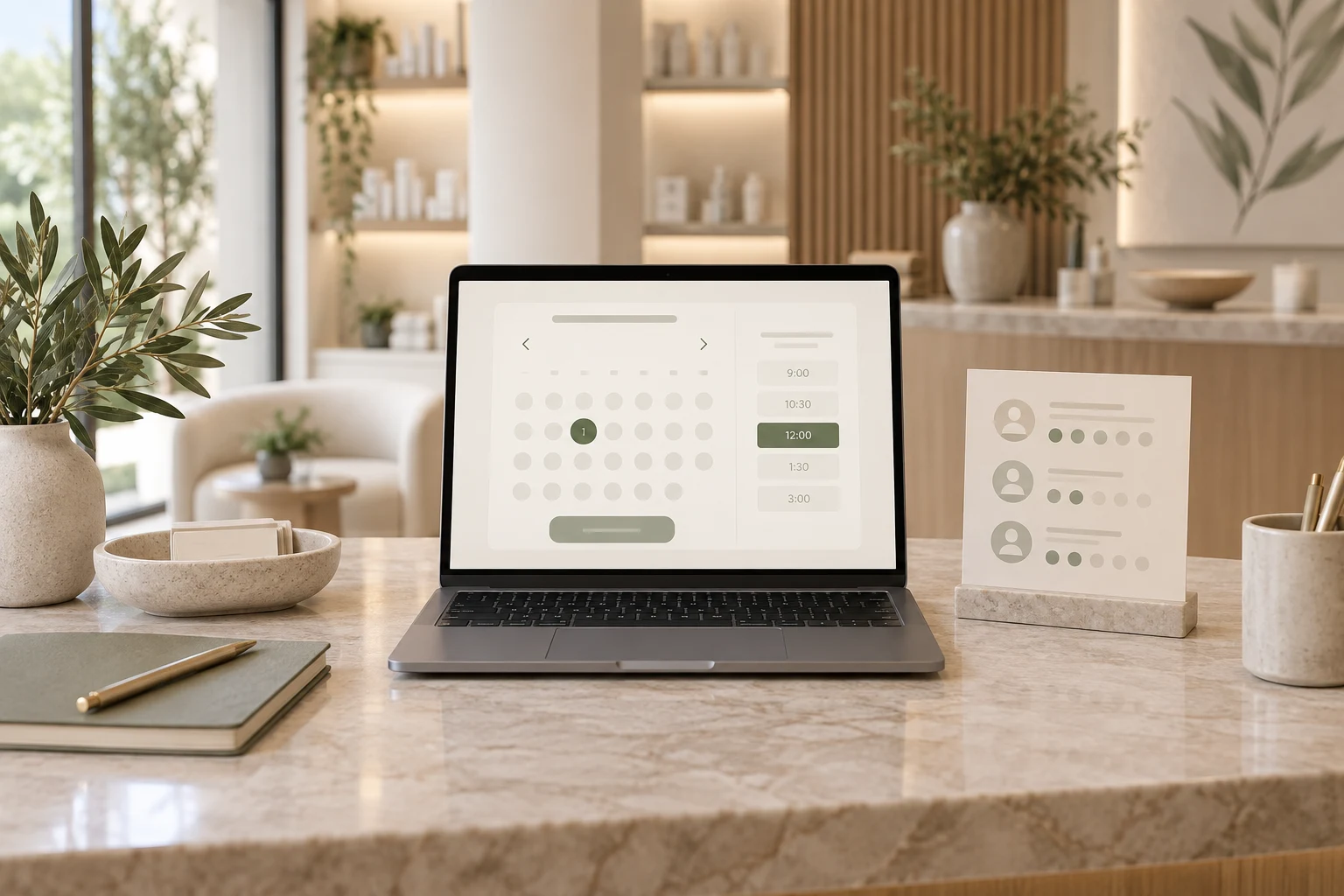
Add consultation booking to a medspa website by choosing the schedule that will hold appointments, defining the consultation services and publishing a booking route that uses real staff availability. Collect the details needed to arrange the visit and test that a completed reservation appears in the intended schedule.
On WordPress, Niwa provides a booking system and an assistant for medspa enquiries that answers practical questions before opening the website booking flow. You can install its standalone plugin on an existing site. Niwa can also use the same clinic context and availability to answer enquiries and complete bookings directly in WhatsApp.
Choose the appointment system first
If your clinic already uses a scheduler or electronic medical record system, decide whether it will continue controlling appointments. Linking or embedding its booking page may be the appropriate route. Check what the provider supports before promising a direct integration.
An existing system may manage rooms, equipment, deposits or clinical records as well as appointments. For example, Aesthetic Record describes its online booking and scheduling capabilities. List the capabilities your practice actually relies on and verify each one against the proposed setup.
Niwa's booking system supports consultation services and staff availability. Do not assume that publishing a second calendar will synchronise it with your current one. Pick an authoritative schedule and establish how staff will keep it current.
Define a consultation people can identify
Create an appointment service with a clear patient-facing name, a duration and the team members who provide it. Describe the consultation's purpose and published fee on the website.
Make sure the booking option describes the appointment that will actually take place. A consultation to discuss skin treatments should not reserve a particular procedure without the clinic's assessment process.
For each assigned team member, configure working hours, breaks and exceptions. Check leave and location differences. If you use an authorised Google Calendar connection, verify availability and synchronisation with the clinic's real working pattern during setup.
Install and configure the WordPress workflow
Take a backup and use the site's normal staging process when changing its booking setup. WordPress documents plugin installation and management, including installing a plugin from its ZIP file through the administration area.
Install and activate Niwa, connect the supported AI account and provide the clinic's approved information. Configure the consultation service, staff schedules and booking contact fields. Choose the website pages where the assistant and booking action will help the visitor.
Use one clear route from the consultation page. A visitor can ask Niwa about the service, then open booking on the website. If you retain an external scheduler, the assistant should explain and link to that route accurately.
Collect administrative details with clear labels
Select the required contact fields your process needs, such as name, email and phone. Explain the appointment type, selected time and location before submission. Keep clinical intake in the clinic's approved process.
W3C's forms tutorial covers clear labels, instructions and accessible controls. Check the form with a keyboard and on a small phone. An error should tell the visitor what to correct without erasing the details they already entered.
If the visit requires staff approval, call the result an appointment request. Use confirmation wording only when the selected time has really been reserved. Likewise, describe deposits or reminders only when the chosen booking system provides and has been configured for them.
Verify the result in the schedule
Use an isolated test appointment with your team. Choose the service and available time, submit the contact details and read back the saved booking. Check the appointment duration, assigned staff member and displayed confirmation.
Try the journey again with a time that is no longer available. Confirm that the person gets an accurate result rather than a duplicate reservation. Include an invalid contact detail, a staff break and a schedule exception.
Test WhatsApp booking separately: ask a service question, choose an available consultation and provide the required contact details in the conversation. Check that Niwa records the appointment and confirms it in WhatsApp. Testing only the first reply leaves the reservation step unverified.
Maintain the route after launch
Give reception responsibility for service names, prices and schedule changes. Recheck the booking journey after updating the plugin or changing the connected calendar. Review incomplete reservations with the affected step, rather than counting every form view as a booking.
An AI-built website describes the build process. Niwa makes the site AI-powered by helping people with questions and supported booking tasks after launch. Niwa Business is USD 150 for a custom WordPress site or migration, hosting, maintenance and AI adaptation. Discuss adding consultation booking with your service list and the name of the schedule you currently use.

