

How to Publish AI Content on WordPress
To publish AI content on WordPress, save the finished text as a post draft, set its title, URL, image and metadata, inspect the preview, then publish the approved post.
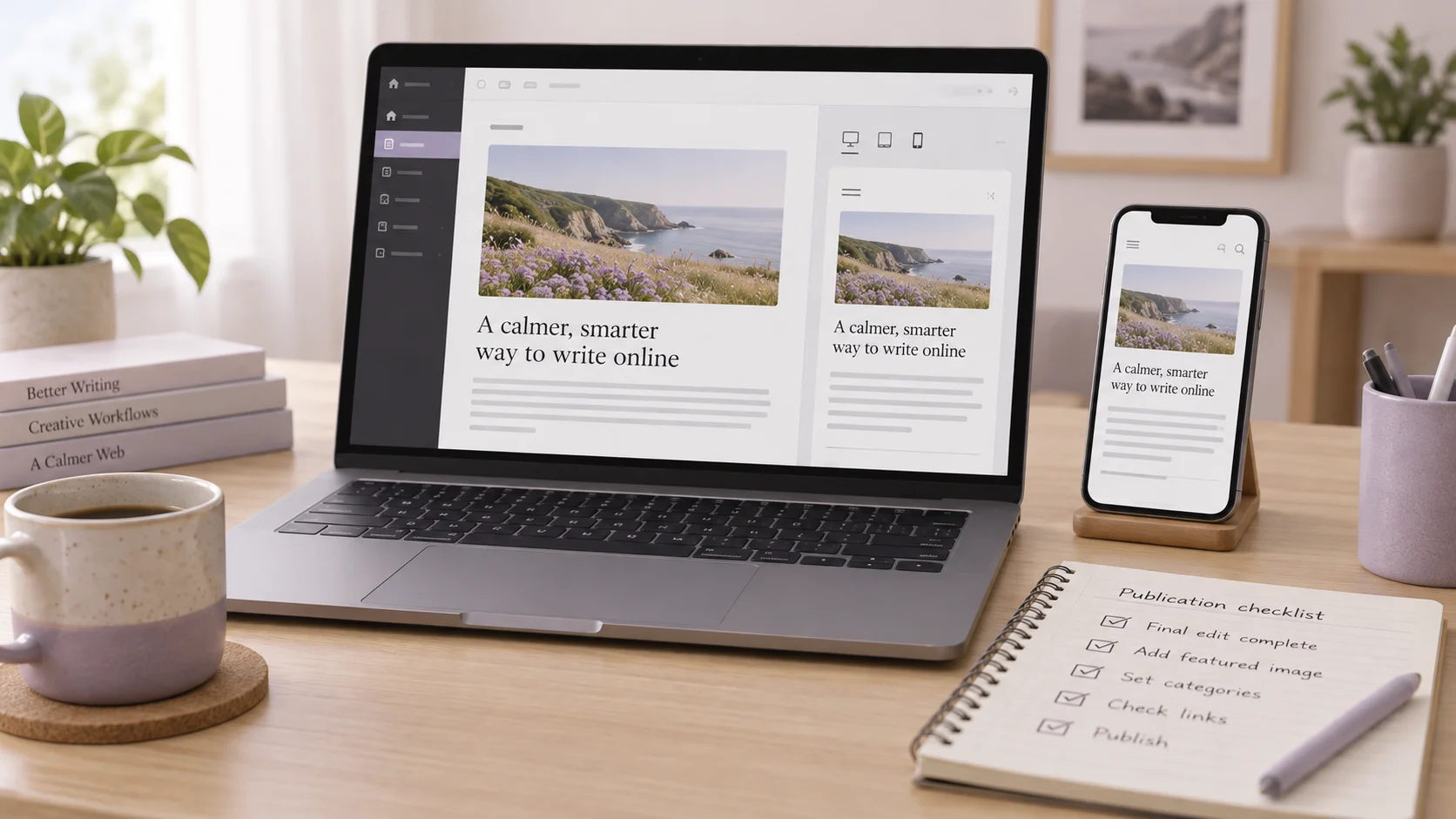
To publish AI content on WordPress, save the finished text as a post draft, set its title, URL, image and metadata, inspect the preview, then publish the approved post. Niwa can carry out that WordPress workflow through its owner assistant. Review the saved page before giving the publishing instruction.
This guide starts with an article you have already written and checked. If you are still choosing a subject or preparing the text, begin with writing a blog post with AI. Here, the job is getting that article into the right WordPress record and making its public page work.
Establish where the article belongs
Open the blog inventory before creating a post. Look for an existing article answering the same question, including drafts. If you are revising that answer, work on its existing ID. A new URL is appropriate when the article has a distinct purpose.
Choose Post for a dated article that belongs in the blog. A permanent service explanation usually belongs in a Page. Neither choice makes the content rank automatically; it determines how the site organizes and displays it.
With Niwa, make the initial instruction explicit:
Inspect existing posts for this article's question and show any matching drafts or published answers. Recommend an existing post or a new blog post, with the reason. Do not create or publish anything yet.
Read the matches and settle the destination. Keep the chosen post ID or proposed slug in your publication notes.
Save the text in one draft
In WordPress, go to Posts, create a post and enter its title. Paste paragraphs, headings and lists into the appropriate blocks, then save the draft. Check the pasted content: text copied from another application may carry awkward spacing or lose its structure.
If Niwa is handling the save, supply the finished text and request a draft:
Save this approved text as a WordPress blog draft titled [title], using slug [slug]. Return the post ID, edit link and preview link. Keep the post unpublished.
Niwa's article workflow separates drafting from publication. When it returns an ID, open that saved post. An assistant response containing your text does not by itself establish that WordPress saved it.
If the save reports a problem, inspect the existing record before trying again. Correcting post 123 is different from creating a second copy of it.
Check headings, lists and quoted material
The theme normally displays the post title as the page's main heading. Start the body with an introduction, then use H2 headings for sections and H3 for their subsections. Avoid pasting another H1 into the article body.
Use List blocks for actual lists and Quote blocks for attributed quotations or example requests. A table pasted as plain text may display separator characters instead of columns. Rebuild it with a Table block or ask for a supported conversion, then inspect every cell.
Remove conversational wrappers such as an assistant announcing that it has finished. Keep citations beside the claims they support. Open external links and ensure internal links reach the relevant existing pages.
Do this in the saved editor and preview. A source file that looks tidy can still render poorly in a theme.
Set the post's image and search information
Use the Post settings sidebar to check the slug, excerpt, category and featured image. Pick a category that readers already use to find this kind of article. Add tags only when they serve a useful grouping.
The excerpt summarizes the article for your site's listings. The search meta description is a separate field controlled by your SEO setup. Write a short, accurate explanation of the answer; do not promise a result the article cannot deliver.
Choose an image you own, are licensed to use or have generated for the article. Describe an informative image with relevant alt text. A conceptual illustration should not be passed off as a real customer photograph or a screenshot proving a product result. The W3C image guidance explains how text alternatives depend on an image's purpose.
Ask Niwa to report the saved fields so you can compare them with the brief. Then inspect the page's actual output, particularly when an SEO plugin and theme both provide metadata.
Preview as a reader
Open the preview at desktop and phone widths. Read the first screen, scroll through the whole article and follow the links. Check image loading, list indentation, table width and whether the final action makes sense.
For example, a guide to measuring a dining table should lead to the collection or a relevant enquiry. Sending its reader to an unrelated promotion adds friction even when the link works.
Give corrections against the existing record:
In draft [post ID], change the second section to the approved wording below and correct this link. Keep it as a draft. Return the updated preview.
Review that version again. Do not approve an old preview while someone is still changing the saved post.
Publish the reviewed record and inspect its URL
When the page is ready, use WordPress Publish or tell Niwa to publish the specific approved post ID. Niwa's governed publisher checks the current version before executing the publishing action. A changed post needs a fresh review.
Open the returned public URL in a logged-out browser. Confirm the title, body, image and links. Check the canonical URL and meta description in the page output. If the page still shows older content, compare the WordPress record with the cached public response before making another edit.
Publication makes the page accessible. Search-engine indexing is a separate event and does not guarantee a particular position.
Use Niwa with your existing WordPress site
Install the standalone plugin using the Niwa setup guide if your website already exists. Give the owner assistant the article, its intended destination and the review instructions.
Niwa Business is USD 150 for a custom WordPress website or migration, hosting, maintenance and AI tools adapted to the business. Contact Niwa with your site URL and the publishing task you want to complete.

