

How to Add Online Appointment Booking to a Clinic Website
Add clinic booking with an existing scheduler link or Niwa on WordPress. Configure services, availability and contact fields, then check the saved appointment.
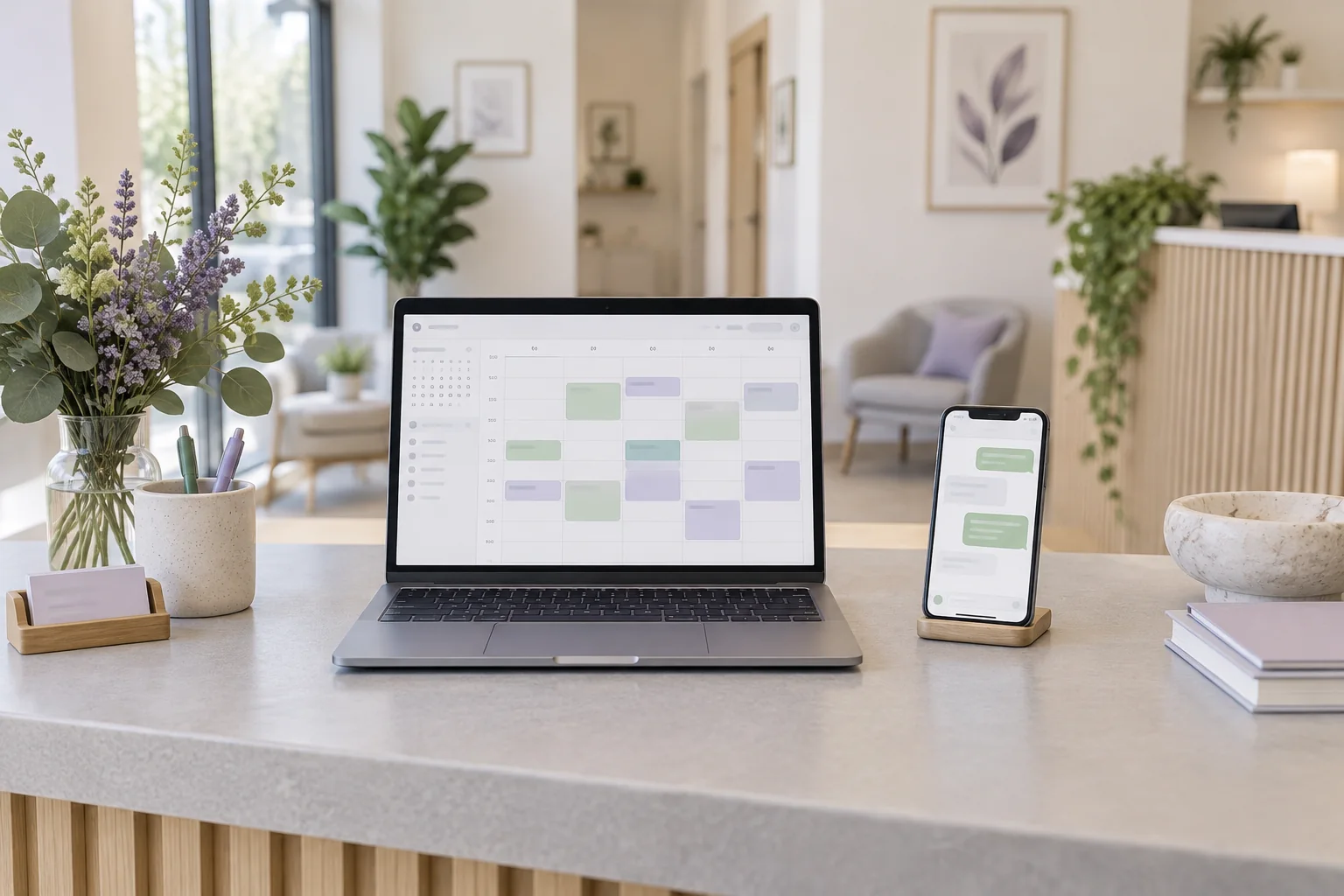
Add online appointment booking by connecting your clinic website to the schedule staff actually use. Put a clear booking button on the relevant service pages, configure which appointments patients can book and check the full journey on a phone. A button is useful only when it leads to the correct service and a time the clinic can provide.
On WordPress, Niwa's booking system can provide local services, availability and appointment records. If the practice already has a working scheduler, its existing booking link may be the simplest choice. You can add patient-facing assistance without moving clinical records or rebuilding the whole site.
Choose the schedule that will hold the appointment
Decide where reception will look for the final booking. That might be Niwa's local schedule or the booking system your practice already uses. Write down its name, the person responsible for it and what counts as a successful reservation.
Do not run two unrelated calendars as though they share availability. A link from the website to another scheduler is a navigation route, not a synchronisation connection. If staff enter appointments in a separate system, decide how those occupied times are reflected before opening online booking.
For an existing Cliniko account, the vendor documents a booking link, website button and embed. Use the link supplied by your own account. Other schedulers may offer an appointment-request form instead; label that route accurately.
Prepare the services patients can book
Start with a small set of services the practice has approved for self-booking. For each, record its public name, duration, eligible staff, location and any attendance information. The description should explain what the visit includes without asking the patient to diagnose themselves.
An illustrative physiotherapy practice might offer an initial appointment and a follow-up, with different durations. Reception should decide whether patients can select either directly or need staff help first. These are configuration examples, not recommended clinical appointment lengths.
Set each provider's working hours, breaks and unavailable dates. Check the site's timezone. An office that opens on Saturday does not necessarily have every clinician available on Saturday.
Add the booking entry to WordPress
If you choose Niwa, follow the installation and setup guide to activate the plugin and connect a supported AI account. In Scheduler, configure the approved services and team availability before enabling the public booking flow.
Niwa provides the [niwa_booking] shortcode for a booking button. Place it in a WordPress Shortcode block on the appointment page. An existing button can also link to #niwa-booking to open the enabled booking flow. Preview the page after saving and verify that the controls appear.
For an external scheduler, select the booking button in your WordPress editor and enter the account's approved HTTPS booking URL. An ordinary link is often easier to maintain than an embed. If you choose an embed, use the provider's current instructions and test its size, loading and keyboard access.
Put the button where a patient needs it
Include a booking entry on the appointment page and beside service information that explains who may book. A visitor should not need to return to the homepage after reading a service description.
Use a label that describes the result. Book an appointment fits a flow that actually reserves a time. Request an appointment fits a form reception must approve. Keep a visible phone or staff-contact route for patients who cannot complete the online process.
Niwa can answer administrative questions using your website's service information and book appointments on the website or directly in a WhatsApp conversation. A patient can ask about a visit, choose an available time and receive the saved booking details in the same exchange. The website booking button gives patients another way to reserve.
Keep the form focused on arranging the visit
Collect the contact details reception needs to identify the appointment and communicate with the patient. Review which of name, telephone number and email your process requires rather than accepting every default field.
Keep medical history, test results and photographs in the practice's approved clinical-intake process. Add a clear privacy explanation near the booking form. A routine scheduling form should not become an open-ended medical questionnaire by accident.
Test the saved record and the patient view
Use a fictional contact that your team controls for an authorised setup test:
- Open the service page on a phone and select its booking button.
- Choose an approved service and inspect the available staff, date, time and timezone.
- Submit the required contact details.
- Open the appointment record in the chosen schedule and compare the service, provider and time.
- Check any enabled confirmation separately for the correct recipient and attendance details.
Also try an unavailable time, a closure date and a service needing staff involvement. A saved appointment and a delivered notification are separate checks. For a request form, verify the request reaches reception and explains when the patient should expect a reply.
Resolve problems before opening the flow
If the button opens the wrong service or location, inspect the destination rather than adding another button. If no slots appear, check eligible providers, working hours, breaks and existing appointments. If a record exists but no message arrives, investigate the configured notification channel without asking the patient to book again.
Keep the clinic's telephone route visible while fixing problems. Assign an owner to update services and availability when staff schedules change.
Choose the website work you actually need
An existing WordPress site can use the standalone Niwa AI plugin. Niwa Business costs USD 150 for a custom WordPress website or migration, hosting, maintenance and AI adaptation. Your proposal should specify the booking setup and billing terms.
Discuss your clinic website and booking setup. Bring the current website, scheduler name and one approved service so the discussion starts with the appointment journey you need.

