

How to Fix Broken Links on an AI-Built Website
Fix broken links by recording the source and destination, identifying the intended resource, correcting the link or selecting a relevant redirect, then checking the live route.
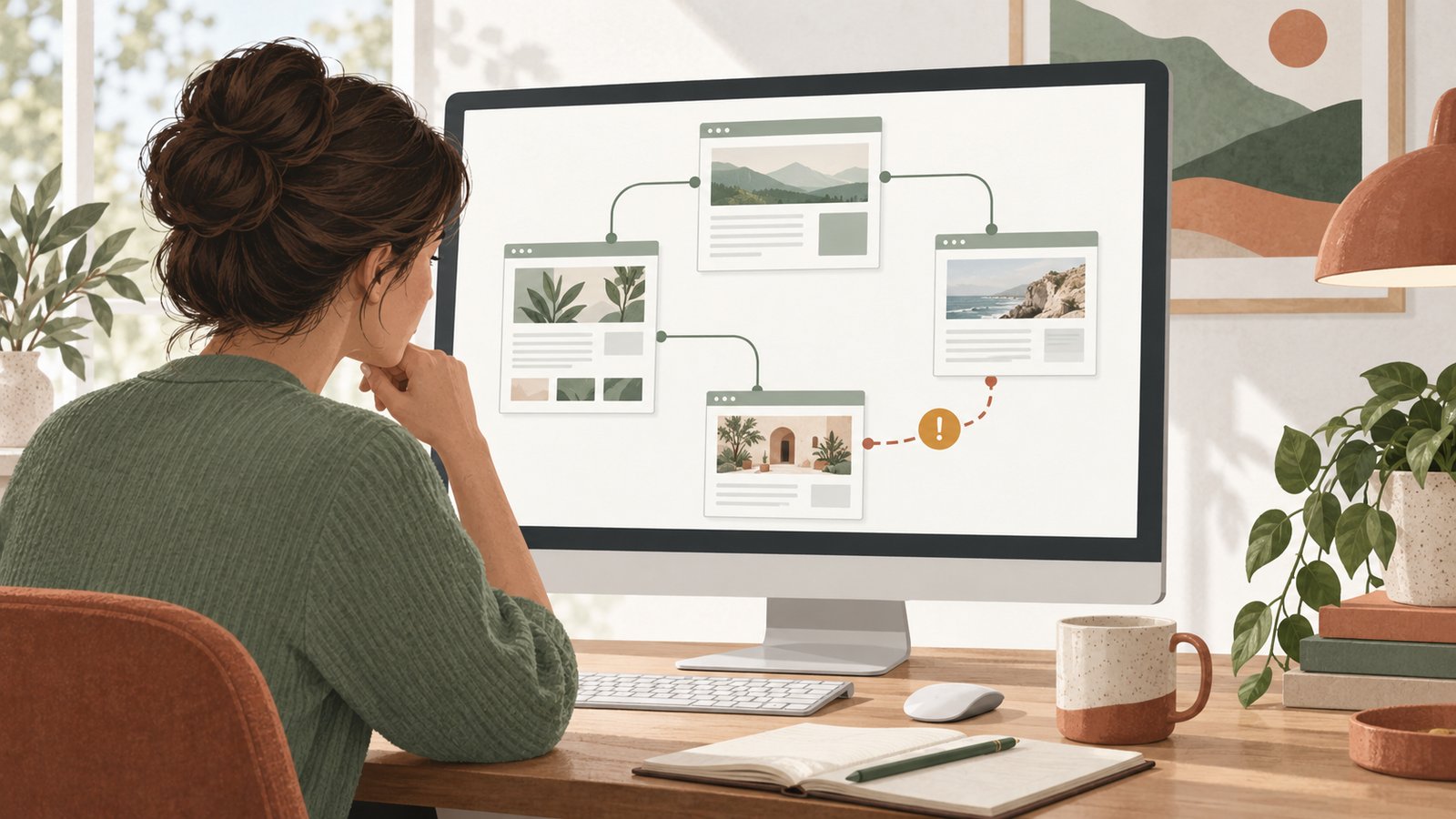
Fix a broken link by recording where it appears and where it points, identifying the resource the visitor expected, and correcting the source link or adding an appropriate redirect. Then open the public destination and complete the intended action. Avoid replacing every failed URL with the homepage; that can leave the original customer task unresolved.
For WordPress, Niwa's maintenance agent can inspect the affected content and help change an identified link. Give it the source page, the link label, the current destination and the intended replacement. Review the saved link and its public result.
Record the link before changing it
Open the page where the link appears and copy its actual destination. A visible label such as "Book a repair" may point somewhere unexpected. Record the source URL, label, destination, observed result and the visitor's intended task.
Check the link in an anonymous browser too. A destination may work for an administrator but fail for a visitor because it belongs to an editor, preview or private page. Note whether the failure happens after a click, when the URL is opened directly, or both.
Prioritize links that block enquiries, booking, payment or access to essential information. A failed image credit deserves attention, but it is a different immediate business problem from a broken contact button on every service page.
Classify the technical result accurately
Inspect the response and page content together. A 404 usually means the requested resource was not found. A 403 may indicate an access restriction. A server error can affect an otherwise valid destination. A redirect may end at the wrong page or loop between addresses.
Google's HTTP status documentation also explains that a successful response can contain an error-like page. Do not mark a link repaired just because the final response is 200; read what the visitor receives.
Open a few other URLs on the destination site. If an external service is temporarily unavailable, replacing its address with an unrelated page is unlikely to help. Establish whether the resource moved, disappeared or is experiencing a service problem.
Correct invented, preview and mistyped URLs at the source
An AI generator can produce a plausible-looking path without creating the page behind it. Inspect the CMS or published page inventory to find the real resource. If the intended page exists, use its actual public permalink. If it does not, decide whether to create the missing information or remove the promised route.
Replace temporary preview domains after deployment. Check for an editor URL, local development address or old domain in buttons and navigation. Do not run a blanket text replacement across all site data without reviewing the matches; the same text may appear in historical notes or unrelated integrations.
Ask Niwa to correct the named link on the named WordPress page. Afterward, inspect the element itself and test its destination while logged out. The owner assistant workflow separates private editing from customer use, so the public test remains necessary.
Choose redirects according to the missing page's purpose
When a page has permanently moved and has a genuine successor, a permanent redirect can preserve a useful route from the old address. For example, a previous service URL can lead to the current page describing the same service.
If the resource is permanently gone and there is no appropriate replacement, removing or updating the source link may be the right action. A discontinued product should not silently send visitors to an unrelated product with different characteristics. Explain the alternative when a relevant one exists.
Have the redirect implemented in the site's existing routing or redirect system. Check for loops and unnecessary chains, and test both the old address and the final destination. Google's documentation distinguishes permanent and temporary redirect signals. Choose based on the real change, rather than treating every status as interchangeable.
Check menus, reusable components and language variants
A broken URL in a shared header or footer can affect many pages. Identify its actual source before editing dozens of page bodies. Some WordPress navigation lives in menus or templates; a builder may store it elsewhere.
After correcting the shared component, inspect several pages using it. Check desktop and mobile navigation. Also review translated versions: each language's link should lead to the intended language or make a deliberate, understandable transition.
Open the translated page in the CMS and copy its published permalink. Check the language switcher and the corresponding menu item against that address, then open the destination while logged out. An English slug with a language prefix added to it may not match the translated page's real address.
Repair anchors and generated navigation
Some links fail inside a page rather than between pages. A table-of-contents item might point to a heading ID that no longer exists. A fixed header can obscure the target even when the browser reaches the right element.
Compare the anchor in the link with the actual target ID. Check that the target is unique and that clicking leaves the relevant heading or content visible. Repeat after a content change that renames headings.
For JavaScript navigation, open the URL directly and refresh it. A route can work during an existing session yet fail when someone follows a shared link. Google's JavaScript SEO documentation describes the importance of crawlable links and handling missing resources correctly.
Verify the repaired customer journey
Retest from the original source page, following the corrected link as a visitor. Confirm the final page explains what the label promised and that its next action works. If the link leads to booking, reach the website's availability and complete an appropriate test reservation on a test system.
Inspect public cache behavior after saving the change. An editor can show a new URL while visitors still receive the old component. Verify the served destination and clear the relevant cache through the site's normal maintenance process when necessary.
Keep the old and new destinations, the reason for the correction and the verification result. This makes later changes easier to assess. The AI website mistakes guide places link checks alongside forms, mobile behavior and recovery.
Give Niwa the broken route and intended destination
Send the source URL, current link and expected resource through Niwa's contact page. Existing WordPress owners can install the standalone plugin for content and maintenance work.
Niwa Business costs USD 150 and includes a custom WordPress website or migration, hosting, maintenance and AI tools adapted to the business. Confirm the billing period and requested work before ordering. A complete link repair restores the visitor's route to useful information or an action, then proves that route works publicly.

