

WordPress homepage title not changing? Find the right text
Trace a homepage heading to the right WordPress field, block or widget, then request a focused Niwa edit and verify the public result.
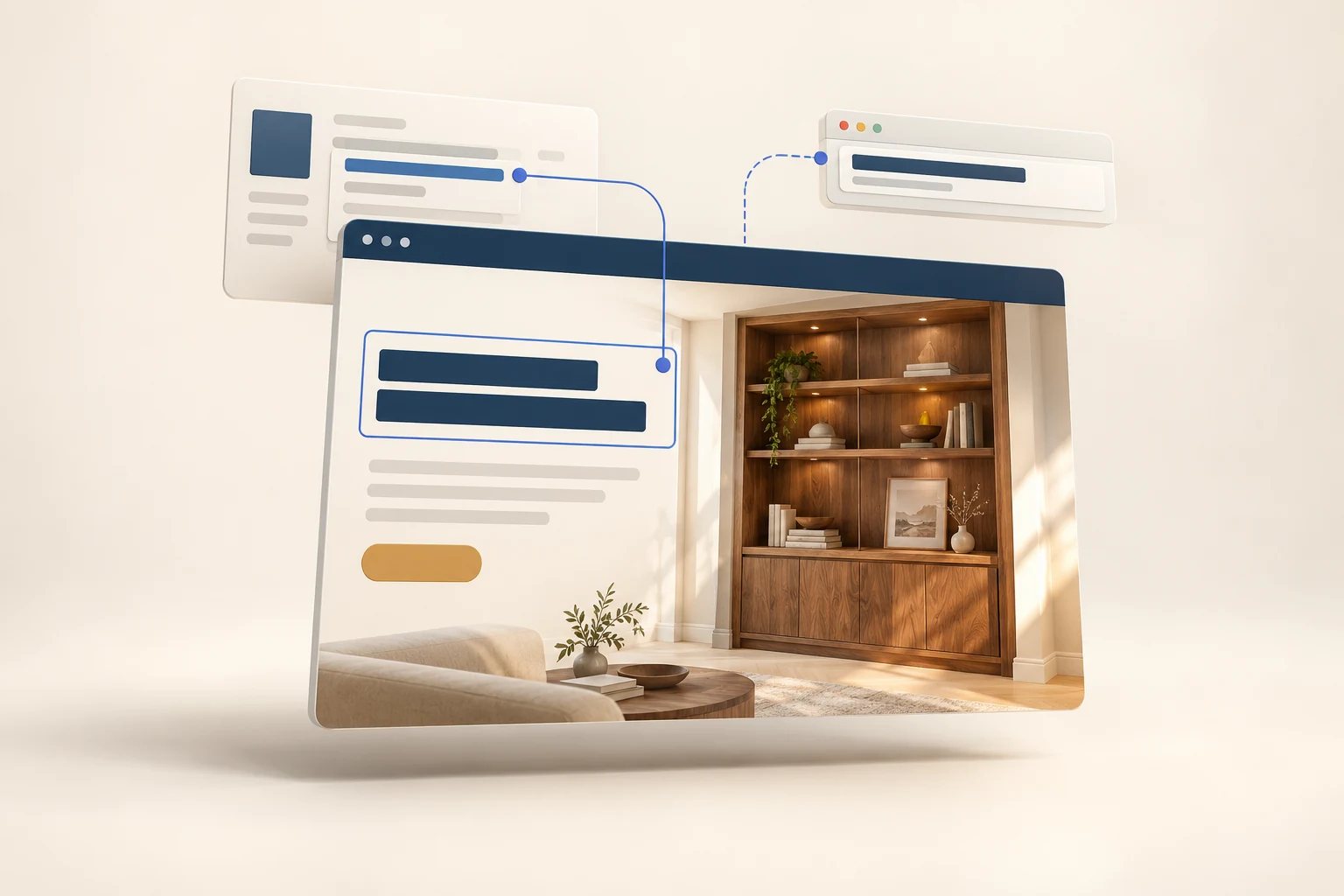
You rename your WordPress homepage, click Update, and open the site. The large heading still says exactly what it said before. Meanwhile, the page has a different name in the dashboard. The save may have worked perfectly; you may have changed a different piece of text.
A homepage can have a stored page title, a heading inside its design, and a title in the browser tab. They can share the same words, but they do not have to share the same source. Finding the source of the visible sentence is the useful first step.
Start with the words you want visitors to see
Copy the exact old text from the public homepage and write the replacement beside it. Include the URL and identify its position: for example, “the large heading above the consultation button.” That is much clearer than asking someone to change “the homepage title.”
For a fictional woodworking studio in Raleigh, the request might be to replace “Beautiful spaces start here” with “Custom built-ins for Raleigh homes.” The dashboard name can remain “Home.” The business wants a clearer explanation of its service, without renaming other parts of the site.
| Text you mean | What to inspect |
|---|---|
| Name in the Pages list | The stored WordPress page title |
| Large heading on the page | The block, widget or template that renders it |
| Text in the browser tab | The page’s HTML title and its theme or SEO controls |
Yoast’s guide to SEO titles explains the distinction between an on-page heading and a separate SEO title. Treat those as separate checks when reviewing a change, even if your current theme happens to display the same wording in both places.
Make sure you are editing the active homepage
A page named Home is not necessarily the page your domain displays. Check Settings > Reading. WordPress can use the latest posts or a selected static page as the front page; its Reading settings documentation describes that choice.
When a static page is selected, note its page ID and open that record. If there are old landing pages, translated versions or duplicate Home pages, confirm the public URL and language too. Do not change the homepage assignment merely to make an editing test work.
If the site displays posts instead, or the heading does not appear in the selected page’s editor, inspect the active front-page design with the person who maintains the theme. A change to an unrelated page named Home will not establish what visitors see at the domain root.
Check whether the heading is linked to the page title
WordPress’s Title block displays the title of a post or page. A normal Heading block holds heading text in the content. If your homepage uses a separately written heading, changing the stored page title does not rewrite that sentence.
In Elementor, select the heading itself and inspect its content. The Heading widget documentation identifies its Title field for the text and a separate HTML Tag control. This is another place where the word “title” describes something different from the page’s name in WordPress.
Look for a dynamic source as well as typed text. If the heading is pulling its value from somewhere else, follow that source before replacing it. Check whether the design has separate desktop and mobile versions of the section. Seeing the new sentence in one view does not prove that the other view uses the same element.
Before saving, establish whether you are editing this page alone or a shared template. A homepage copy correction should not become an accidental change to every page using that design. Keep the page URL, button destination and layout in your review notes.
Give Niwa a specific inspection request
Niwa’s authorized administrator workflow can search a page’s stored text, including supported page-builder data, and report where a matching phrase was found. It also supports replacing exact text in an identified field. Start by asking it to locate the words, without changing them:
Find the active English homepage and the visible heading “Beautiful spaces start here.” Report the page ID and where that exact phrase is stored. Tell me if it appears more than once. Do not change anything yet.
Review the match before requesting a replacement. A phrase can appear in a desktop section, a mobile section and an unused design. Replacing text across a whole field may affect repeated occurrences within that field, so “found the words” is not enough to establish the intended scope.
Once the intended occurrence and storage location are clear, the studio could request:
In the confirmed homepage heading, replace “Beautiful spaces start here” with “Custom built-ins for Raleigh homes.” Keep the stored page name “Home,” the URL, SEO title, button link and layout unchanged. If the replacement would affect other occurrences, stop and show them first.
Follow any confirmation required by your setup, then review the saved result. These are example instructions for a configured administrator workflow, not a customer chat command or a guarantee that every theme’s heading can be changed automatically.
Know what the broader homepage-title action changes
Niwa also has a dedicated front-page title action. In the inspected current implementation, it changes the stored WordPress title and then attempts to update the first supported visible heading candidate in Elementor data or page content. It reports whether that heading storage was updated.
That broader action is useful only when its scope matches your request. If you want the internal page name to stay Home, use an identified content replacement instead. If no supported heading is found, a successful stored-title update is not proof that the public headline changed.
This is why a final visual check matters even after Niwa reports a saved change. The Website Maintenance Agent overview describes the broader review workflow. Our Elementor content-update guide covers other focused edits once the target element is known.
Check the public page and search presentation separately
Open the ordinary homepage while signed out. Read the heading on a wide screen and at mobile width, then check the browser tab. Confirm that the consultation button still reaches the intended page. If the saved content is correct but visitors still receive the old sentence, use your existing cache tool’s supported refresh for the affected page and check again.
A Google result is a separate check. Google can build its title link from several sources, including the HTML title and visible headings, and it needs to recrawl and reprocess changes. Its title-link documentation explains why a search result can differ. An immediate Google change is not a reliable test of whether today’s homepage edit succeeded.
Want to trace the heading on your own site? Book a Niwa demo and bring the URL, the exact old heading and your replacement. During your Niwa demo, we cover the subscription and AI usage. There is no obligation to buy.

